To manage iOS, iPadOS, and macOS devices in Microsoft Intune, you must have a valid Apple MDM Push certificate (APNs certificate). Apple uses this certificate to trust your MDM server and deliver push notifications to enrolled devices. Without it, enrollment methods such as Company Portal, Apple Business Manager, Apple School Manager, or Apple Configurator cannot complete. This guide walks through creating the certificate with an Apple ID, obtaining a signing request from Intune, and uploading the signed certificate back into Intune. The certificate is valid for one year and must be renewed annually.
Why the Certificate Is Required
Apple’s push notification service (APNs) is the channel Intune uses to wake devices and deliver commands (e.g. lock, wipe, policy refresh). Apple only accepts requests from MDM servers that have a valid push certificate tied to your organization. Once the certificate is uploaded to Intune, Apple can authenticate Intune and allow enrollment and management of your Apple devices. Renewing before expiry avoids enrollment failures and loss of management capability.
Use a Dedicated Apple ID
You will use an Apple ID to request the certificate from Apple. Prefer a dedicated, organization-owned Apple ID (e.g. intune-mdm@yourcompany.com) rather than a personal account. That way, turnover or personal account changes do not affect the certificate. The Apple ID must have two-factor authentication enabled; Apple requires it for the push certificate portal.
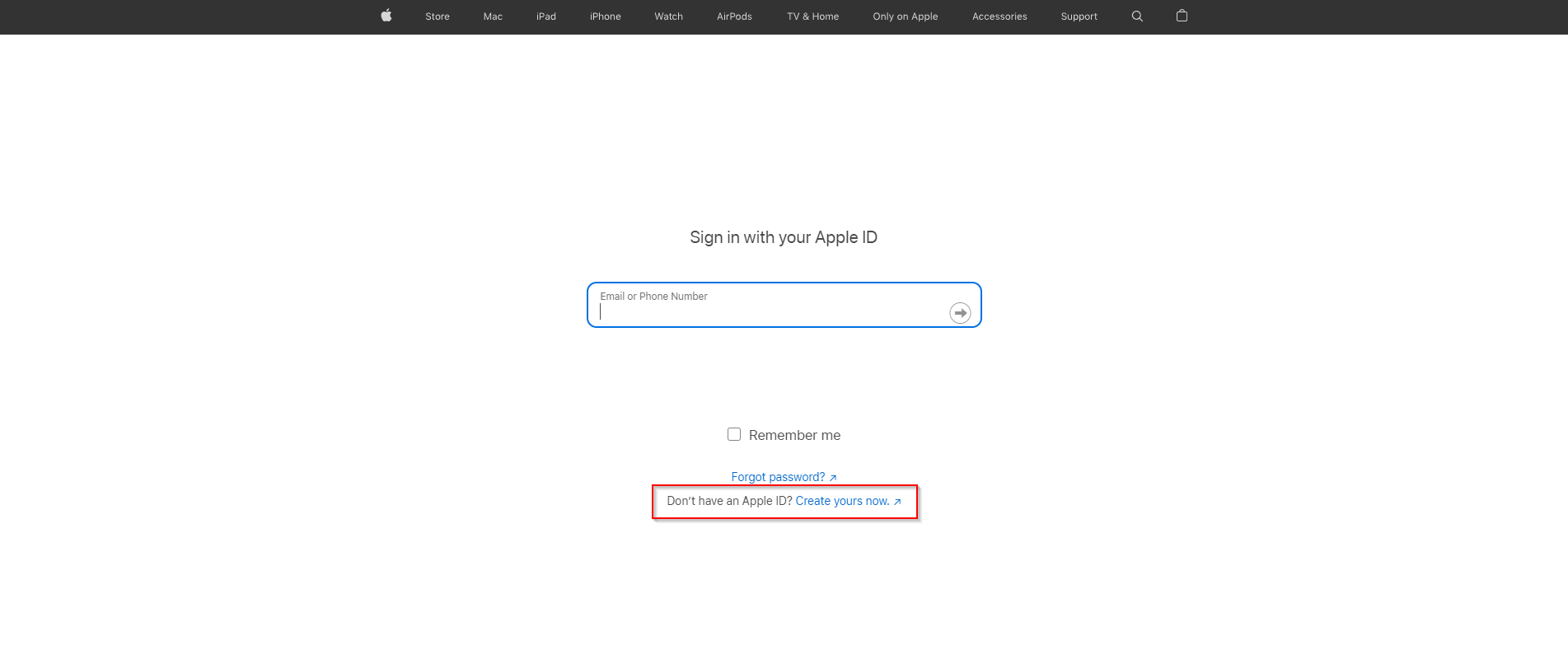
If you need a new Apple ID, go to identity.apple.com/pushcert and use “Create your Apple ID.” Complete sign-up and enable 2FA. Then return to the same portal to create the certificate.
Download a CSR from Intune
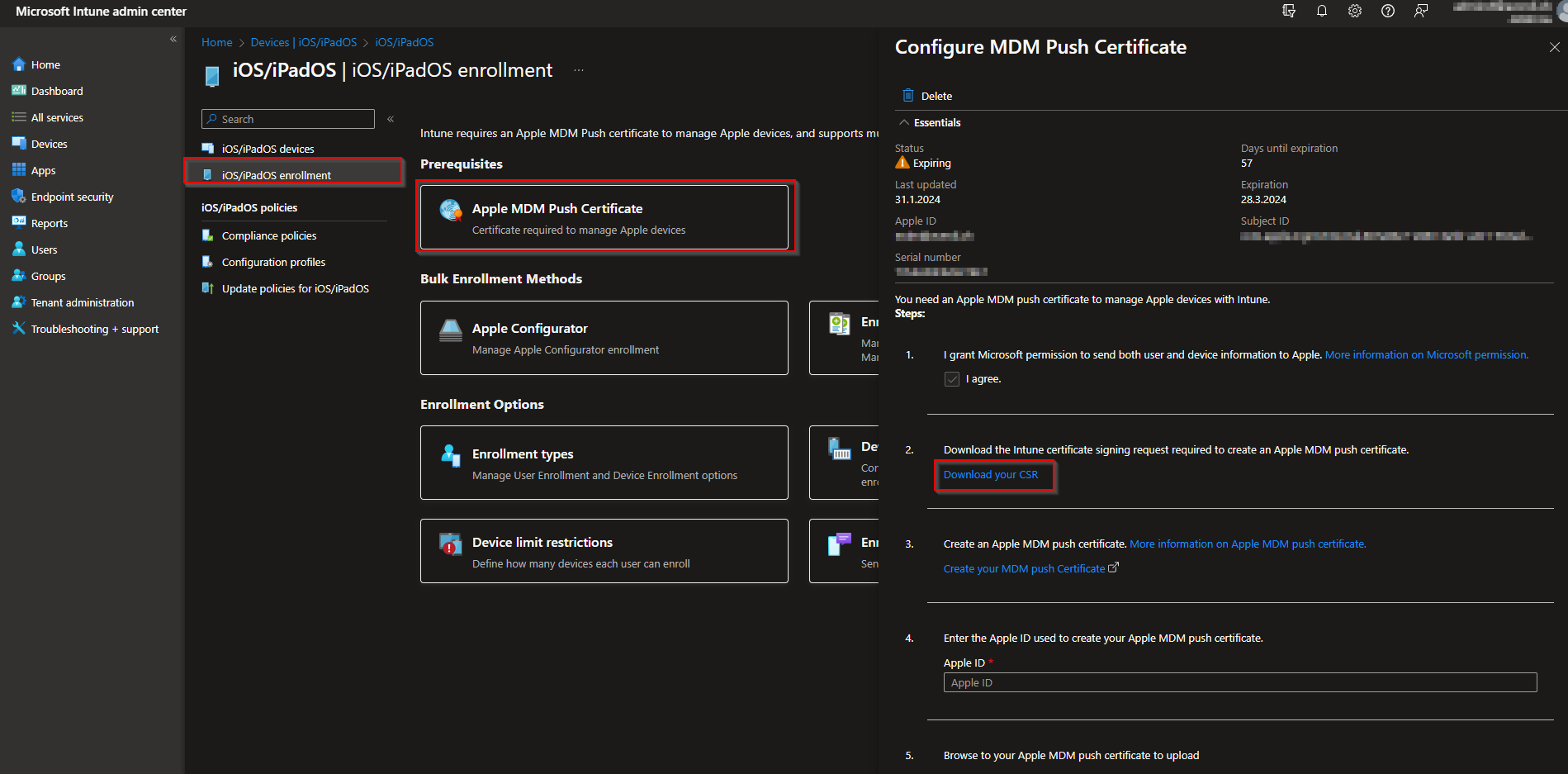
Intune generates a Certificate Signing Request (CSR) that you will submit to Apple. In the Microsoft Intune admin center, go to Devices → iOS / iPadOS → iOS / iPadOS enrollment → Apple MDM Push certificate. Click Download your CSR and save the file (e.g. IntuneMDMRequest.csr) to a known location. You will upload this file in the Apple portal in the next step.
Request the Certificate from Apple
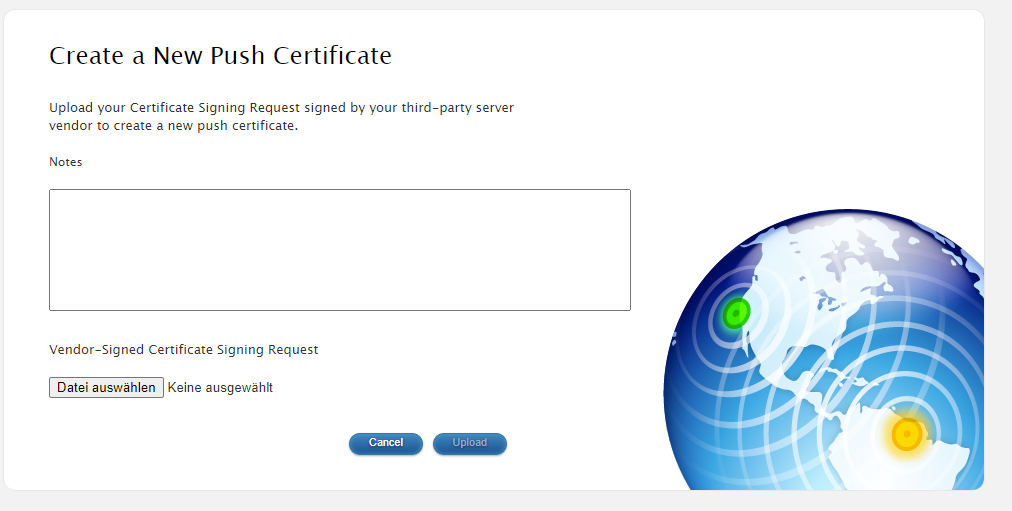
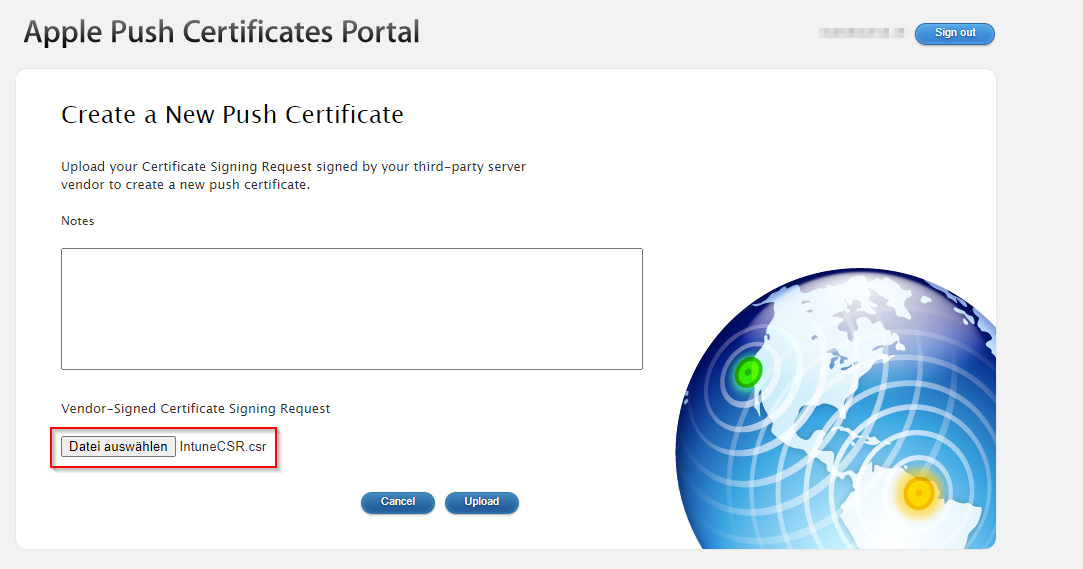
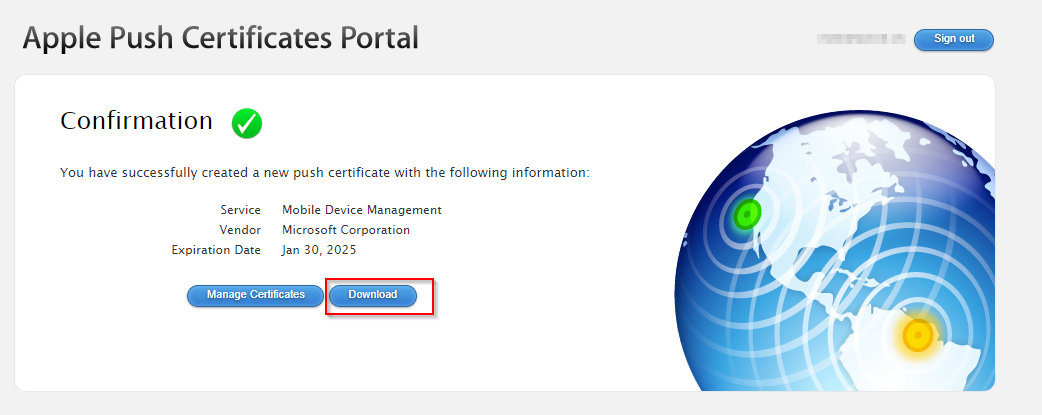
Open identity.apple.com/pushcert and sign in with your Apple ID. Accept the terms if prompted. Click Create a Certificate (or equivalent). When asked for a CSR, upload the CSR file you downloaded from Intune. After Apple processes it, you will see a success message and a Download link for the certificate. Download the file. It will be in PEM format (e.g. mdm_identity.pem). Keep this file secure; you will upload it to Intune next.
Upload the Certificate to Intune
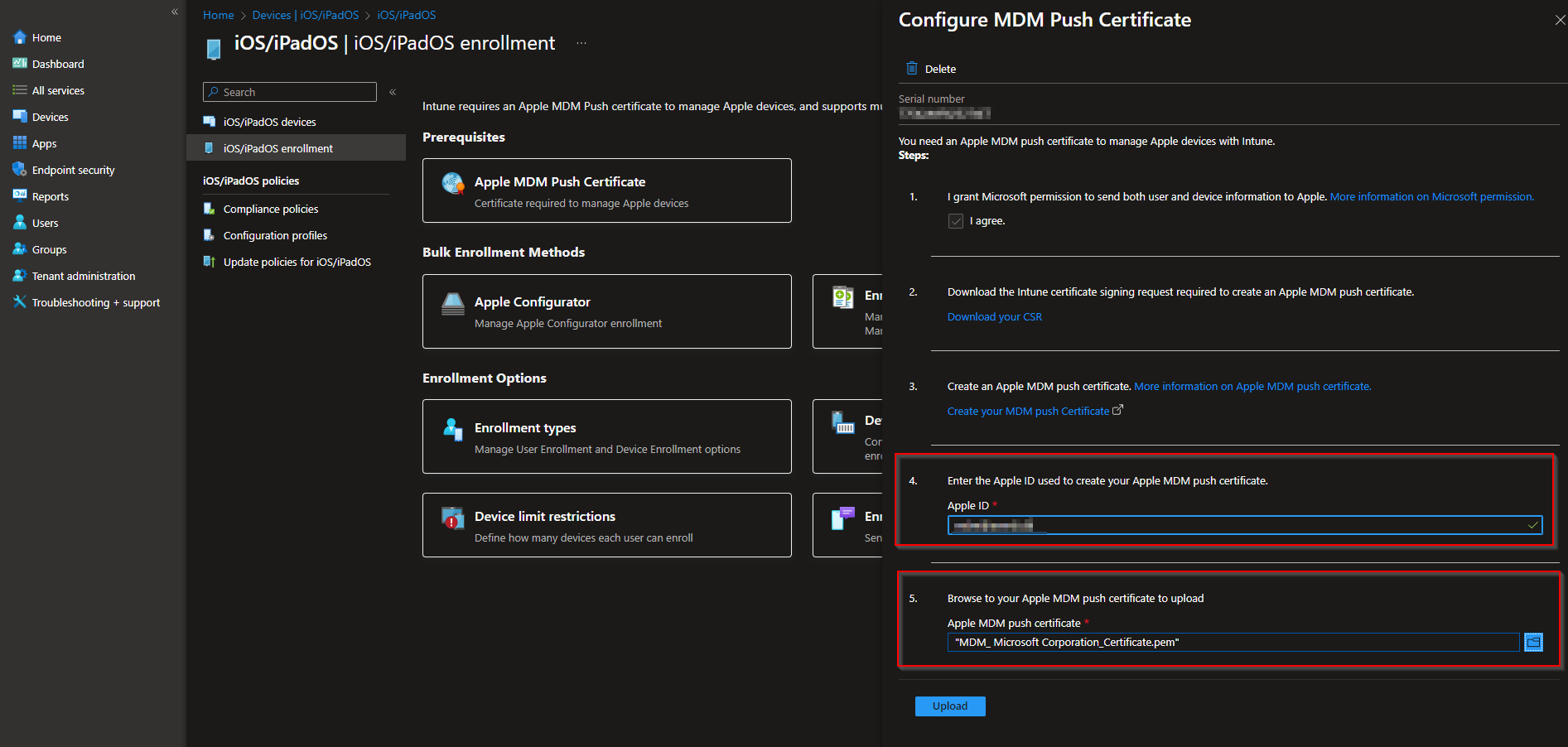
Back in the Intune admin center, go again to Devices → iOS / iPadOS → iOS / iPadOS enrollment → Apple MDM Push certificate. Click Upload your APNs certificate. Select the PEM file you downloaded from Apple, enter the Apple ID used to create the certificate, and click Upload. Intune will validate and store the certificate. The portal will show the certificate’s expiration date and confirm that iOS/iPadOS and macOS enrollment can proceed.
Renewal and Next Steps
The Apple MDM Push certificate expires one year from creation. Before it expires, repeat the process: download a new CSR from Intune (same Apple MDM Push certificate page), create a new certificate in the Apple portal using the same Apple ID, download the new PEM file, and upload it to Intune. Set a calendar reminder a few weeks before expiry. After the certificate is in place, you can configure enrollment methods (e.g. Company Portal, Apple Business Manager) and start enrolling devices. For detailed prerequisites and renewal steps, see Get an Apple MDM push certificate on Microsoft Learn.
Summary
To create an Apple MDM Push certificate for Microsoft Intune: use a dedicated Apple ID with 2FA; in Intune go to Devices → iOS / iPadOS → iOS / iPadOS enrollment → Apple MDM Push certificate and download the CSR; at identity.apple.com/pushcert sign in, create a certificate, upload the CSR, and download the PEM file; then in Intune upload the PEM and enter the Apple ID. Renew the certificate annually to keep Apple device enrollment and management working.





