Windows Update for Business (WUfB) is fully manageable from Microsoft Intune: you define when quality and feature updates are offered, when devices must install them, and when to force restarts. Intune also surfaces update analytics, and you can use Windows Update for Business reports in the Microsoft 365 admin experience for deeper insight into update compliance and failures. Microsoft’s announcement Now generally available: Windows Update for Business reports and community write-ups (e.g. Niklas Tinner’s Summarized: Windows Update for Business reports) are useful references for reports. This guide focuses on configuring the three WUfB profile types in Intune: update rings, feature updates, and quality updates.
Three Types of WUfB Profiles in Intune
In Intune you work with three kinds of Windows Update for Business profiles:
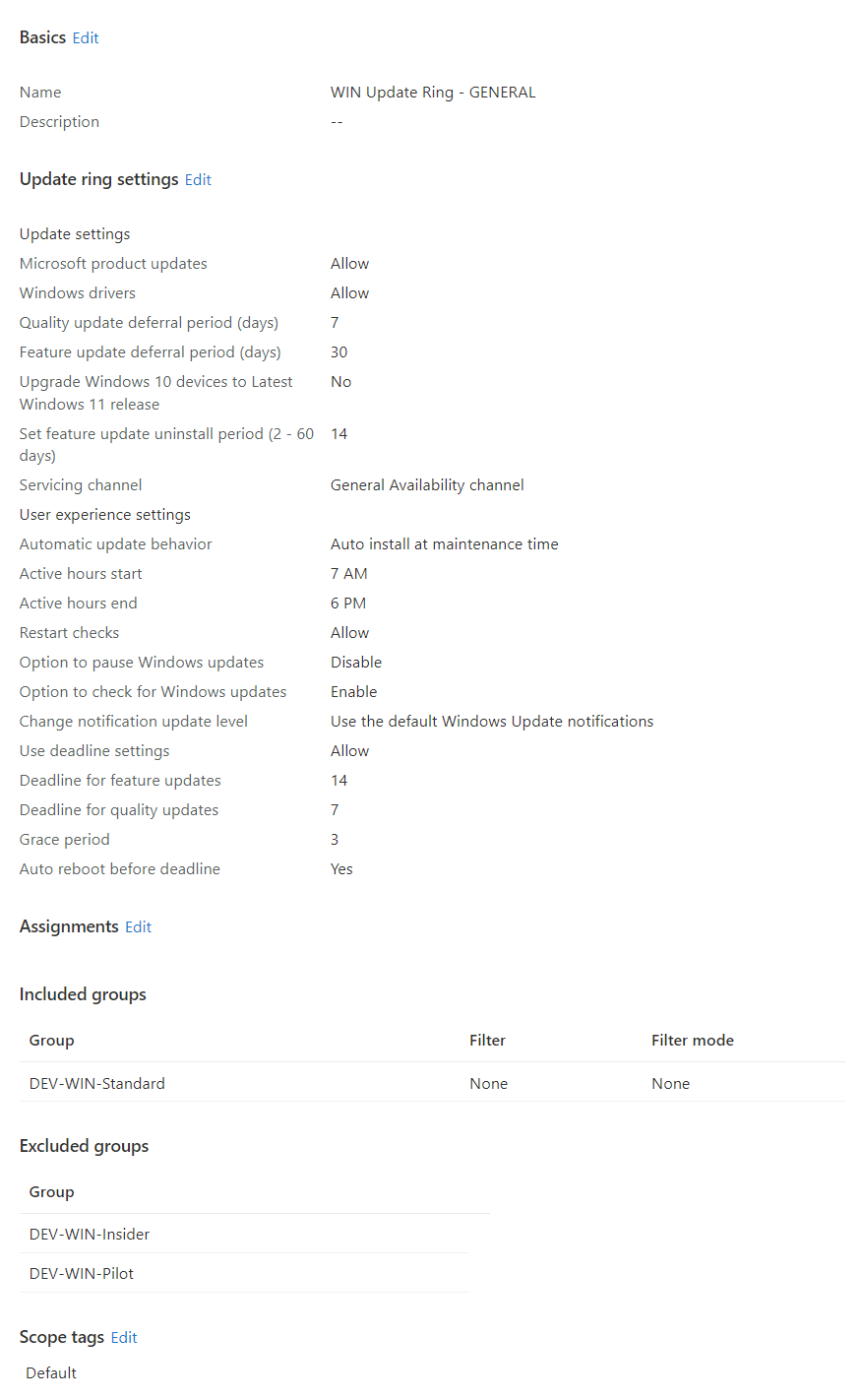
- Update rings. Control how and when quality and feature updates are offered, how long users can postpone them, and when install/restart deadlines apply. You can defer quality and feature updates by a number of days; if you do not use a separate feature update policy, the ring’s feature deferral applies.
- Feature updates. Pin devices to a specific Windows release (e.g. Windows 11 23H2). This overrides the update ring’s feature deferral. You choose the release and rollout option (immediate, from a date, or gradual over a date range).
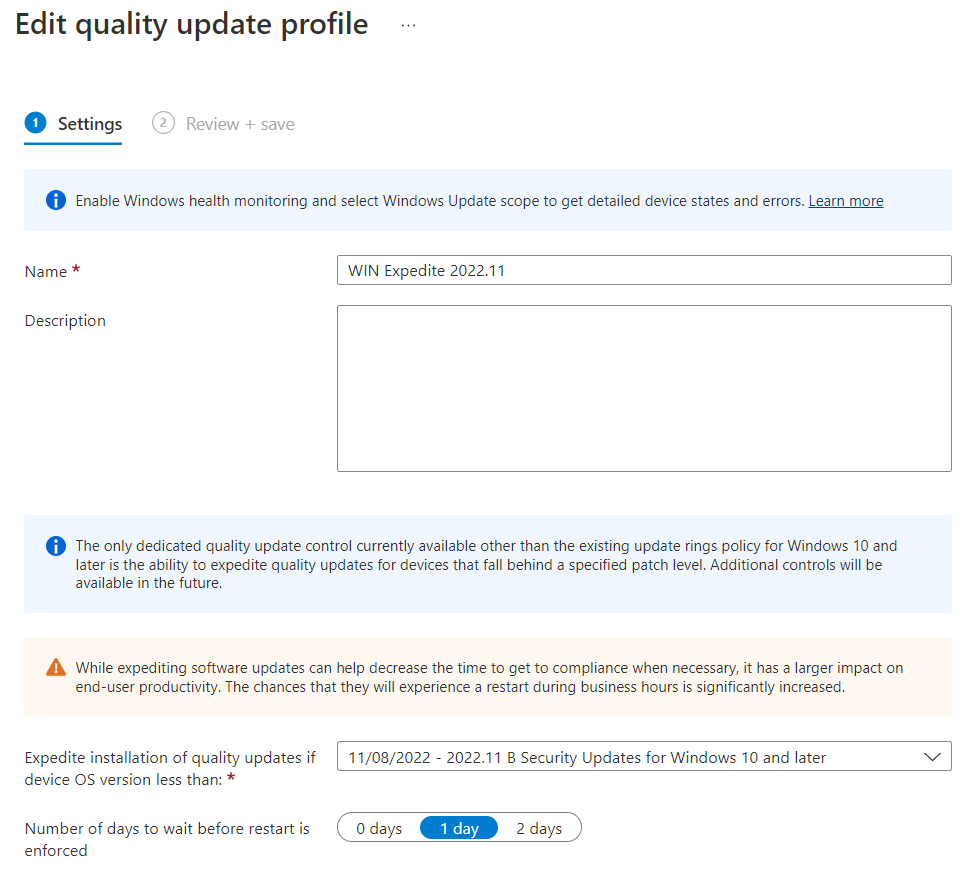
- Quality updates. Used to expedite a specific cumulative update (e.g. for a critical security fix). Expedited quality updates bypass deferrals and restart settings from update rings and get installed as soon as the device can.
Priority when multiple policies apply: Quality updates (expedite) win over everything; then feature update policies override the ring for feature updates; update rings apply for everything else when no higher-priority policy is in play.
Update Rings
Update rings let you automate Windows Update behavior and set how long users can delay updates and restarts. You configure deferral periods for quality and (optionally) feature updates, and use deadline settings to force installation and restarts after a set number of days. Devices that do not install by the deadline can be forced to update and reboot. You can create as many rings as you need and assign them to different device or user groups. A common approach is to keep at least two rings: one for a pilot or fast group (e.g. IT and test machines) with short or zero deferral, and one for the broad population with longer deferral so you can validate updates before wider rollout. The same ring-based idea is used in services like Autopilot-based update management.
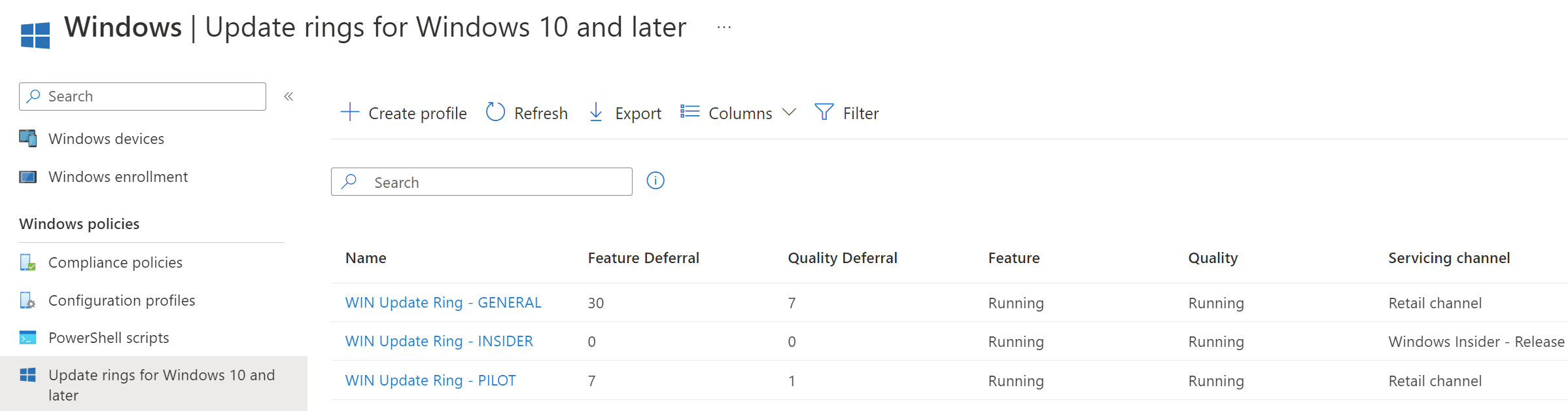
Feature Update Policies
Feature update policies in Intune lock devices to a chosen Windows release (e.g. Windows 11 24H2 or 23H2). Once a device is on that release, it stays there; you cannot use Intune policy to downgrade. If you do not assign a feature update policy, the device follows the update ring’s feature deferral (if any). If you do assign one, it takes precedence over the ring: the device will not move past the release you specify. You manage these under Devices → Windows → Feature updates for Windows 10 and later. In the policy you pick the release; the Intune UI often shows support status (in support, ending soon, out of support) so you can choose a safe target. You can leave some devices (e.g. an insider or canary ring) without a feature update policy so they follow the ring and get the latest when the ring allows.
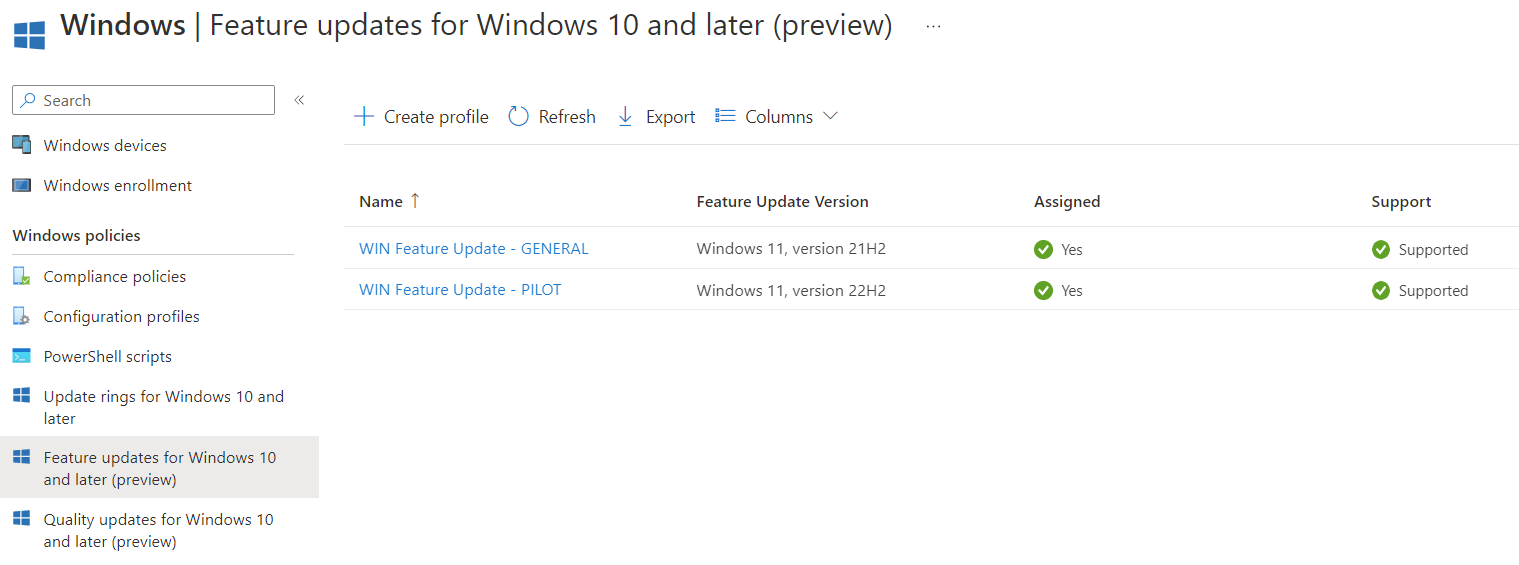
Rollout Options for Feature Updates
When creating or editing a feature update policy, you choose how the update is offered:
- Immediate. The selected release is offered to assigned devices as soon as policy applies.
- Specific date. The update is offered starting on a date you set.
- Gradual rollout. The update is spread over a date range. You set a start and end date; Intune spreads the rollout across that window (the start date must typically be at least two days in the future). Devices are grouped and assigned randomly and evenly across the period.
The release name (e.g. “Windows 11” for a given version) maps to a specific build; the wizard shows which release you are targeting.
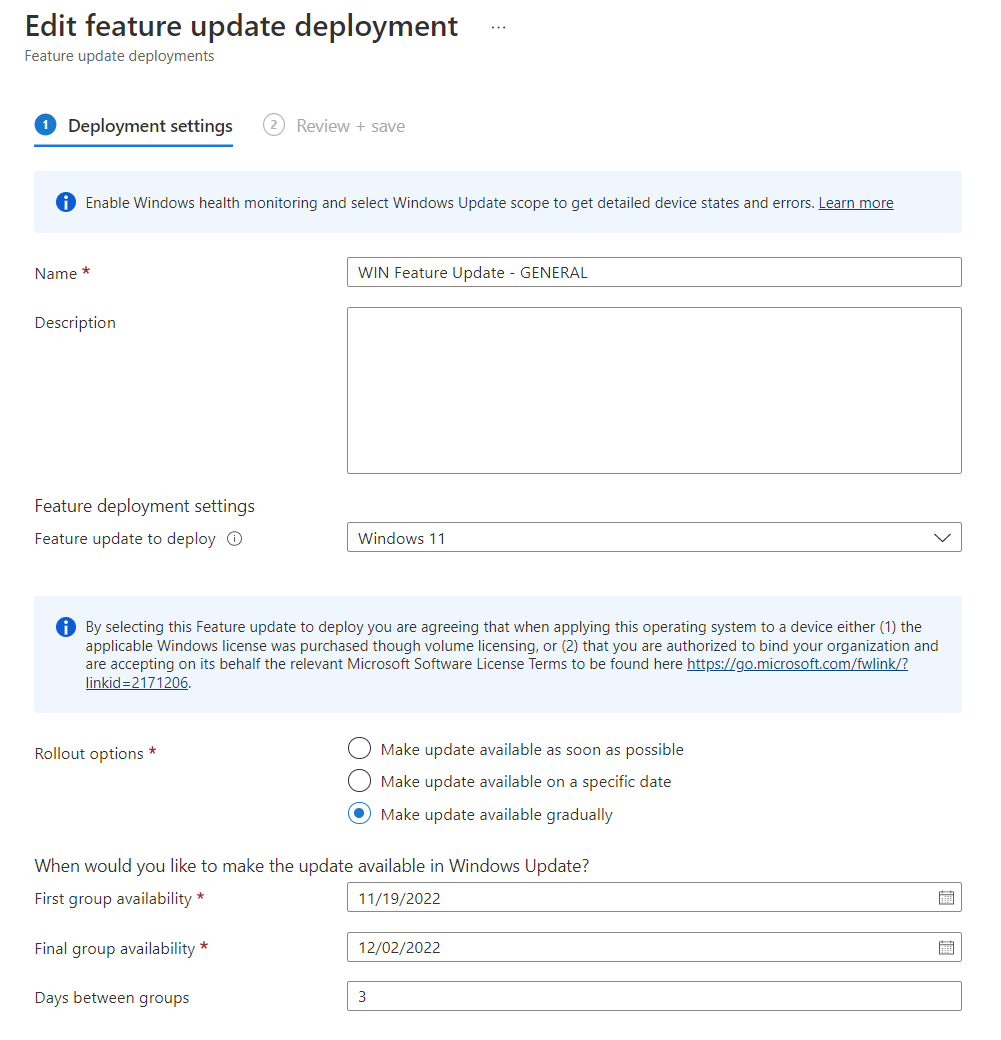
Quality Updates (Expedite)
Update rings are not ideal when you need a single cumulative update deployed urgently. For example for a zero-day. Quality updates for Windows 10 and later (often called expedite updates) let you push a specific knowledge base (KB) or cumulative update to assigned devices immediately, ignoring the ring’s deferrals and restart grace periods. Create these under Devices → Windows → Quality updates for Windows 10 and later. In the policy you set a name, specify which update (e.g. by KB number) is in scope, and configure whether a restart is required and when. Once assigned, the expedited update is offered without waiting for the normal ring schedule.
Suggested Practices
- Use at least two update rings: a fast ring for pilots and IT, and a broader ring for most devices. You can add a more conservative ring (e.g. 21–30 days deferral) for sensitive or critical systems.
- Use feature update policies to freeze devices on a specific Windows version when you need stability; rely on the support column in Intune to pick a supported release.
- Use gradual rollout for feature updates to smooth deployment over time and reduce risk.
- Set deadlines in update rings so updates and restarts happen within an acceptable window.
- Reserve expedited quality updates for critical security patches that must not wait for the ring.
- Review Windows Update for Business reports (and Intune update analytics) regularly to track compliance and troubleshoot failures.
Summary
You can configure Windows Updates for Business entirely in Microsoft Intune using update rings (deferrals and deadlines), feature update policies (lock to a release and choose immediate, dated, or gradual rollout), and quality update policies (expedite a specific CU). Update rings apply by default; feature update policies override the ring for feature updates; expedited quality updates override deferrals and restart behavior when you need a patch deployed immediately. Use multiple rings and feature policies to balance security, stability, and user impact, and use Windows Update for Business reports to monitor and improve update compliance across your fleet.





