When a user leaves a Windows device unattended, the screen should lock after a short period so that someone else cannot use the session without re-authenticating. Microsoft Intune lets you set that timeout centrally using a Settings catalog profile: enable Max Inactivity Time Device Lock under Device Lock and specify the number of minutes of inactivity before the device locks. This guide walks through creating and assigning that profile.
Why Set an Inactivity Lock?
Configuring a screen lockout time helps with:
- Security . Unattended devices lock automatically, reducing the chance of unauthorized access to open sessions.
- Compliance . Many policies require a lock after a set idle period; this setting enforces it across managed devices.
- Consistency . One policy ensures the same timeout (e.g. 5 or 10 minutes) for all targeted users or devices.
When the policy is applied, Windows locks the device (shows the lock screen and requires sign-in) after the specified minutes of user inactivity. Pair this with password or PIN requirements and screen saver/lock policies for a complete lock experience.
What You’ll Configure
You will create one Settings catalog configuration profile for Windows 10 and later, add Max Inactivity Time Device Lock under Device Lock, enable it and set the number of minutes (e.g. 10), then assign the profile to the users or devices where you want the lockout time applied.
Step 1: Create the Configuration Profile
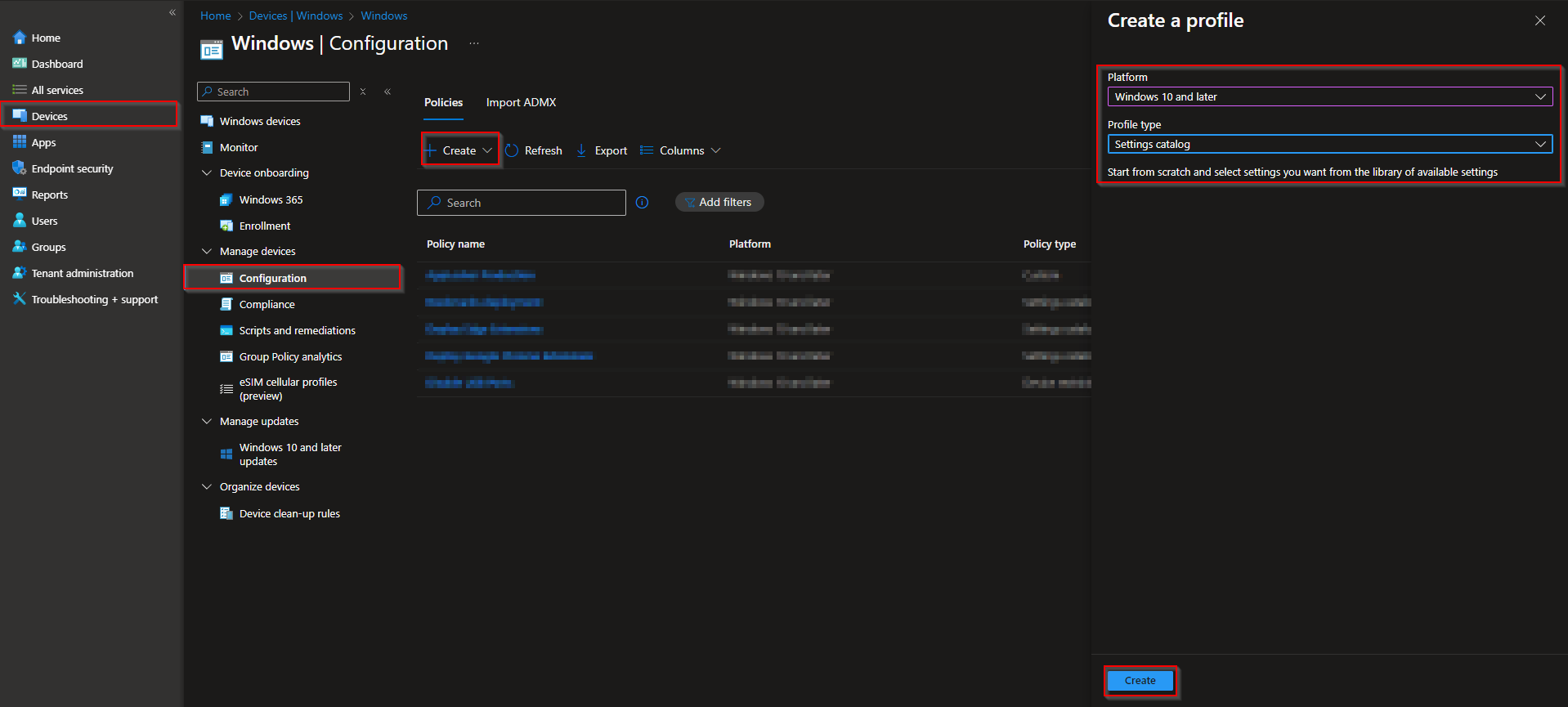
In the Microsoft Intune admin center, go to Devices → Windows → Configuration profiles. Click Create → New policy. Set Platform to Windows 10 and later and Profile type to Settings catalog. Click Create.
On Basics, enter a Name (e.g. “Screen lockout – Inactivity timeout”) and optionally a Description. Click Next.

Step 2: Set the Inactivity Lock Timeout
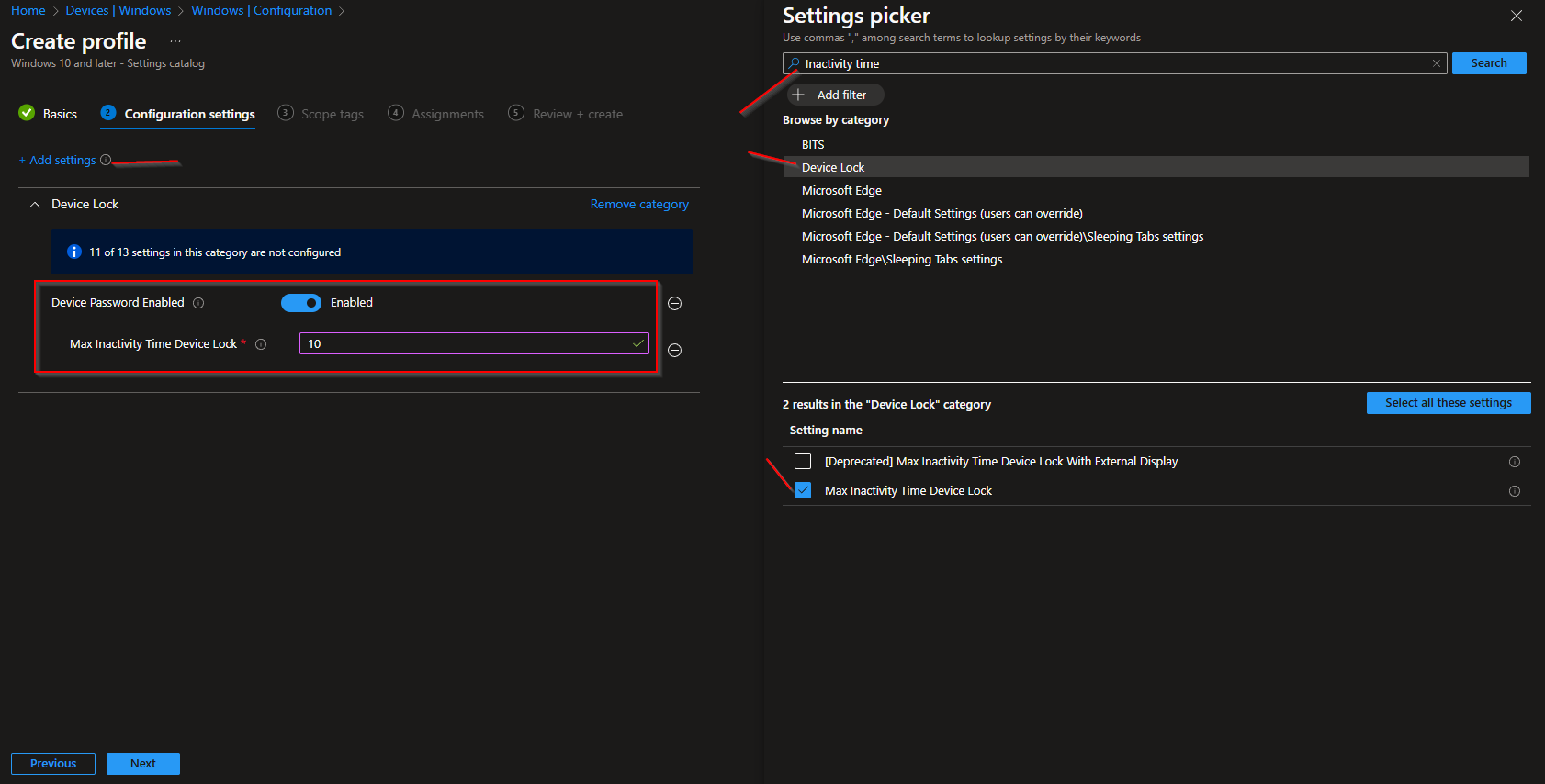
On Configuration settings, click Add settings. Search for Inactivity time or Device Lock. Open Device Lock, select Max Inactivity Time Device Lock, and enable the setting. Enter the number of minutes of inactivity after which the device should lock (e.g. 10). Choose a value that fits your policy. Shorter (e.g. 5) for higher security, longer (e.g. 15) if users need more flexibility. Click Next.
Set scope tags if your tenant uses them, then on Assignments add the groups (or All Users / All Devices) that should receive this policy. Click Next, then Review + create, and Create.
After the profile syncs to targeted devices, Windows will lock the screen after the configured minutes of inactivity. Users will need to sign in again to resume.
Wrap-up
You can configure screen lockout time with Microsoft Intune by creating a Settings catalog profile for Windows 10 and later, enabling Max Inactivity Time Device Lock under Device Lock, and setting the number of minutes of inactivity before lock. Assign the profile to the users or devices where you want the timeout applied. Use this together with password/PIN and lock screen policies for a consistent, secure idle lock experience.





