Minimum password age is the number of days a user must keep a password before they can change it. Without it, users can change their password repeatedly and reuse an old one, bypassing password history. With Microsoft Intune you can enforce a minimum password age on managed Windows devices using a Settings catalog profile: add Minimum Password Age under Device Lock and set the value in days (e.g. 1–998, or 0 to allow immediate change). This guide walks through creating and assigning that profile.
What Is Minimum Password Age?
Minimum password age defines how long a password must be in use before the user can change it again. For example, if you set it to 30 days, a user who just changed their password cannot change it again for 30 days. This works together with password history: if you remember the last 24 passwords, users cannot reuse them, but without minimum age they could change the password 24 times in a row and then reuse the first one. Setting a minimum age (e.g. 1–30 days) forces a waiting period between changes so history is effective.
Why Set Minimum Password Age?
Configuring minimum password age helps with:
- Password history . Ensures users cannot quickly cycle through passwords to reuse an old one; the history policy stays meaningful.
- Security . Reduces the chance that users bypass complexity or history by changing the password repeatedly.
- Compliance . Many policies require both history and minimum age; Intune lets you enforce it on local accounts and device lock.
Use 0 only if you do not enforce history or if you need to allow immediate change (e.g. right after a forced reset). Typical values are 1–30 days.
What You’ll Configure
You will create one Settings catalog configuration profile for Windows 10 and later, add Minimum Password Age under Device Lock, set the number of days (0–998), then assign the profile to the users or devices where you want the policy applied.
Step 1: Create the Configuration Profile
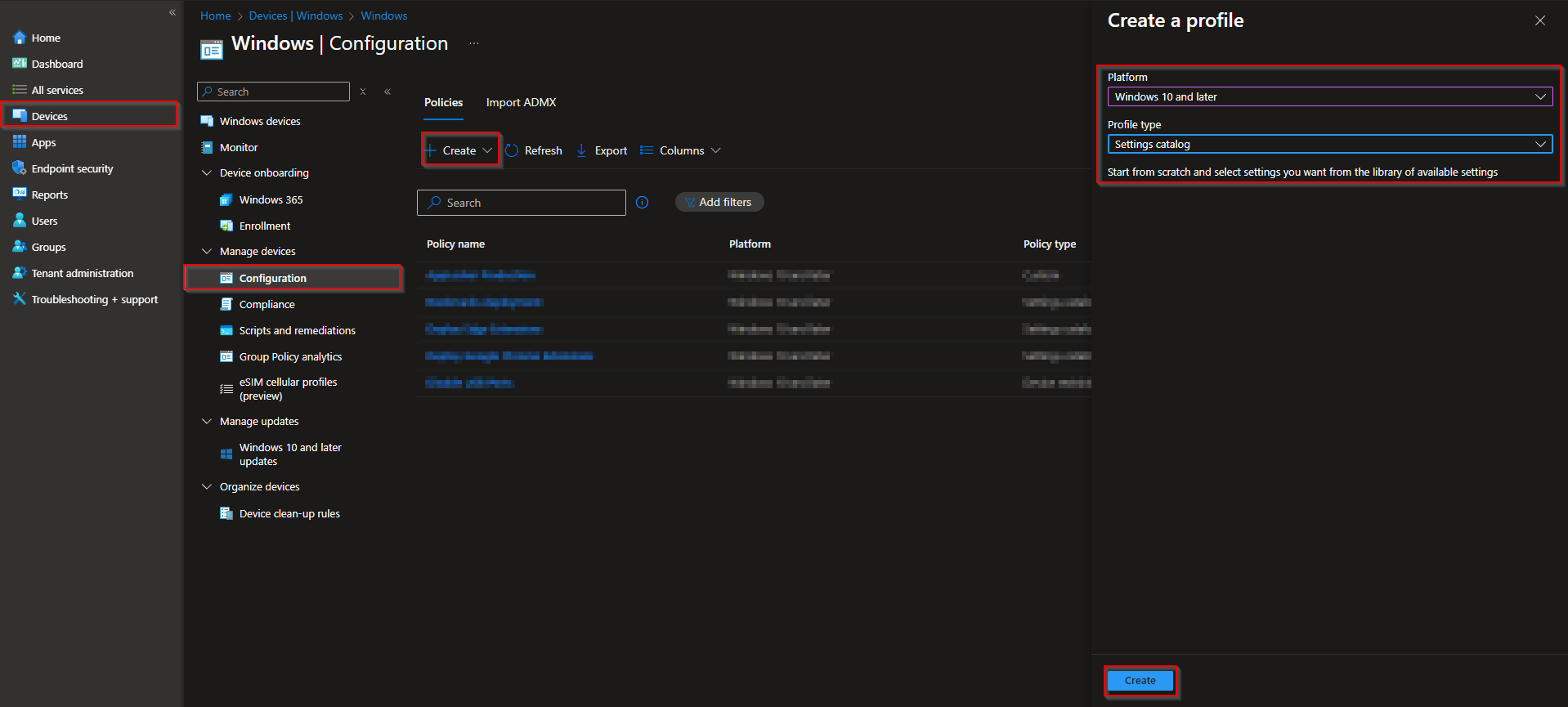
In the Microsoft Intune admin center, go to Devices → Windows → Configuration profiles. Click Create → New policy. Set Platform to Windows 10 and later and Profile type to Settings catalog. Click Create.
On Basics, enter a Name (e.g. “Device Lock – Minimum password age”) and optionally a Description. Click Next.
Step 2: Set the Minimum Password Age
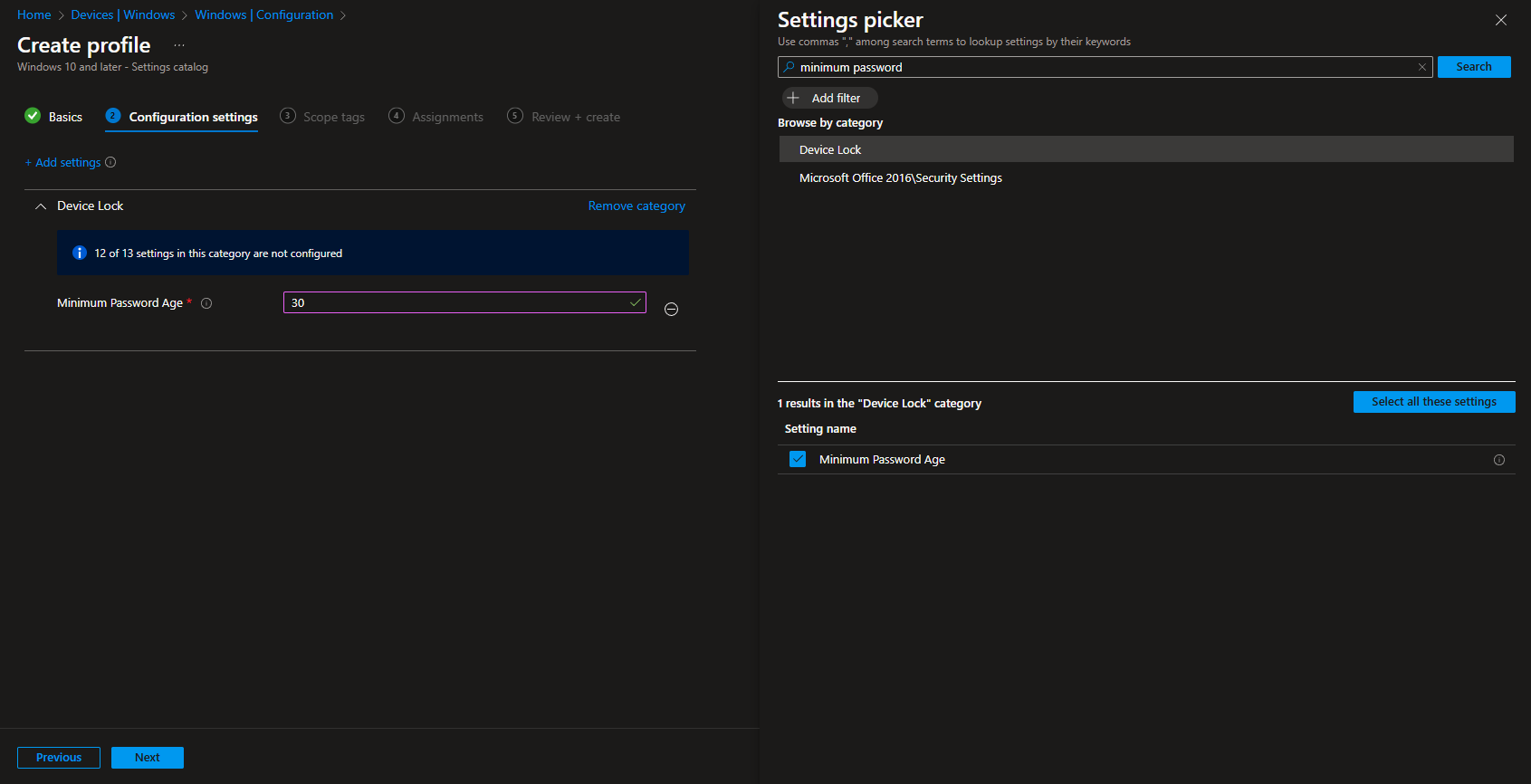
On Configuration settings, click Add settings. Search for Minimum Password or Device Lock. Open Device Lock, select Minimum Password Age, and set the value to the number of days (0–998). Use 0 to allow immediate password change; use 1–998 to require that many days before the user can change the password again. For example, set 30 to require passwords to stay in place for at least 30 days. Click Next.
Set scope tags if your tenant uses them, then on Assignments add the groups (or All Users / All Devices) that should receive this policy. Click Next, then Review + create, and Create.
After the profile syncs to targeted devices, the minimum password age will apply. Pair this with password history and complexity policies for a complete local-password or device-lock policy.
Wrap-up
You can configure minimum password age with Microsoft Intune by creating a Settings catalog profile for Windows 10 and later, adding Minimum Password Age under Device Lock, and setting the value to 0–998 days. Assign the profile to the users or devices where you want the policy applied. Use a value of 1–30 (or more) so password history cannot be bypassed by rapid changes; use 0 only when you do not enforce history or need to allow immediate change.





