Some Windows devices need to stay on and avoid automatic lock or sleep. For example point-of-sale (POS) terminals, kiosks, shared workstations with anonymous or guest access, or displays used for signage. For those scenarios you want the screen and system to stay active and, often, no password required on wake so users do not have to sign in again. This kind of “always on” behavior should be limited to non-critical devices that do not hold sensitive data. You can enforce it with a single Settings catalog configuration profile in Microsoft Intune that sets the relevant power and display options. This guide walks through creating that profile, which settings to add, and how to avoid conflicts with other power policies.
Create a Settings Catalog Power Profile
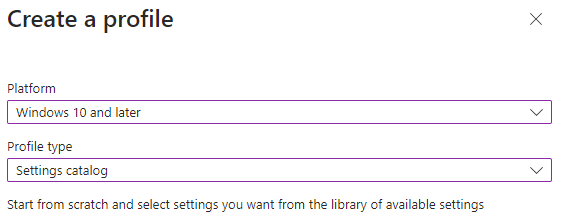
In the Microsoft Intune admin center, go to Devices → Windows → Configuration profiles and click Create → New policy. Choose Windows 10 and later and Settings catalog.
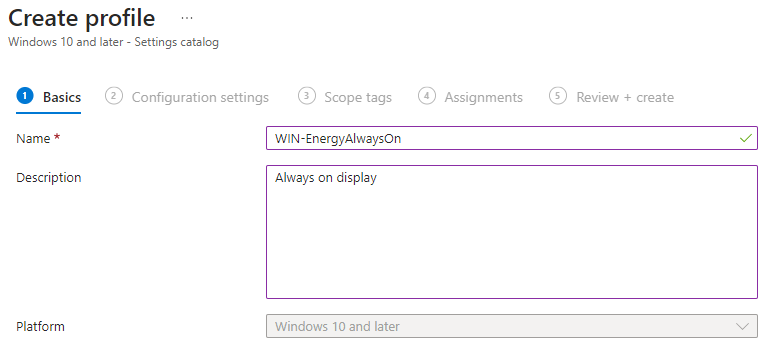
On the Basics page, set a name (e.g. “WIN-EnergyAlwaysOn”) and an optional description so you can tell this policy apart from standard power profiles. Move to Configuration settings.
Add Power and Display Settings
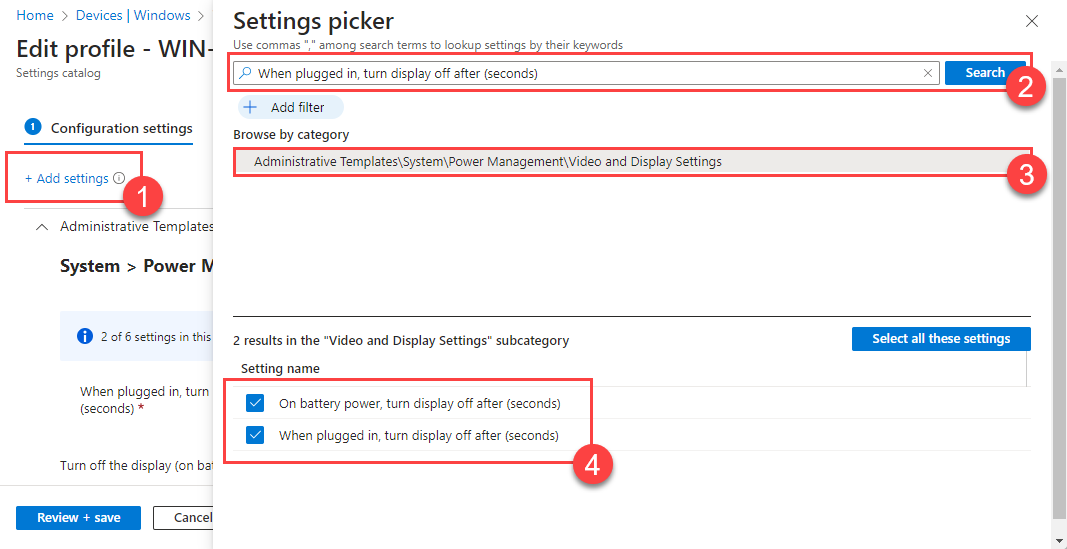
Click Add settings and search for power- and display-related settings. Add the ones you need for “always on” behavior. Typical choices include:
- When plugged in, turn display off after (seconds) / Turn off the display (on battery) / Turn off the display (plugged in)
- Specify the system sleep timeout (on battery) / Specify the system sleep timeout (plugged in)
- Turn off the hard disk (on battery) / Turn off the hard disk (plugged in) (or Turn Off the Hard Disk (seconds) under Device)
- Require a password when a computer wakes (on battery) / Require a password when a computer wakes (plugged in)
- Prompt for password on resume from hibernate/suspend (User)
- Turn on the ability for applications to prevent sleep transitions (on battery) / (plugged in)
- Select an active power plan
- Select Lid Close Action On Battery / Select Lid Close Action Plugged In
- Device Password Enabled (if applicable)
Search for each by name in the settings picker; the exact labels may vary slightly by Windows build. Add all that apply to your scenario.
Set Values for Always-On Behavior
Configure the added settings so the device stays on and does not lock:
- Turn off display (plugged in / on battery): set to Never or
0(disabled) so the screen stays on. - System sleep timeout: set to Never (
0) so the device does not sleep. - Turn off hard disk: set to Never (
0) if you want the disk to stay active. - Require password when computer wakes / Prompt for password on resume: set to No or Disabled for shared or kiosk devices so users are not prompted after wake.
- Turn on the ability for applications to prevent sleep transitions: set to Enabled so apps can keep the device awake if needed.
- Select an active power plan: choose High performance or Balanced as appropriate.
- Select Lid Close Action (on battery / plugged in): set to Do nothing for laptops so closing the lid does not sleep or hibernate.
Save the configuration settings and go to Assignments.
Assign the Profile and Avoid Policy Conflicts
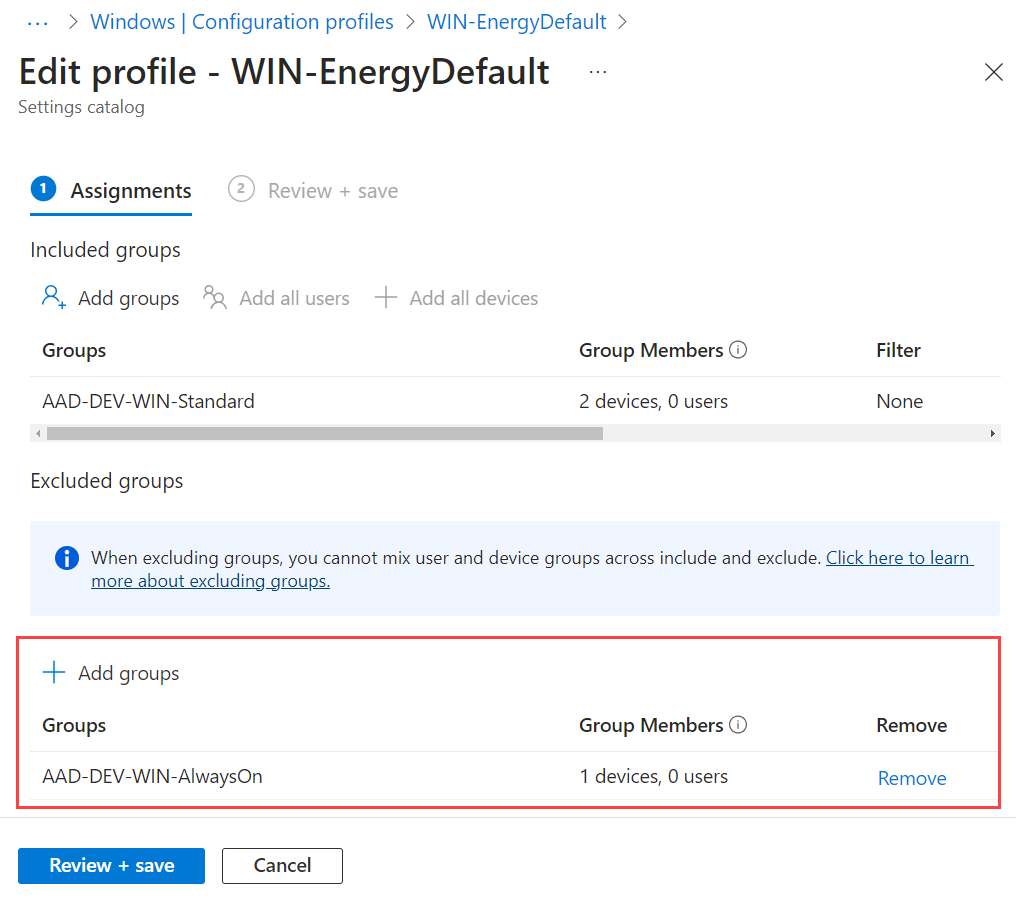
Assign the profile to the device or user groups that should have “always on” behavior (e.g. a group for POS devices or kiosks). If you have another configuration profile that manages power (e.g. a different Settings catalog or a baseline), assign that one to a broader group and exclude the group that receives this Always On profile. Otherwise both policies can apply and the outcome may be unclear. Use Exclude groups on the other profile so the Always On devices are not in scope for the standard power policy.
When to Use This Configuration
An “always on” power policy is suitable for:
- POS systems. Terminals that must stay on during business hours.
- Kiosks and information displays. Public or internal devices that should not sleep or lock.
- Shared workstations. Devices used by multiple or anonymous users with access only to non-sensitive data.
- Digital signage or presentation PCs. Displays that run continuously.
Do not use it on devices that store sensitive data or require user authentication and lock after inactivity. Restrict it to non-critical, physically secure devices where the lack of lock/sleep is acceptable.
Security and Maintenance
Keeping devices on and disabling password-on-wake reduces security if the device is stolen or used by an unauthorized person. Use this configuration only where the device is in a controlled location and does not hold confidential information. Document which devices or groups have this policy and why. Plan for higher power use and consider scheduled restarts or maintenance windows so devices get updates and reboots without disrupting use.
Other Ways to Configure Power
You can also manage some power behavior with a Windows Security Baseline, certain options in Endpoint Protection (antivirus) profiles, or Group Policy in hybrid setups. For complex or custom logic, PowerShell or scripts can set power plans and timeouts. The Settings catalog is usually the simplest way to get a dedicated “always on” profile that applies only to the groups you choose.
Summary
To configure Intune energy settings so devices stay always on: create a Settings catalog profile under Devices → Windows → Configuration profiles. Add power and display settings (display off, system sleep, hard disk off, password on wake, allow apps to prevent sleep, active power plan, lid close action) and set them to Never/Disabled or Do nothing as needed. Assign the profile to the device groups that should have “always on” behavior (e.g. POS, kiosks, shared workstations) and exclude those groups from any other power policy to avoid conflicts. Use this only for non-critical devices in physically secure locations.





