Controlling what users see when they open Microsoft Edge helps standardize the experience across your organization and can steer them toward internal tools or approved sites. With Microsoft Intune, you can define the startup page. And optionally the home and new tab pages. So every managed Windows 10 or Windows 11 device opens the same URLs when Edge launches.
This walkthrough uses the Settings catalog in Intune to configure Edge startup behavior. You’ll create a single configuration profile, choose the startup action and URLs, then assign it to your users or devices.
What You’ll Configure
You’ll deploy a Settings catalog profile that targets Microsoft Edge. The profile will:
- Set the action to take when Edge starts (for example, open a specific list of URLs)
- Define the exact URLs that open at startup
Intune’s Settings catalog exposes the same kinds of controls you may know from Group Policy or Administrative Templates, so the behavior will be familiar if you’ve managed Edge via GPO before.
Creating the Configuration Profile
Sign in to the Microsoft Intune admin center and go to Devices → Windows → Configuration profiles. Click Create → New policy.
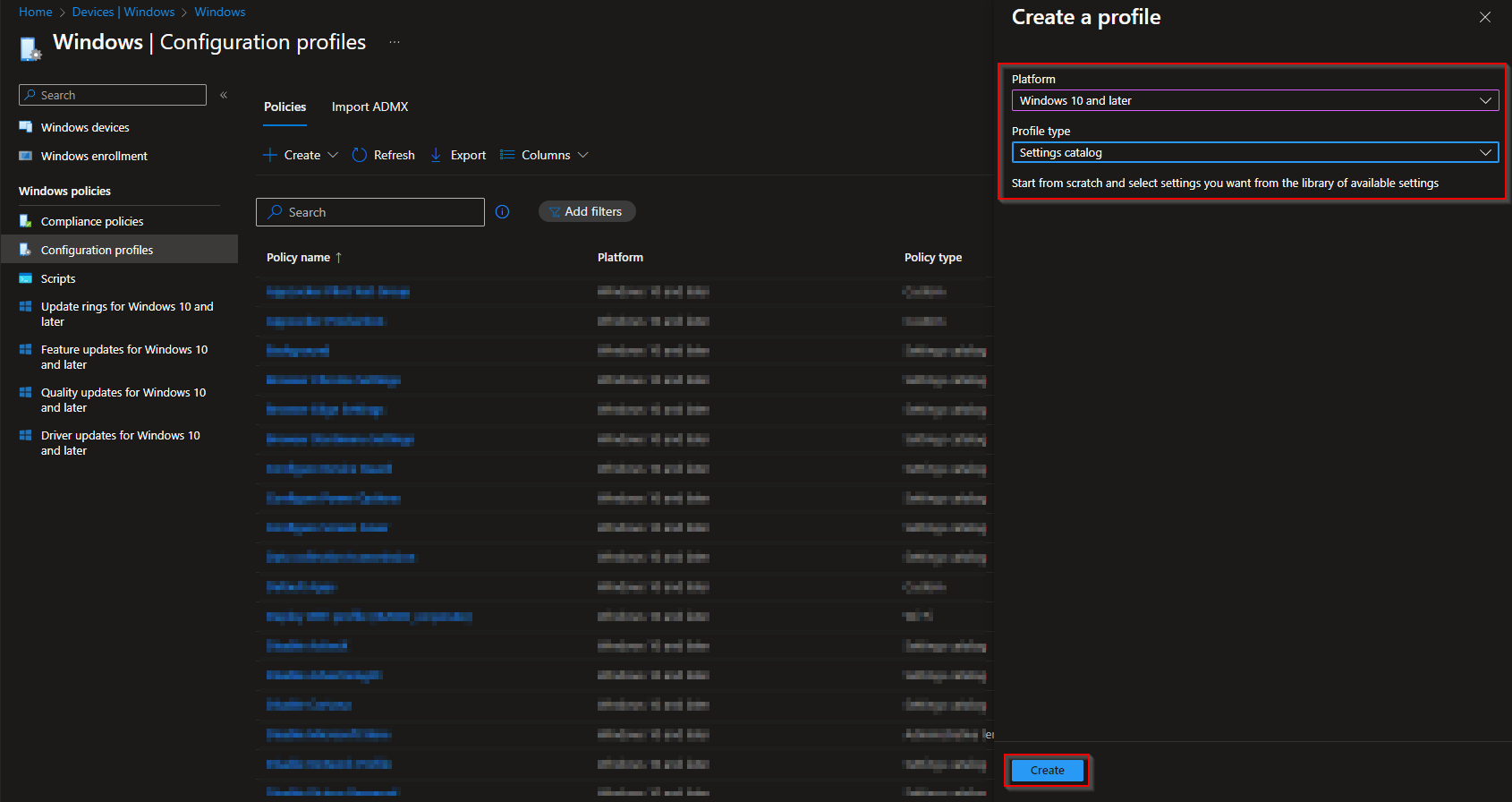
Choose Windows 10 and later as the platform and Settings catalog as the profile type, then click Create.
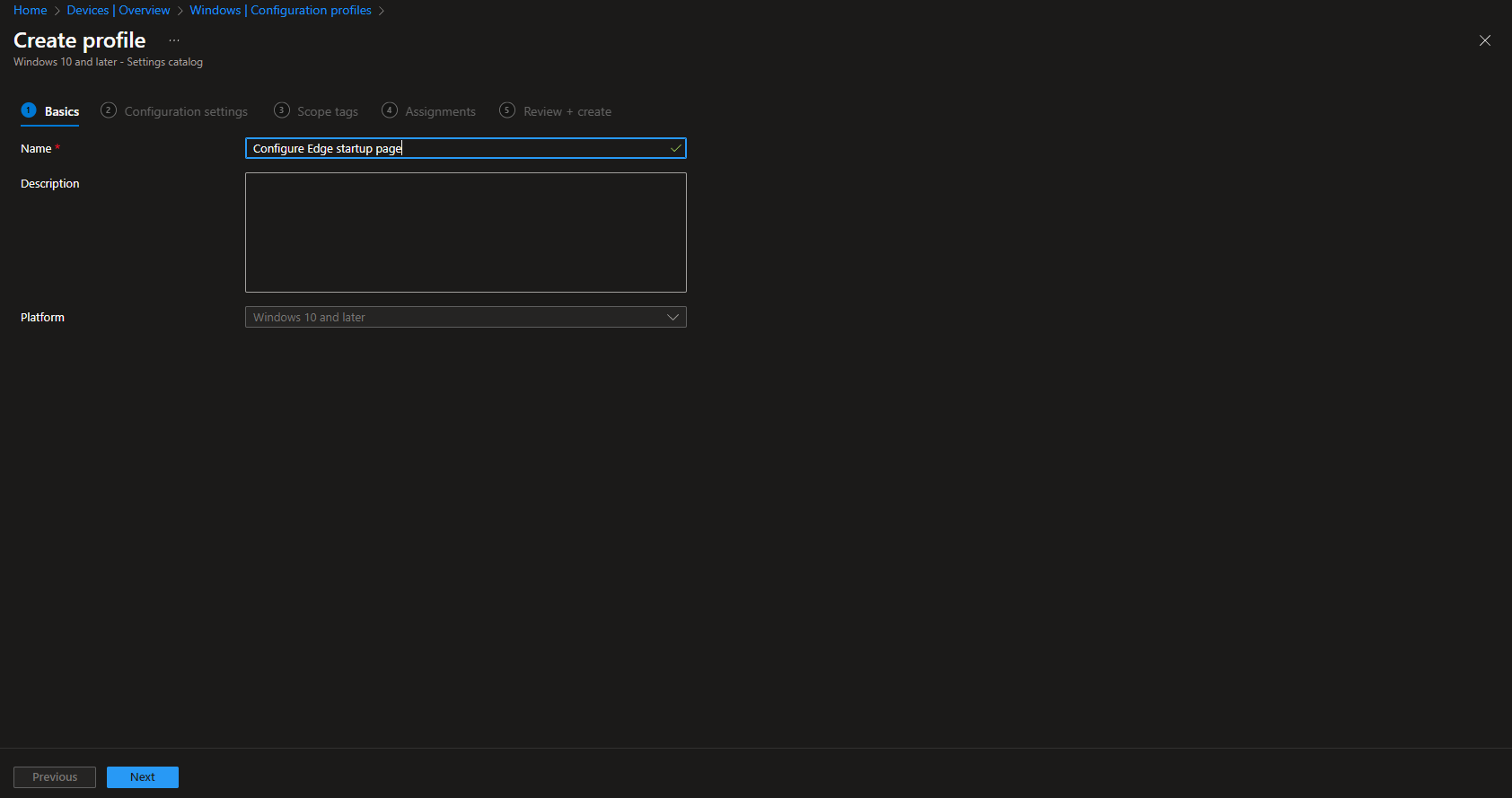
On the Basics tab, enter a name (for example, Edge – Startup page) and an optional description, then click Next.
Adding the Edge Startup Settings
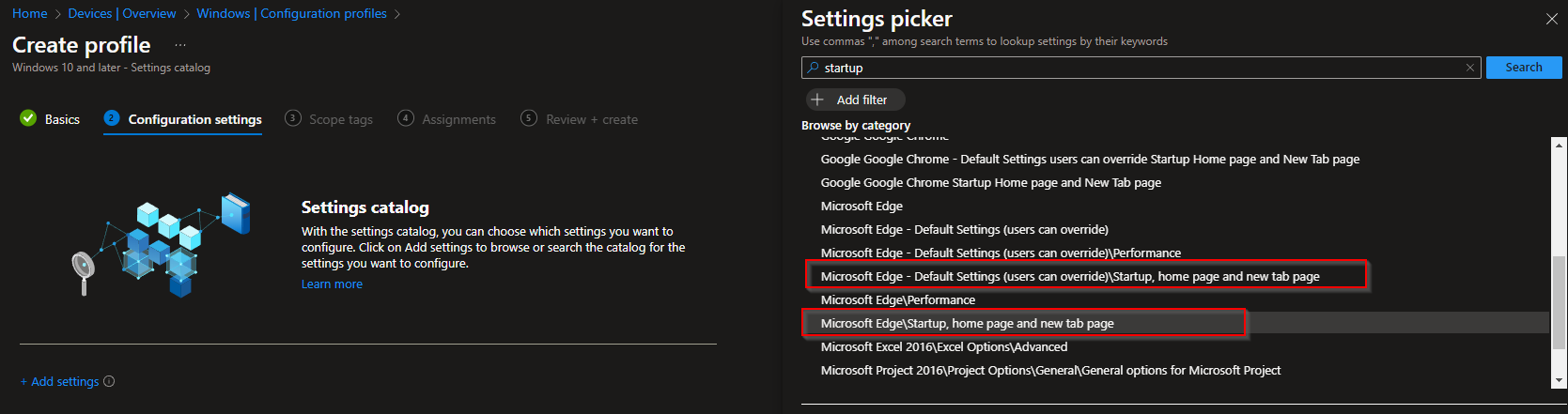
On Configuration settings, click Add settings. In the settings picker, search for startup.
You’ll see options under both Microsoft Edge and Microsoft Edge – Default Settings (users can override):
- Microsoft Edge\Startup, home page and new tab page . Enforced; users cannot change these settings.
- Microsoft Edge – Default Settings (users can override)\Startup, home page and new tab page . Default that users can override.
For a locked-down experience, use the first option. Select Microsoft Edge\Startup, home page and new tab page and add it to your profile.
Choosing the Startup Action and URLs
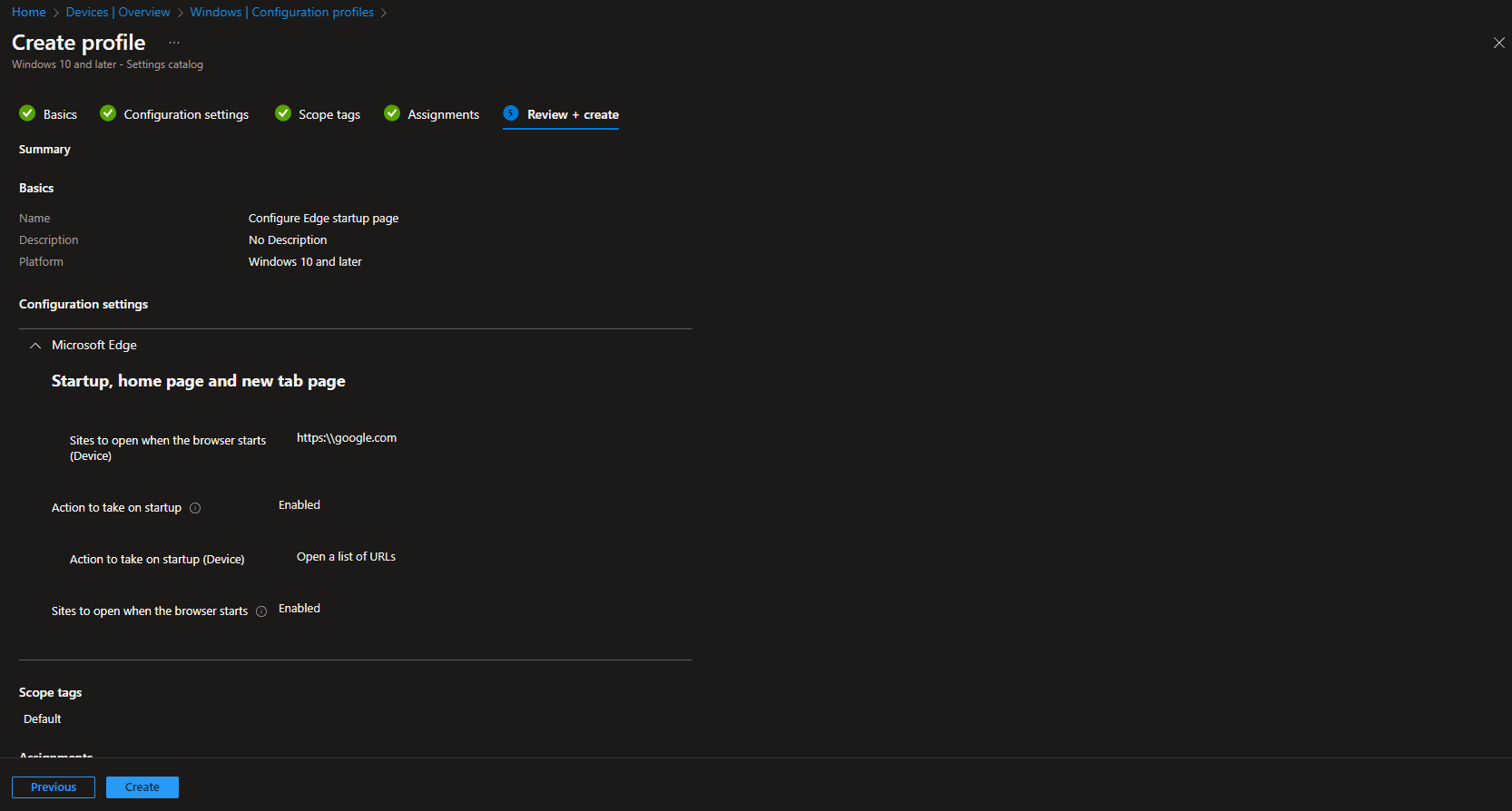
Back on the Configuration settings page, enable and configure:
- Action to take on startup . Set to Open a list of URLs.
- Sites to open when the browser starts . Add one URL per line (e.g.
https://www.bing.comor your intranet homepage).
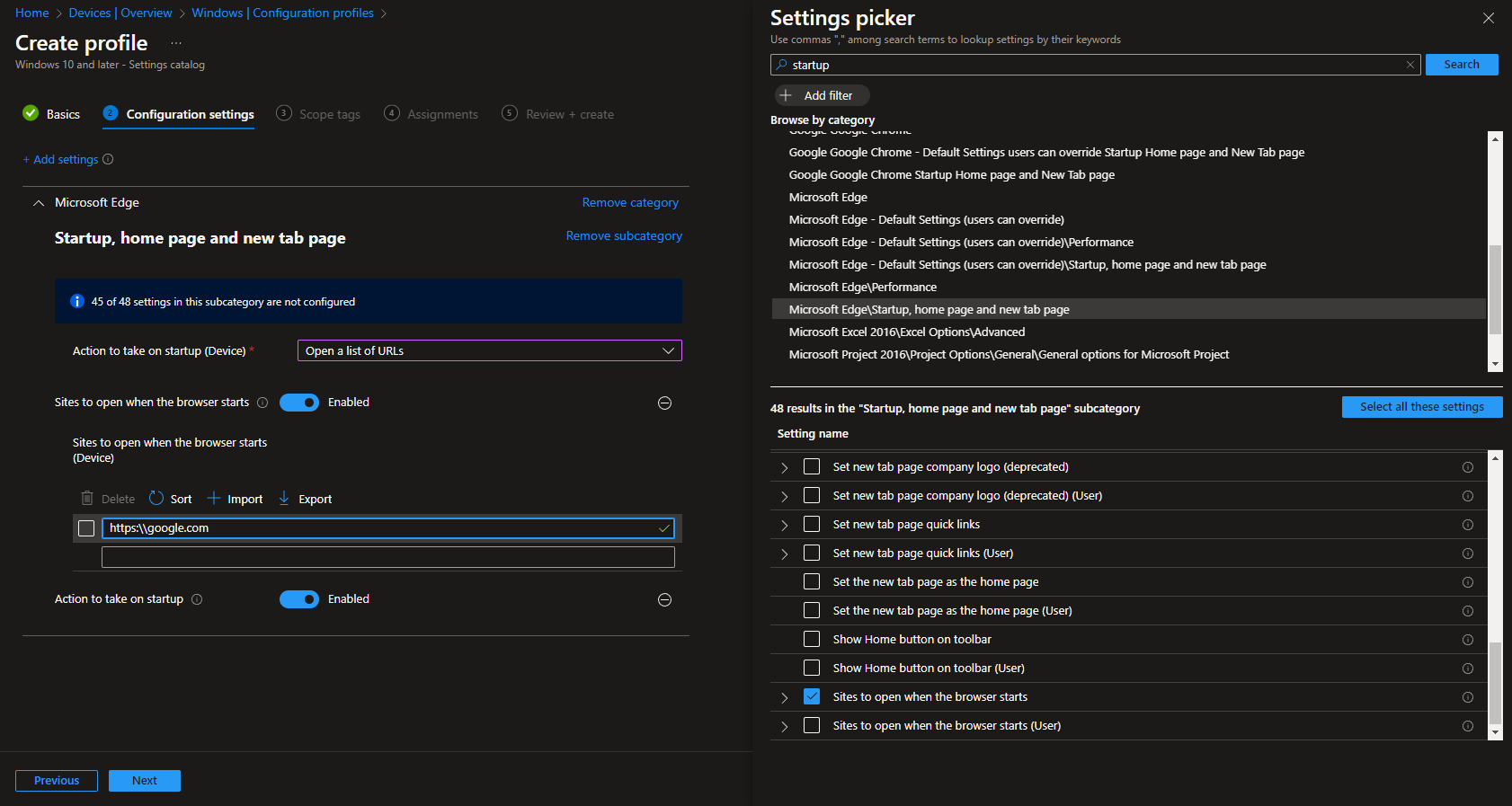
Use the URLs that make sense for your environment. For example, a corporate portal, search page, or internal wiki. When finished, click Next.
Scope Tags and Assignments
On Scope tags, add any tags you use for filtering, then click Next.
On Assignments, include the user or device groups that should receive this profile, then click Next.
Review the summary on Review + create and click Create to deploy the profile.
Other Startup Options
If you use “Open a list of URLs,” only that option is applied. Elsewhere in Edge (or via other policies) you can also consider:
- New tab page . The default Edge new tab experience with search and shortcuts.
- Continue where you left off . Restores the previous session’s tabs and windows.
For a consistent, company-defined start experience, the “list of URLs” option is usually the best fit.
Conclusion
You can control the Edge startup page on Intune-managed Windows 10/11 devices by creating a Settings catalog profile, configuring the startup action and URL list, and assigning it to the right groups. This gives you a uniform, policy-driven start experience for Microsoft Edge across your organization.