When users connect external monitors to Windows devices, the system can run in several display modes: extended desktop, duplicate (mirror), second screen only, or PC screen only. With Microsoft Intune you can set the default or enforced mode centrally using a Settings catalog profile: add Configure Multiple Display Mode under Display and choose the mode you want. This guide walks through creating and assigning that profile.
Why Set Display Mode via Intune?
Configuring display mode at the policy level helps with:
- Consistency . Same behavior (e.g. extended or duplicate) across devices or groups.
- Presentations and docking . Enforce duplicate mode for meeting rooms or second-screen-only for docked laptops.
- Power and simplicity . Use PC screen only where external displays should stay off.
Multiple-Display Options
Windows supports these modes for built-in and external displays:
- Extended . Desktop spans multiple monitors; each screen has its own area. Good for multitasking.
- Duplicate . External screen mirrors the primary display. Good for presentations and screen sharing.
- Second screen only . Built-in display is off; only the external monitor is used. Good for docking stations.
- PC screen only . Built-in display is on; external displays are off. Good for laptop-only use.
With Intune you choose one of these for the Configure Multiple Display Mode setting and assign the profile to the users or devices that should get it.
What You’ll Configure
You will create one Settings catalog configuration profile for Windows 10 and later, add Configure Multiple Display Mode under Display, set it to the mode you want (Extended, Duplicate, Second screen only, or PC screen only), then assign the profile to the right users or devices.
Step 1: Create the Configuration Profile
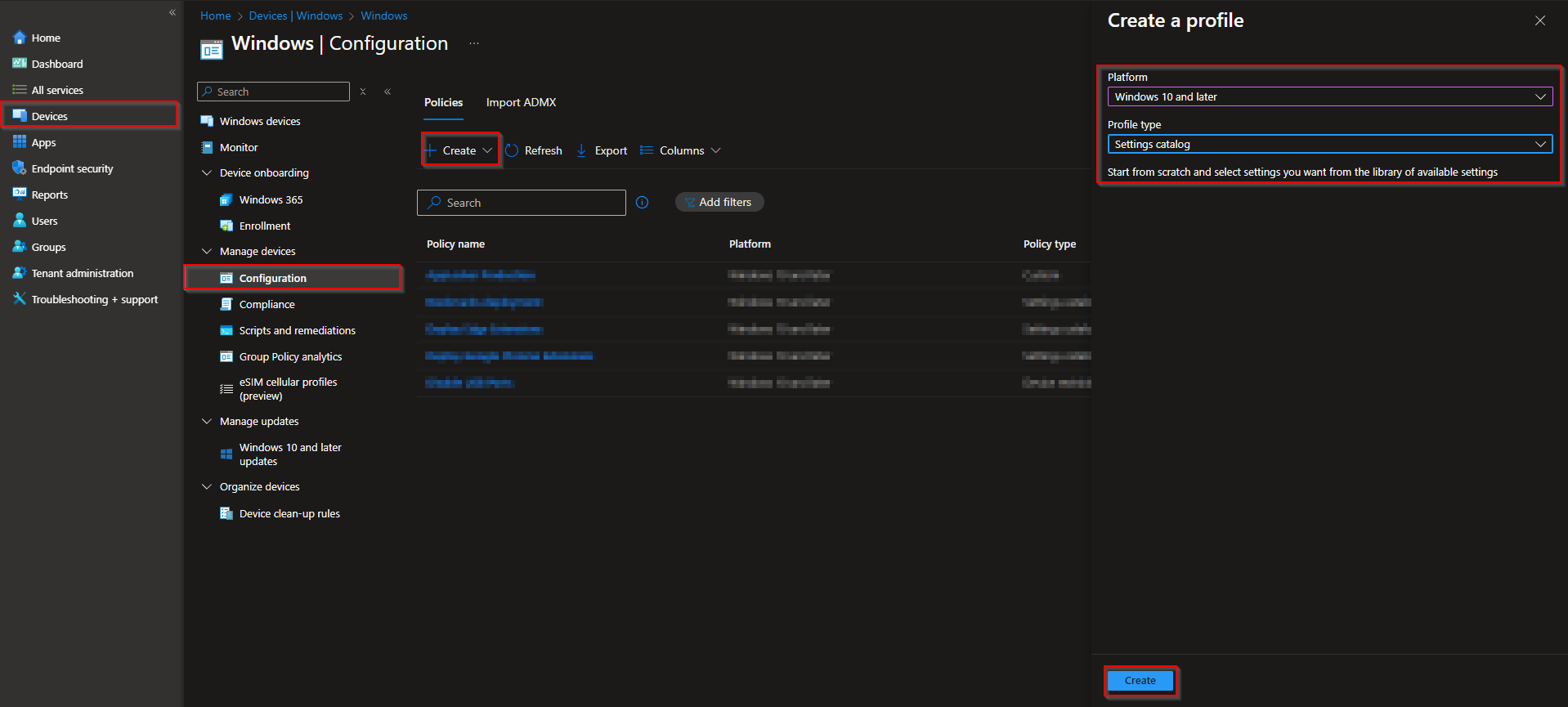
In the Microsoft Intune admin center, go to Devices → Windows → Configuration profiles. Click Create → New policy. Set Platform to Windows 10 and later and Profile type to Settings catalog. Click Create.
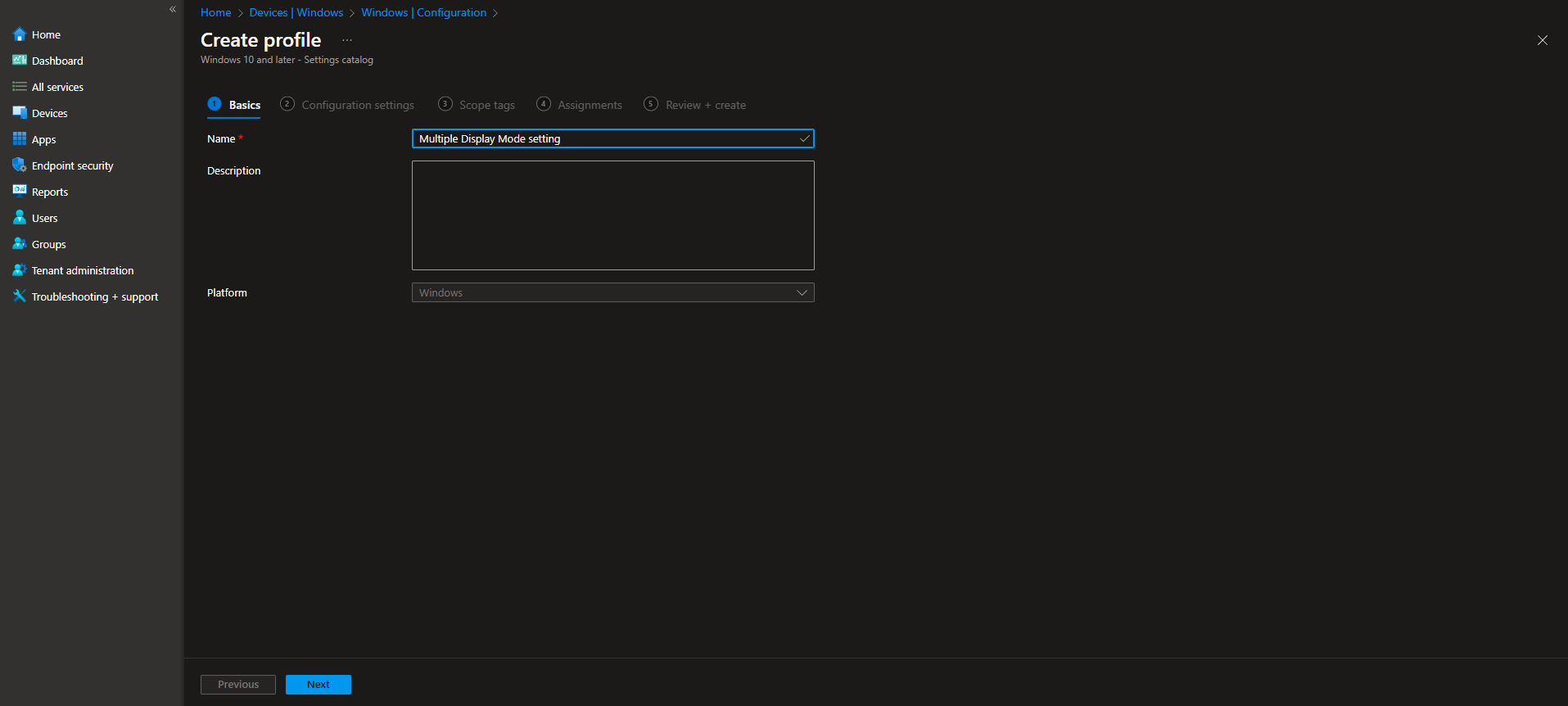
On Basics, enter a Name (e.g. “Display mode – Extended” or “Display mode – Duplicate”) and optionally a Description. Click Next.
Step 2: Set the Display Mode
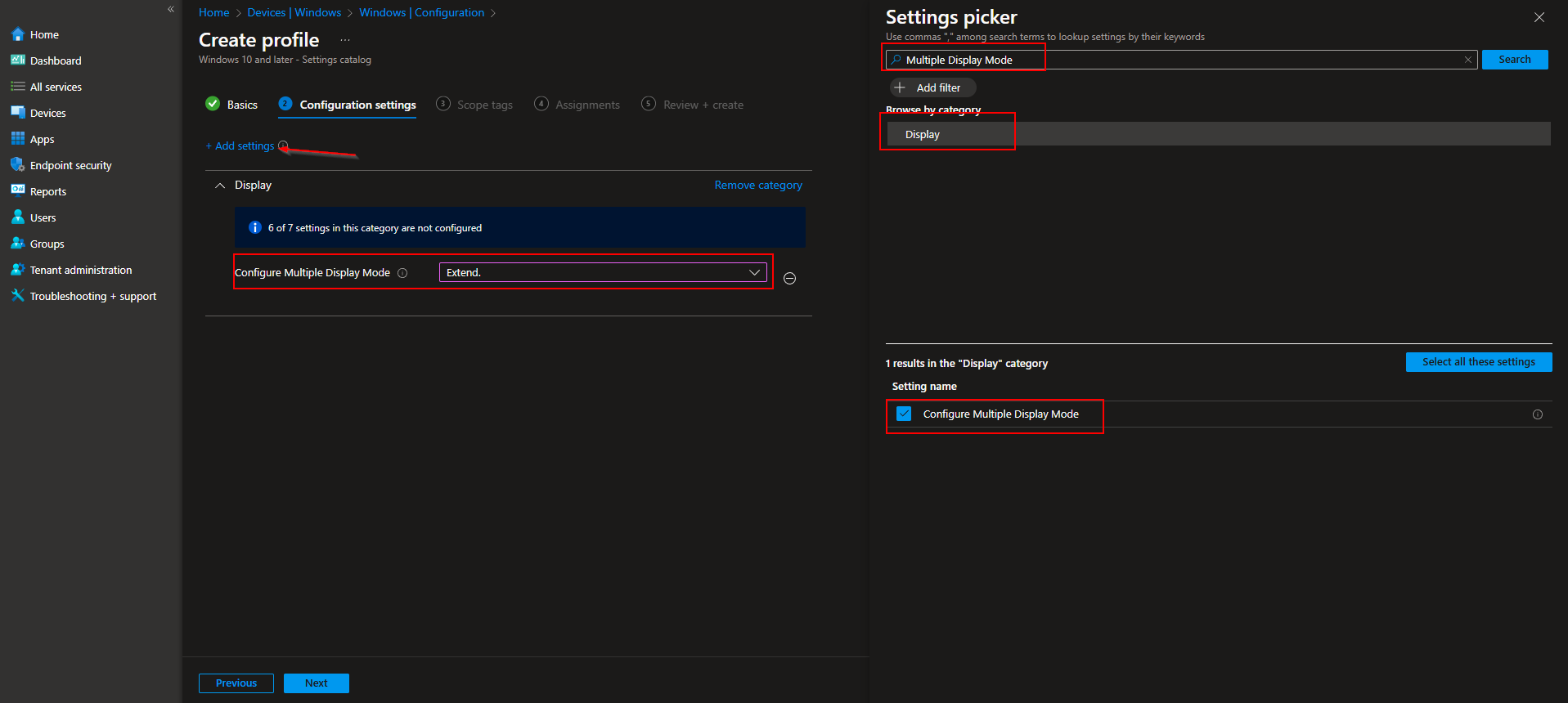
On Configuration settings, click Add settings. Search for Multiple Display Mode or Display. Open Display, select Configure Multiple Display Mode, and set it to the mode you want to deploy (e.g. Extended, Duplicate, Second screen only, or PC screen only). Click Next.
Set scope tags if your tenant uses them, then on Assignments add the groups (or All Users / All Devices) that should receive this policy. Click Next, then Review + create, and Create.
After the profile syncs to targeted devices, Windows will use the configured display mode when multiple displays are connected. You can create separate profiles for different groups (e.g. one for meeting-room devices with Duplicate, one for docked users with Second screen only).
Wrap-up
You can configure display mode with Microsoft Intune by creating a Settings catalog profile for Windows 10 and later, adding Configure Multiple Display Mode under Display, and setting it to Extended, Duplicate, Second screen only, or PC screen only. Assign the profile to the users or devices where you want the mode applied. Use this for meeting rooms, docking setups, or any scenario where you want a consistent multi-monitor behavior.





