On the corporate network, internet traffic is usually inspected by an on-premises firewall or secure web gateway. When devices leave that network. Home, travel, coffee shop. And no VPN, proxy, or third-party filtering is in place, users can browse without the same oversight. Microsoft Defender for Endpoint and Defender for Business include a web content filtering feature that can monitor and block web traffic on the device itself, so policy applies regardless of location. This guide walks through enabling the feature in the Microsoft 365 Defender portal, turning on SmartScreen and Network Protection with a Microsoft Intune Settings catalog profile, and creating and assigning web filter policies.
Prerequisites
Web content filtering is available with one of: Windows 10/11 Enterprise E5, Microsoft 365 E5, Microsoft 365 E5 Security, Microsoft 365 E3, Microsoft Defender for Endpoint Plan 1 or Plan 2, Microsoft Defender for Business, or Microsoft 365 Business Premium. Supported operating systems are Windows 11 and Windows 10 version 1607 or later. For the filter to work, Microsoft Defender SmartScreen and Network Protection must be enabled on the device. You can enforce both via Intune (Settings catalog, security baseline, or antivirus policy) or with Group Policy.
Turn On Web Content Filtering
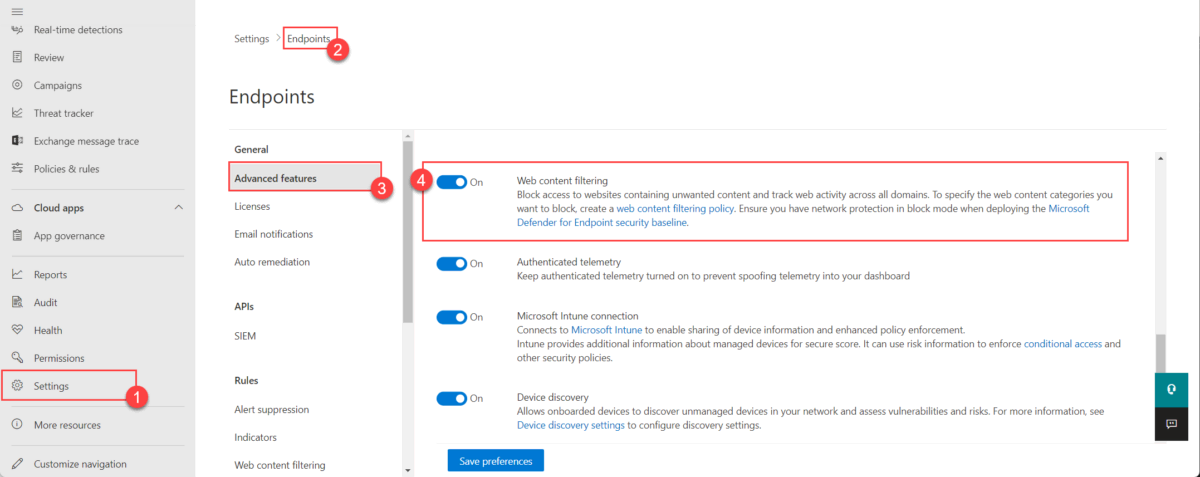
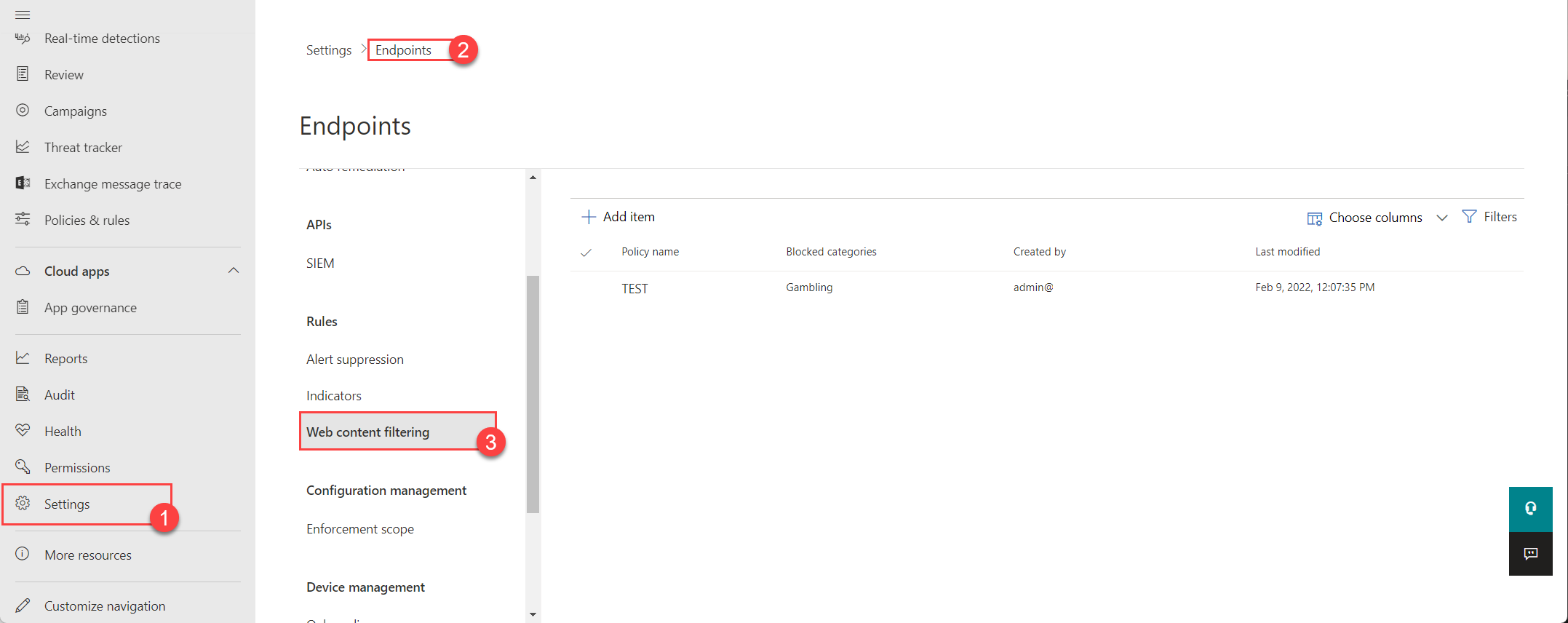
In the Microsoft 365 Defender portal, go to Settings → Endpoints → Advanced features and enable Web content filtering. After you turn it on, the Web content filtering menu under Settings may take a moment to appear; if you do not see it, sign out and back in. Once it is visible, you can create and assign policies from Settings → Endpoints → Web content filtering.
Enable SmartScreen and Network Protection with Intune
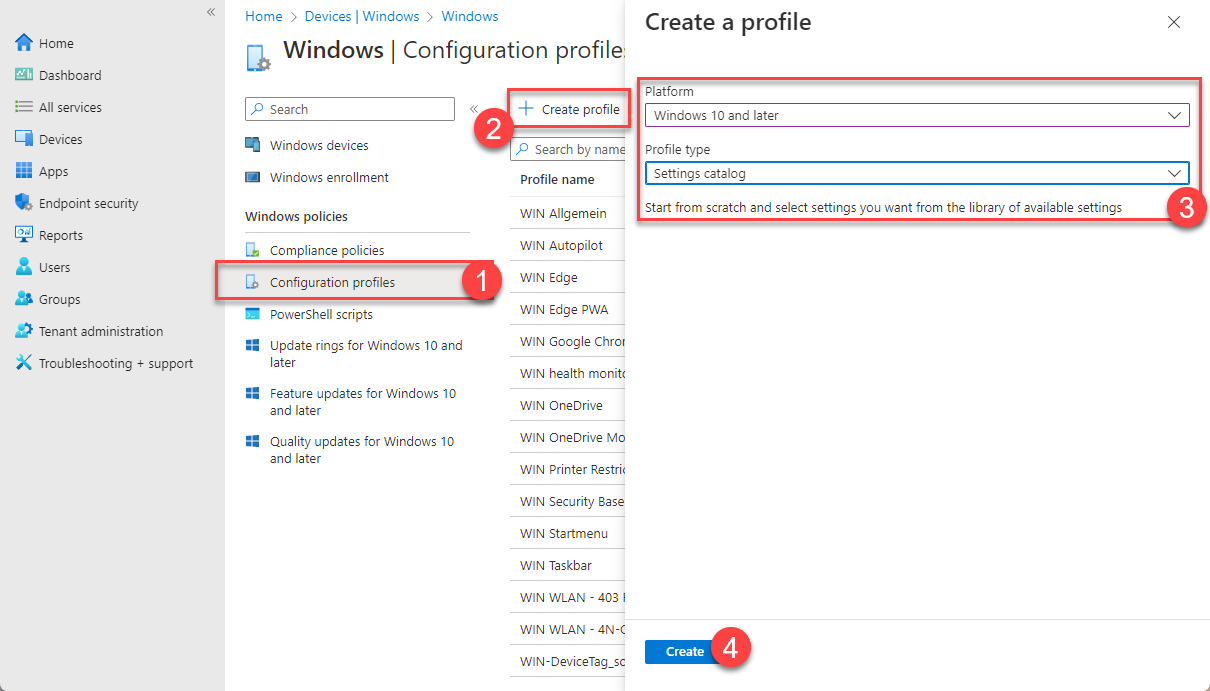
SmartScreen and Network Protection can be enabled in several ways (security baseline, antivirus profile, or Group Policy). Using a Settings catalog profile in Intune keeps both in one place. In the Intune admin center, go to Devices → Windows → Configuration profiles and click Create → New policy. Choose Windows 10 and later and Settings catalog.
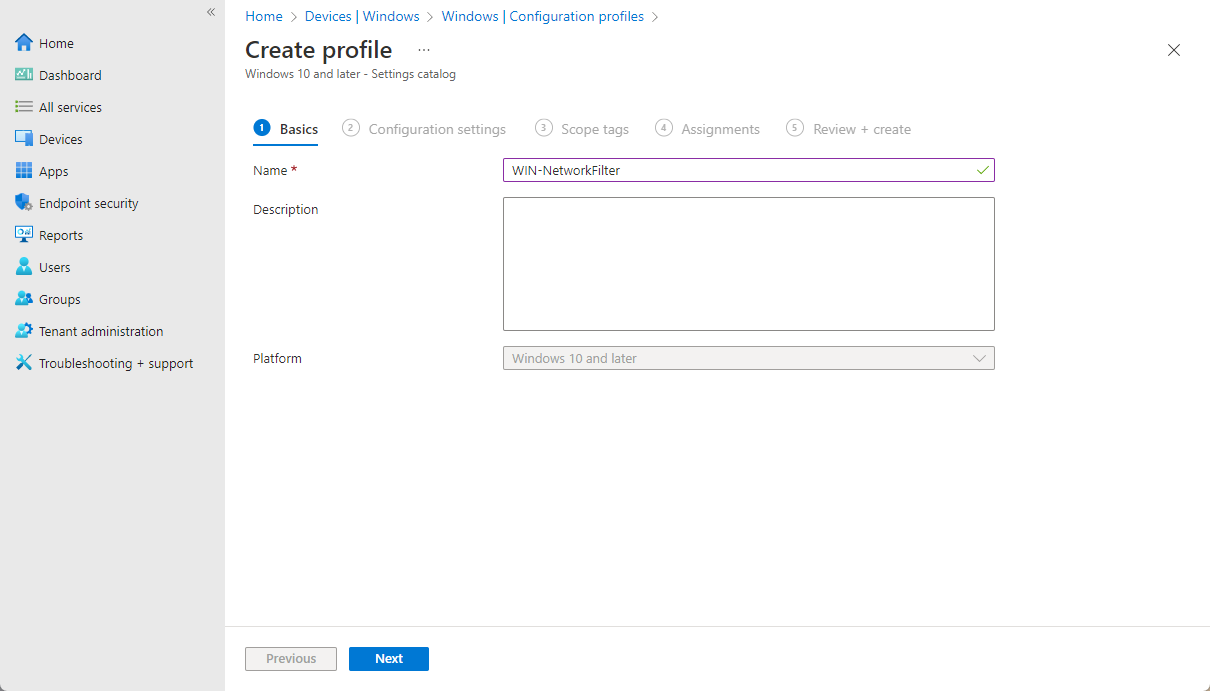
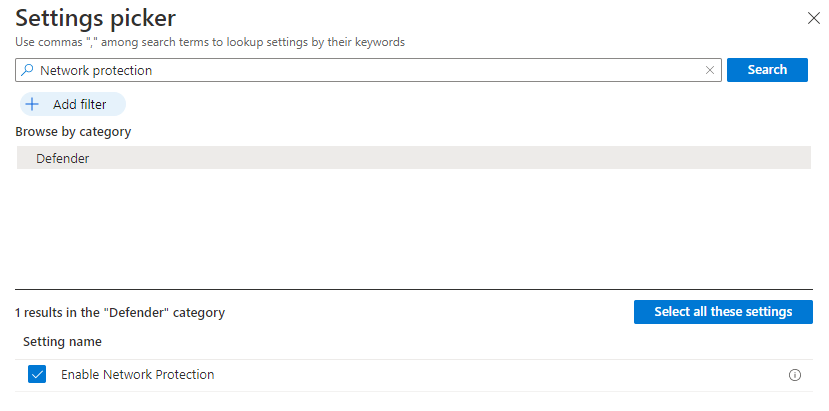
On the Basics page, set a name (e.g. “Defender SmartScreen and Network Protection”) and optional description. On Configuration settings, click Add settings and search for Configure Microsoft Defender SmartScreen; add it. Search again for Network protection and add that setting as well.
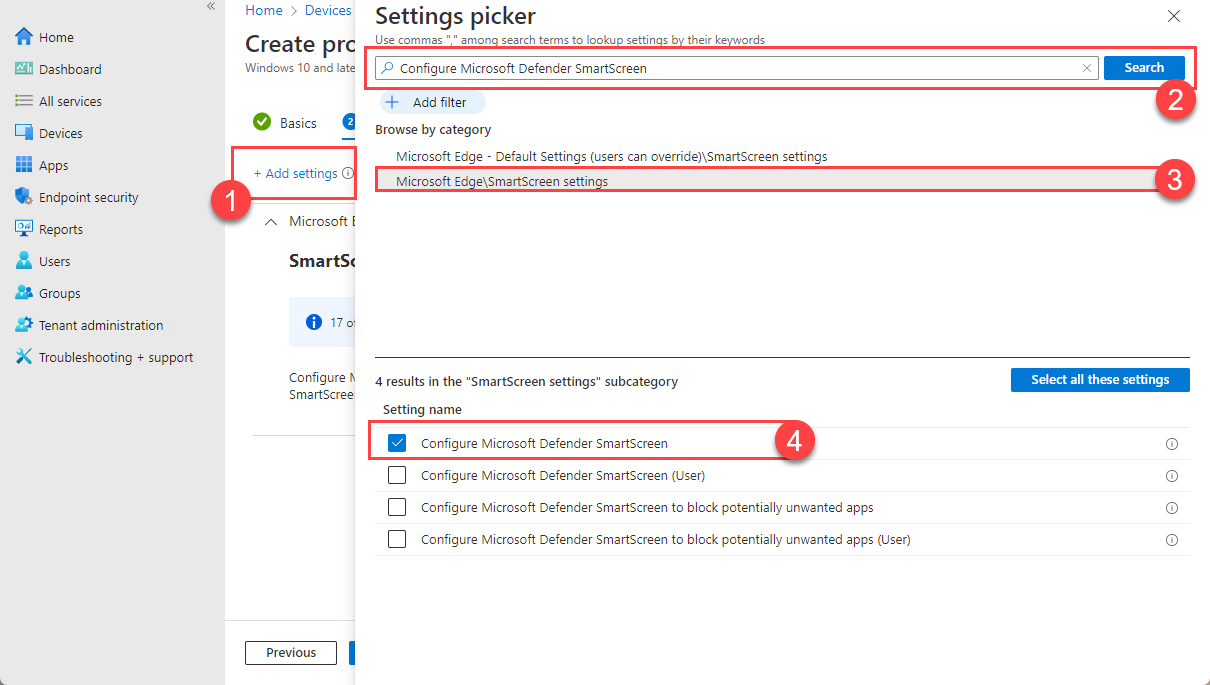
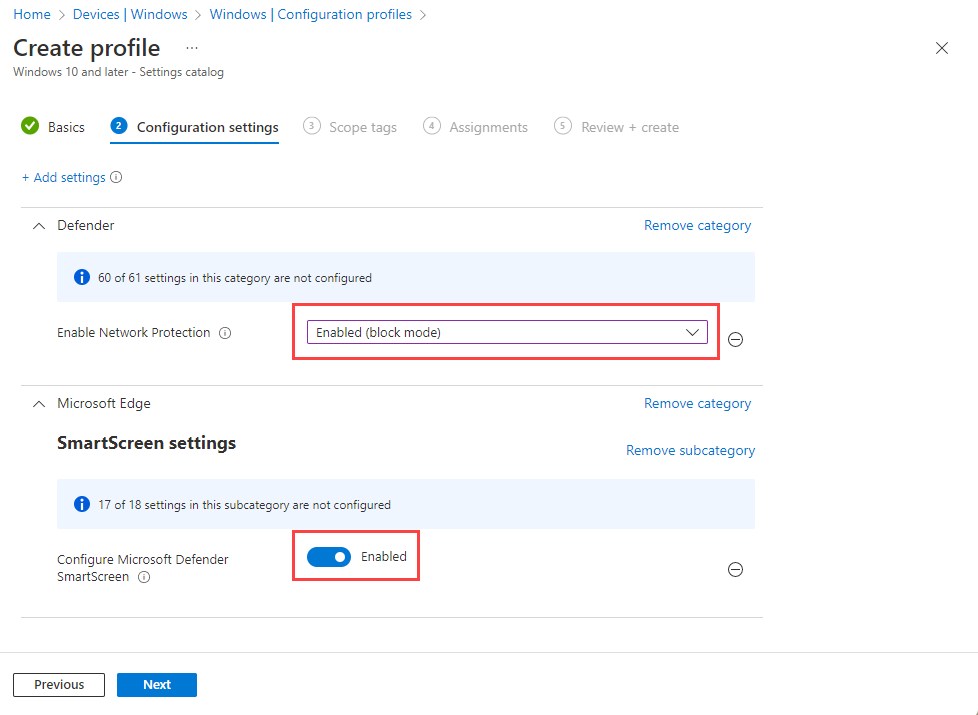
Configure SmartScreen and Network Protection to Enable (or your desired option), then assign the profile to the device groups that should have web filtering. Save the profile.
Create and Assign a Web Filter Policy
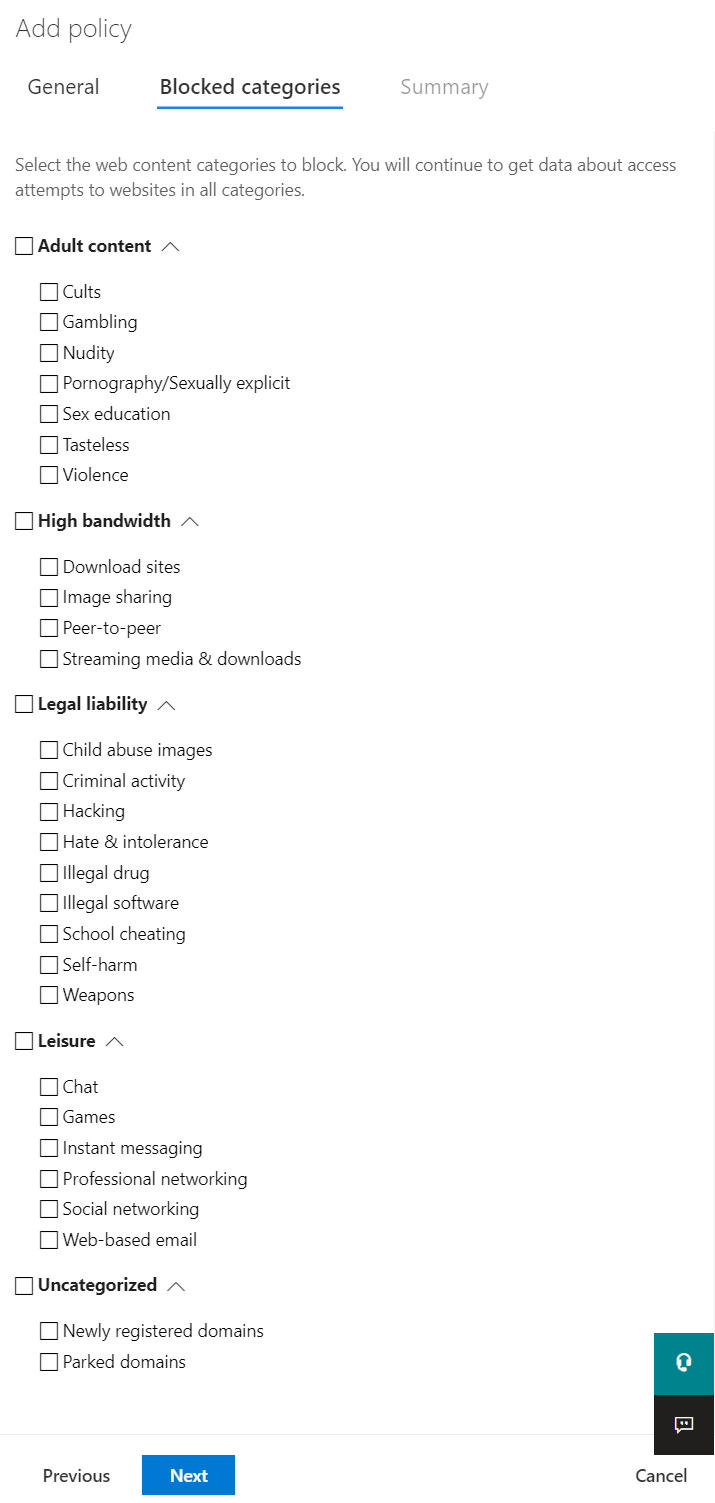
Back in the Microsoft 365 Defender portal, go to Settings → Endpoints → Web content filtering and create a new policy. During creation you choose which content categories to block. Categories you do not select are monitored only (traffic is logged but not blocked). If you do not block any category, the policy runs in audit mode: all traffic is reported and no blocks are applied. The portal lists all categories and subcategories (e.g. adult content, gambling, high bandwidth, legal liability, malicious sources, phishing, uncategorized). Pick the categories you want to block; the rest remain in monitor-only.
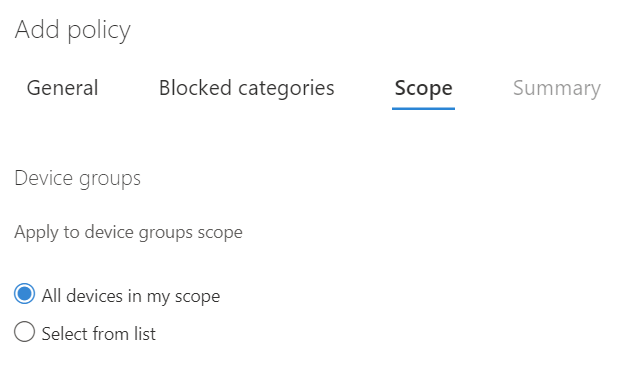
In Defender for Business, the policy applies to all managed devices. In Defender for Endpoint, you can target specific device groups or scope the policy so only certain devices receive it. Assign the policy to the desired groups and save.
Monitoring and Exceptions
In the Microsoft 365 Defender portal, go to Reports → Web protection to see blocked attempts, allowed requests, and trends. Use this to tune categories, review user behavior, and measure policy effectiveness. You can add exceptions to allow specific URLs or domains even when they fall under a blocked category. For example business-critical sites, misclassified legitimate sites, or internal resources reached via public URLs. Configure exceptions in the web content filtering policy so users can reach approved destinations without disabling the filter.
What Users See
When a user tries to open a blocked site in Microsoft Edge, they see a page stating the site was blocked by organizational policy. The message can include the blocked category and IT contact or exception-request details if you configure them. Filtering is enforced by Network Protection in Windows Defender, so the same block applies in Chrome, Firefox, and other browsers; behavior is consistent regardless of the browser in use.
Categories You Can Block or Monitor
The filter supports multiple categories (and subcategories). Examples include: Adult content, Gambling, High bandwidth, Legal liability, Lingerie and swimsuits, Malicious sources, Media sharing, Peer-to-peer, Phishing, Uncategorized, Violence, and Weapons. Block only what you need; everything else is monitored for reporting. Starting in audit mode (no blocks) helps you see real traffic before enabling blocks.
Suggested Practices
- Start with audit mode or a small pilot group so you can review reports before blocking broadly.
- Define a process for exception requests and review blocked sites periodically.
- Tell users that web filtering is in place and how to request access to blocked sites.
- Use Reports → Web protection regularly to spot trends and adjust categories or exceptions.
Summary
To configure Defender for Endpoint web filter with Microsoft Intune: enable Web content filtering under Settings → Endpoints → Advanced features in the Microsoft 365 Defender portal; enable SmartScreen and Network Protection via an Intune Settings catalog profile and assign it to your devices; then create one or more web content filtering policies in Defender, choose which categories to block (others are monitored), and assign policies to device groups or scopes. Use Reports → Web protection to monitor activity and add exceptions where needed. This gives you consistent monitoring and blocking of web traffic for devices outside the corporate network, without relying on VPN or proxy for filtering.





