Keeping managed Windows devices aligned with your policies usually depends on device check-ins: the device contacts Intune on a schedule (often around every 8 hours) or when the user triggers a sync, and then receives new or updated configuration. Between check-ins, if a user or another tool changes a setting, the device can stay out of compliance until the next sync. Config Refresh in Microsoft Intune adds a local, scheduled step that runs on the device at a shorter interval you configure. It compares the current device state to the last configuration the device received from Intune and, when it finds drift, reapplies the intended settings. So you get faster correction of changes without waiting for the next check-in. Config Refresh is off by default and must be enabled via a Settings catalog profile. Because it can interfere with troubleshooting (e.g. when you need to test a manual change), Intune also lets you pause Config Refresh per device for a chosen period. This post explains how Config Refresh differs from a normal policy sync, how to turn it on, how to pause it, and how to see when the next refresh runs on a device.
Policy Sync vs. Config Refresh
Both mechanisms are needed and work together. Policy sync (check-in) is when the device talks to Intune, gets the latest assigned policies, and downloads them. That happens at scheduled intervals (typically about 8 hours) or when the user syncs from the Company Portal or you trigger a sync from the admin center. Without a successful sync, the device never has the newest policy content. Config Refresh does not fetch new policies from the cloud. It uses a scheduled task on the device that, at a configurable interval (e.g. every 15–30 minutes or as low as 5 minutes), checks the device against the configuration it already has from the last sync. If a setting has been changed locally (by the user, an app, or another management tool), Config Refresh detects the drift and reapplies the value from the Intune policy. So: sync brings policy down; Config Refresh keeps the device in line with that policy between syncs. For a deeper technical look, see community posts such as Config Refresh | Intune | Offline Refresh Intune Policies (call4cloud.nl).
When Config Refresh Helps
Config Refresh is useful when you need settings to stick even if someone changes them locally: for example enforcing security options (encryption, password rules), keeping compliance policies in place, or keeping a standard configuration across the fleet. It does not replace check-ins. Devices still need to sync to receive new or updated policies. Config Refresh only enforces the configuration that was last downloaded.
Enable Config Refresh in Intune
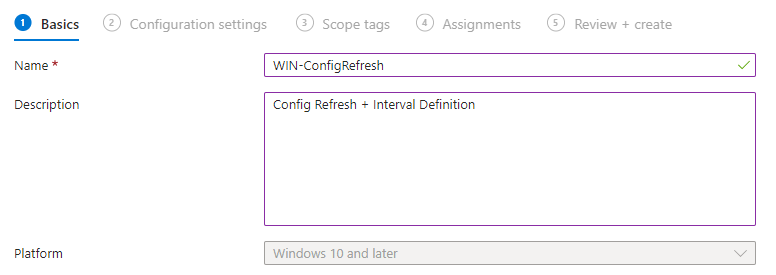
Config Refresh is not enabled by default. To turn it on, create a Settings catalog profile in Intune. In the Microsoft Intune admin center, go to Devices → Windows → Configuration profiles and click Create → New policy. Choose Windows 10 and later and Settings catalog. On Basics, set a name (e.g. “Config Refresh – enforce policy locally”) and an optional description.
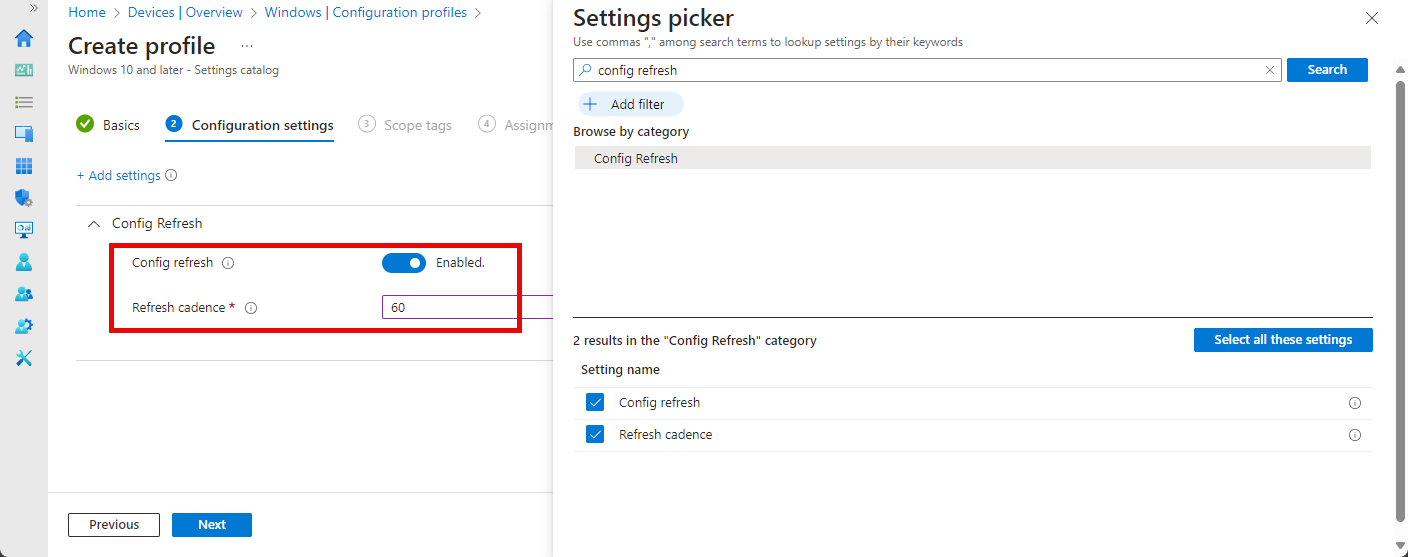
On Configuration settings, click Add settings and search for Config refresh. Add both Config Refresh–related settings, enable them, and set the refresh interval if the UI exposes it. Save the profile and go to Assignments. Assign the profile to the device or user groups that should use Config Refresh. Once the profile is applied and the device has checked in, Config Refresh will be active on those devices.
Pausing Config Refresh
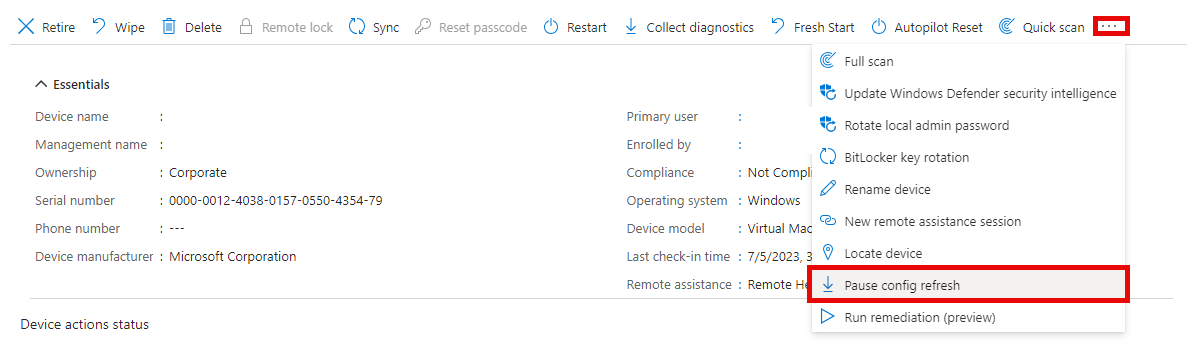
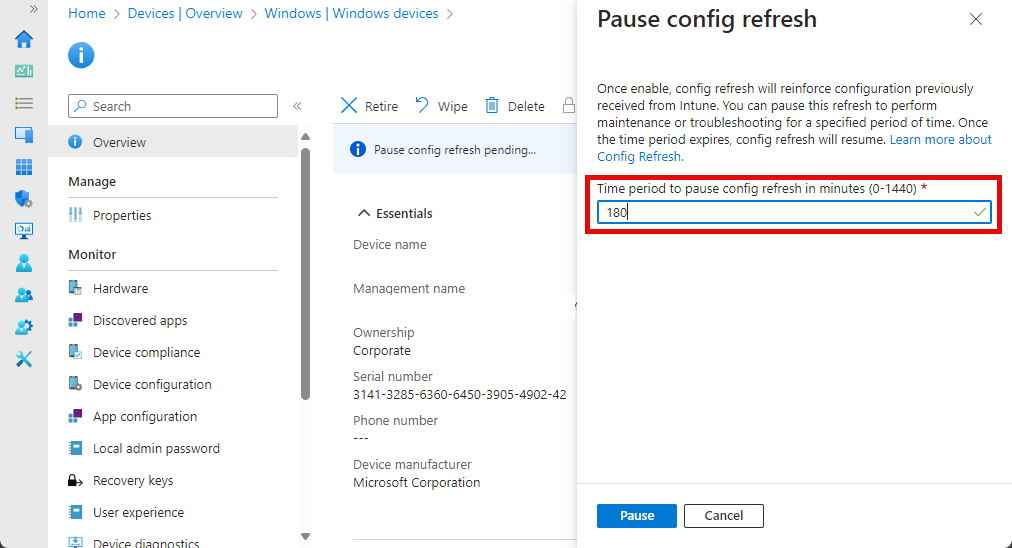
When you are troubleshooting or need to test a manual change without the device reverting it immediately, you can pause Config Refresh for that device. In Intune, open the device, go to Device actions (or the equivalent device-level actions), and choose the action to Pause config refresh. You can select how long to pause (in minutes). During the pause, the scheduled task will not correct drift; compliance may slip until the next check-in or until the pause expires. Use pause only when necessary and for as short a time as needed.
How Long Is Config Refresh Paused?
In the DMClient CSP, the pause is controlled by a “Pause period” (or similar) value. In earlier previews this was set via a custom OMA-URI; in the current Intune experience you choose the pause duration when you run the pause action (e.g. 30 or 60 minutes). The effect is that the next time the Config Refresh scheduled task would have run, that run is skipped and the pause period is added. So the next refresh happens after the pause ends. The exact behavior is documented in the DMClient CSP on Microsoft Learn.
When Is the Next Refresh on the Device?
Config Refresh does not show the next run time in the Intune UI. On the device, the refresh is driven by a scheduled task. To see how often it runs (and optionally when it last ran or will run next), open Task Scheduler on the device and go to Task Scheduler Library → Microsoft → Windows → EnterpriseMgmtNonCritical. Look for a task named “Scheduled task created by DM client to refresh settings” (it may sit in a subfolder with a unique identifier). The task’s trigger and schedule reflect the Config Refresh interval you configured. That tells you the refresh cadence for that device.
Refresh Interval and Limits
The Config Refresh interval is configurable in the Settings catalog profile. Typical defaults are in the 15–30 minute range. You can set it as low as about 5 minutes for highly sensitive environments or higher (e.g. several hours) where strict drift correction is less critical. Balance compliance needs with device performance and battery impact.
Suggested Practices and Troubleshooting
- Set an interval that keeps compliance without overloading the device; monitor for performance issues after enabling Config Refresh.
- Pause Config Refresh only when you need to test or troubleshoot; document when and why you paused.
- Test Config Refresh on a pilot group before rolling it out to all devices.
- If Config Refresh does not seem to run: confirm the Settings catalog profile is assigned and the device has synced with Intune at least once after the profile was assigned.
- If settings are not reverting: check whether Config Refresh is paused for that device or whether another policy or app is overwriting the setting after refresh.
- If you cannot find the scheduled task: ensure the device is enrolled and the Config Refresh profile has been applied and the device has checked in.
Summary
Config Refresh in Microsoft Intune uses a local scheduled task to reapply the last-downloaded Intune configuration at a configurable interval, so drift is corrected without waiting for the next device check-in. Policy sync (check-in) is still required for devices to get new or updated policies; Config Refresh only enforces what is already on the device. Enable Config Refresh with a Settings catalog profile (search for “Config refresh,” add and enable both settings, assign to groups). To troubleshoot or test manual changes, use the device action to pause Config Refresh and choose a pause duration. Check Task Scheduler under Microsoft → Windows → EnterpriseMgmtNonCritical for the “Scheduled task created by DM client to refresh settings” task to see the refresh cadence on the device. Used together, Policy Sync and Config Refresh keep devices up to date and compliant.





