Intune’s Settings Catalog includes a Bluetooth category so you can control discoverability, advertising, encryption key size, and other Bluetooth behavior on Windows devices. This guide walks through creating a configuration profile and choosing the Bluetooth settings that fit your security and usability requirements.
What You’ll Do
You will:
- Create an Intune configuration profile (Settings catalog) for Windows 10 and later.
- Add settings from the Bluetooth category (search for “bluetooth”) and configure the options you need.
- Assign the profile to the users or devices that should receive the policy.
You can combine multiple Bluetooth settings in one profile (e.g. discoverable mode, encryption, local device name).
Step 1: Create a Settings Catalog Profile
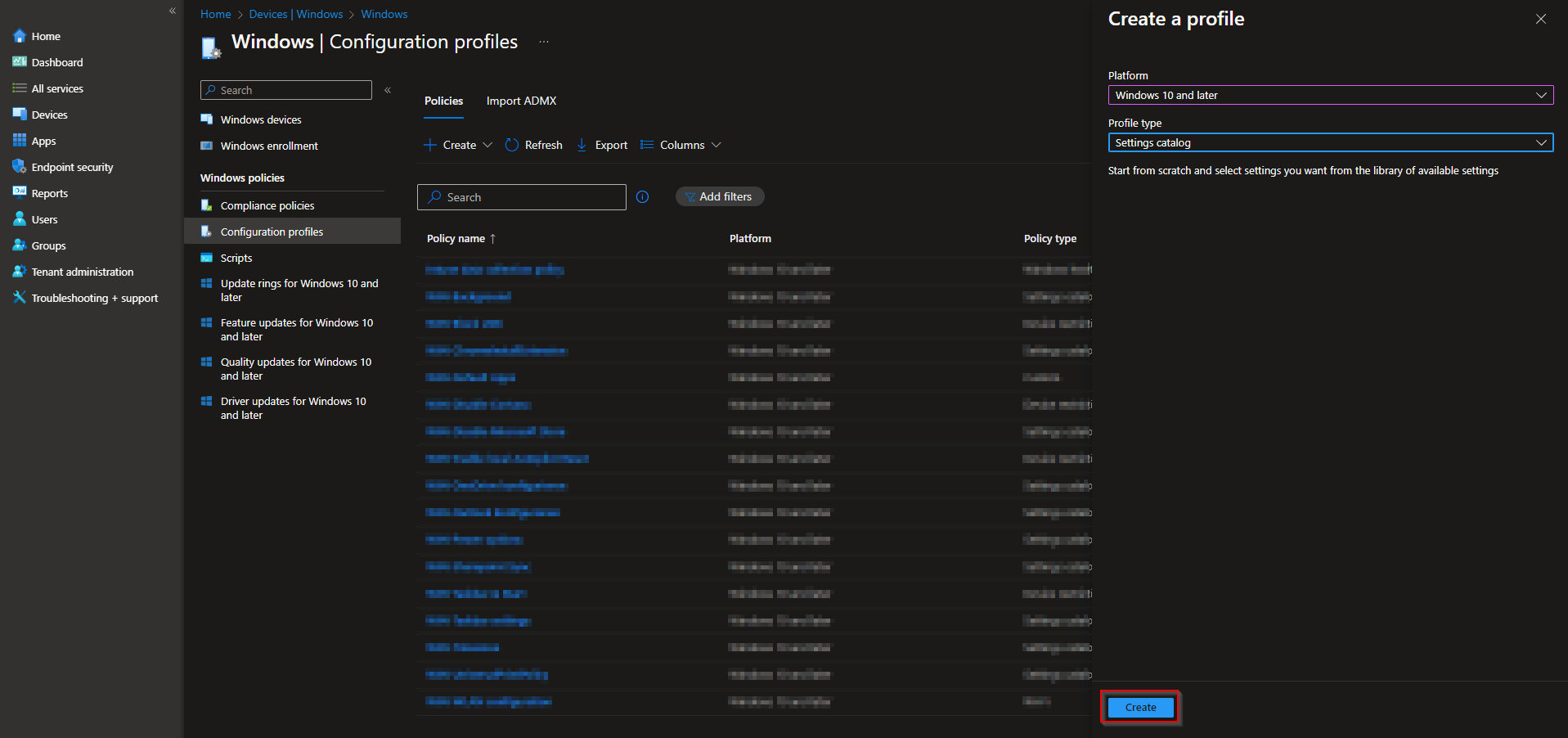
In the Microsoft Intune admin center, go to Devices → Windows → Configuration profiles. Click Create → New policy.
Set Platform to Windows 10 and later and Profile type to Settings catalog. Click Create.
Step 2: Name the Profile
On the Basics tab, enter a Name (e.g. “Bluetooth policy – managed devices”) and optionally a Description. Click Next.

Step 3: Add and Configure Bluetooth Settings
On the Configuration settings tab, click Add settings. Search for bluetooth, then expand the Bluetooth category. Add the settings you want to manage.
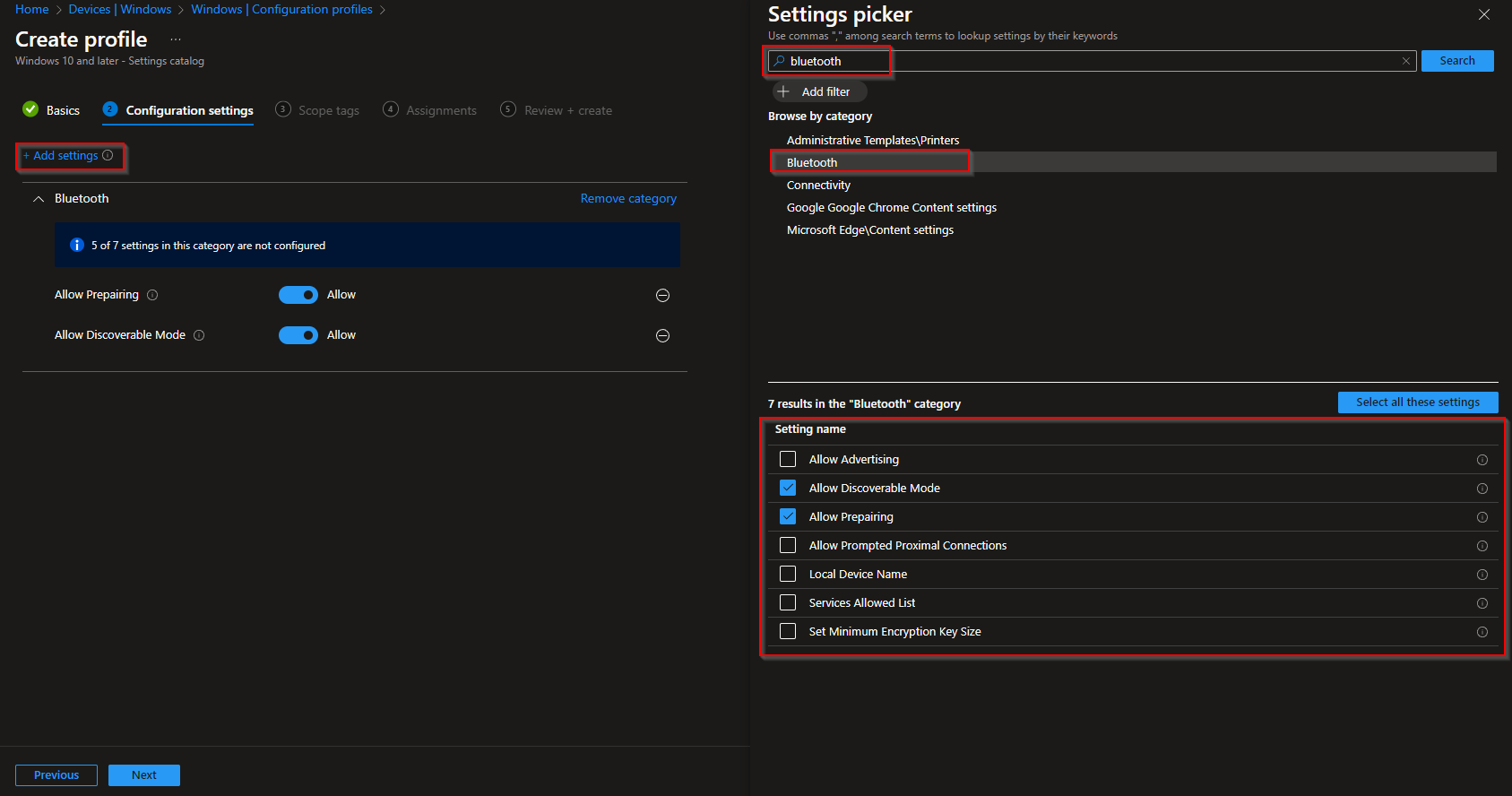
Examples of settings you can configure:
- Bluetooth / Allow Advertising . Whether the device can send Bluetooth advertisements.
- Allow Discoverable Mode . Whether other Bluetooth devices can discover this device.
- Allow Preparing . Whether bundled Bluetooth peripherals can auto-pair with the host.
- Allow Prompted Proximal Connections . Whether to block Swift Pair and other proximity-based pairing (e.g. “nearby device” prompts).
- Local Device Name . The Bluetooth display name shown to other devices.
- Services Allowed List . Restrict which Bluetooth services or profiles are allowed.
- Set Minimum Encryption Key Size . Enforce a minimum key size for higher-security environments.

Set each added setting to the value you want, then click Next.
Step 4: Scope, Assignments, and Create
On Scope tags, add tags if your tenant uses them. On Assignments, add the groups (or All Users / All Devices) that should get this Bluetooth policy. On Review + create, confirm and click Create.
Once the profile syncs to targeted devices, the Bluetooth behavior will match the settings you configured.
Wrap-up
You can configure Bluetooth settings with Intune by creating a Settings Catalog profile and adding the Bluetooth settings you need (discoverability, advertising, encryption, device name, services list, etc.). Assign the profile to the right users or devices to enforce a consistent Bluetooth policy across your managed Windows environment.





