With Microsoft Intune you can automatically configure Microsoft Outlook so that the mailbox profile is created from the user’s Active Directory primary SMTP address. Users who sign in to Windows with their work account get a ready-to-use Outlook profile without entering server details or email address. Ideal for Autopilot and standard onboarding.
Why Use Auto-Login for Outlook?
Manually adding an Outlook account on every machine is time-consuming and error-prone. A single Intune Settings Catalog policy can:
- Create the Outlook profile using the user’s primary SMTP address.
- Leverage the same credentials as the Windows sign-in (when using work or school accounts).
- Reduce help-desk calls and speed up new-device setup, especially with Autopilot.
What You’ll Configure
You will create one Settings catalog configuration profile for Windows 10 and later, enable the setting Automatically configure profile based on Active Directory Primary SMTP address (User) under Microsoft Outlook 2016 → Account Settings → Exchange, then assign the profile to the right users or devices.
Step 1: Create a New Configuration Profile
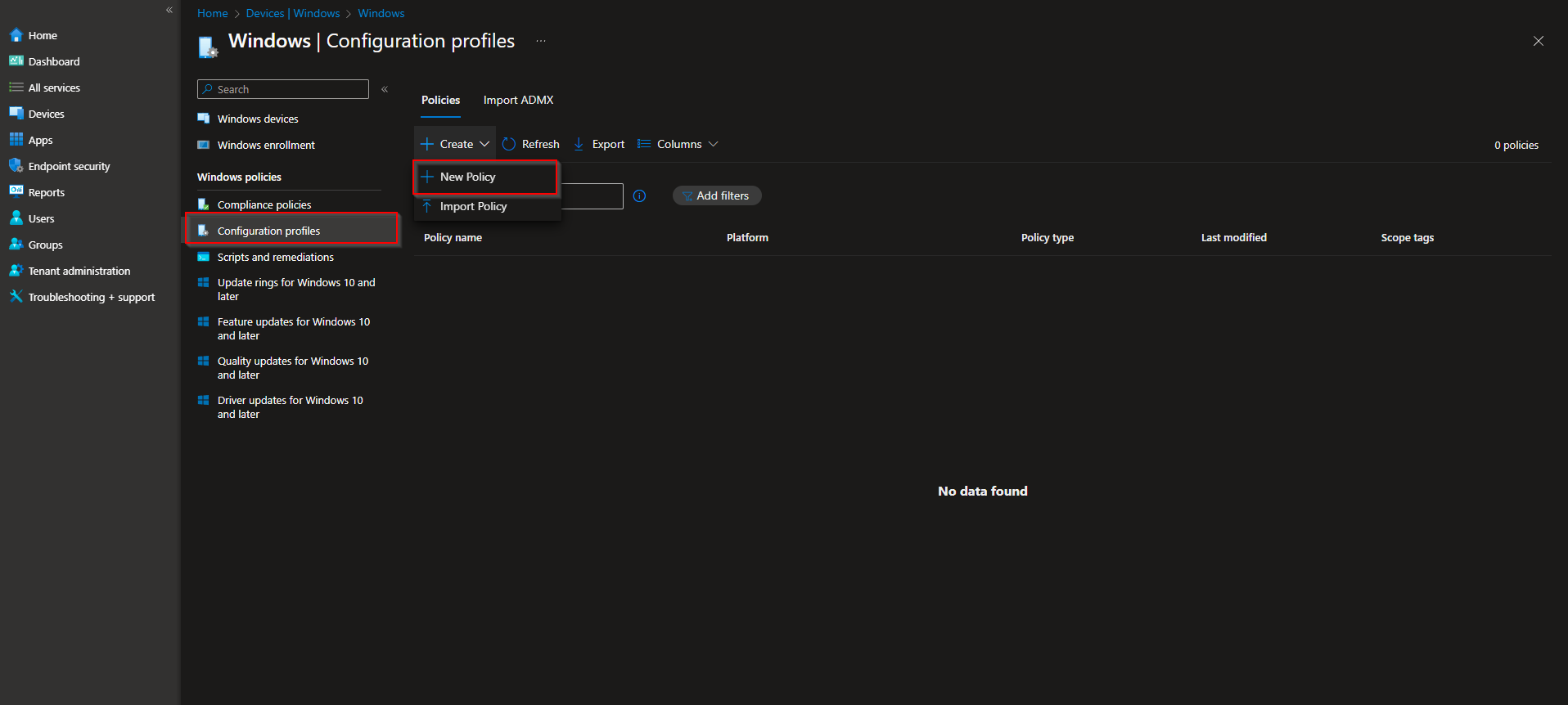
Open the Microsoft Intune admin center and go to Devices → Windows → Configuration profiles. Click Create → New policy.
Set Platform to Windows 10 and later and Profile type to Settings catalog. Click Create.
Step 2: Name and Describe the Profile
On the Basics tab, enter a clear Name (e.g. “Outlook Auto-Login – Primary SMTP”) and optionally a Description. Click Next.
Step 3: Add the Outlook Auto-Configure Setting
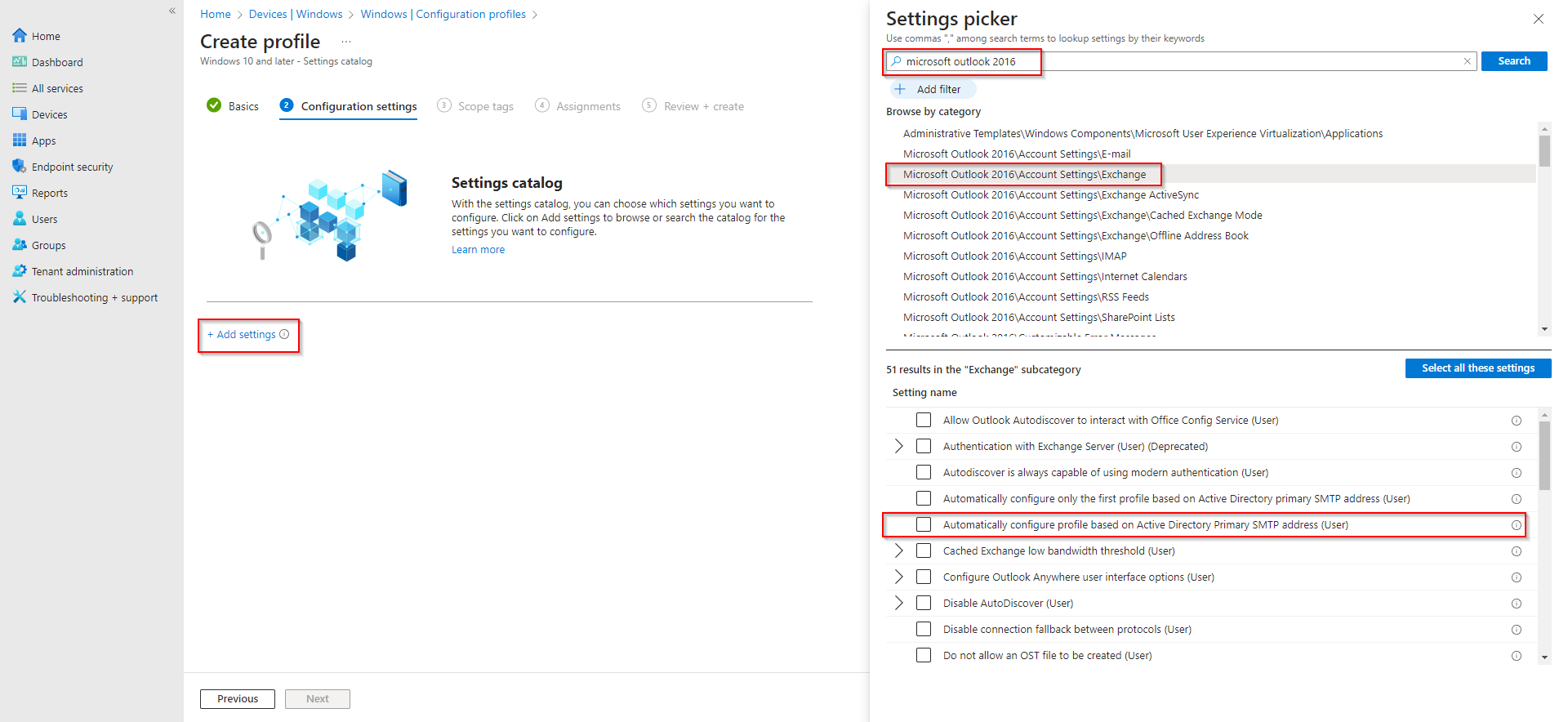
On the Configuration settings tab, click Add settings. In the search box, type Microsoft Outlook 2016. Expand Microsoft Outlook 2016 → Account Settings → Exchange.
Locate Automatically configure profile based on Active Directory Primary SMTP address (User) and enable it (turn the toggle On). Click Next.
Step 4: Scope, Assign, and Create
If your tenant uses scope tags, set them on the Scope tags page and click Next. On Assignments, add the groups that should receive the policy (e.g. All Users, or a specific user or device group). Click Next, then Review + create, and finally Create.
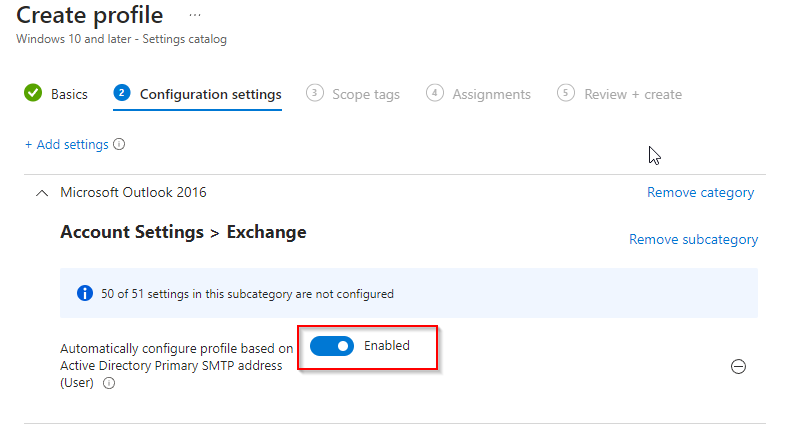
After the profile syncs, targeted users will have Outlook configured to use their primary SMTP address; when they open Outlook, the profile is already in place and they can start using mail without manual account setup.
Wrap-up
You can configure auto-login in Outlook with Intune by creating a Settings Catalog profile for Windows 10 and later, enabling Automatically configure profile based on Active Directory Primary SMTP address (User) under Microsoft Outlook 2016 → Account Settings → Exchange, and assigning the profile to the right users or devices. This keeps Outlook setup consistent and hands-free, especially for Autopilot and standard onboarding.





