USB flash drives, external hard drives, and memory cards can be used to copy or steal data or to introduce malware. Many organizations restrict removable storage on managed Windows devices to reduce that risk. With Microsoft Intune you can block removable storage (or all USB connections) using a device restrictions profile. This guide walks through creating that profile and choosing the right option.
What You’ll Do
You will create a Device restrictions configuration profile for Windows 10 and later and configure either:
- Removable storage – Block . Prevents access to removable storage (e.g. USB sticks, SD cards) while leaving other USB functions (e.g. charging, keyboards) usable.
- USB connection – Block . Blocks all USB ports for data; charging is not affected.
The policy is enforced via the Removable Storage Access setting in Windows. Assign the profile to the users or devices that should have removable storage restricted.
Step 1: Create a Device Restrictions Profile
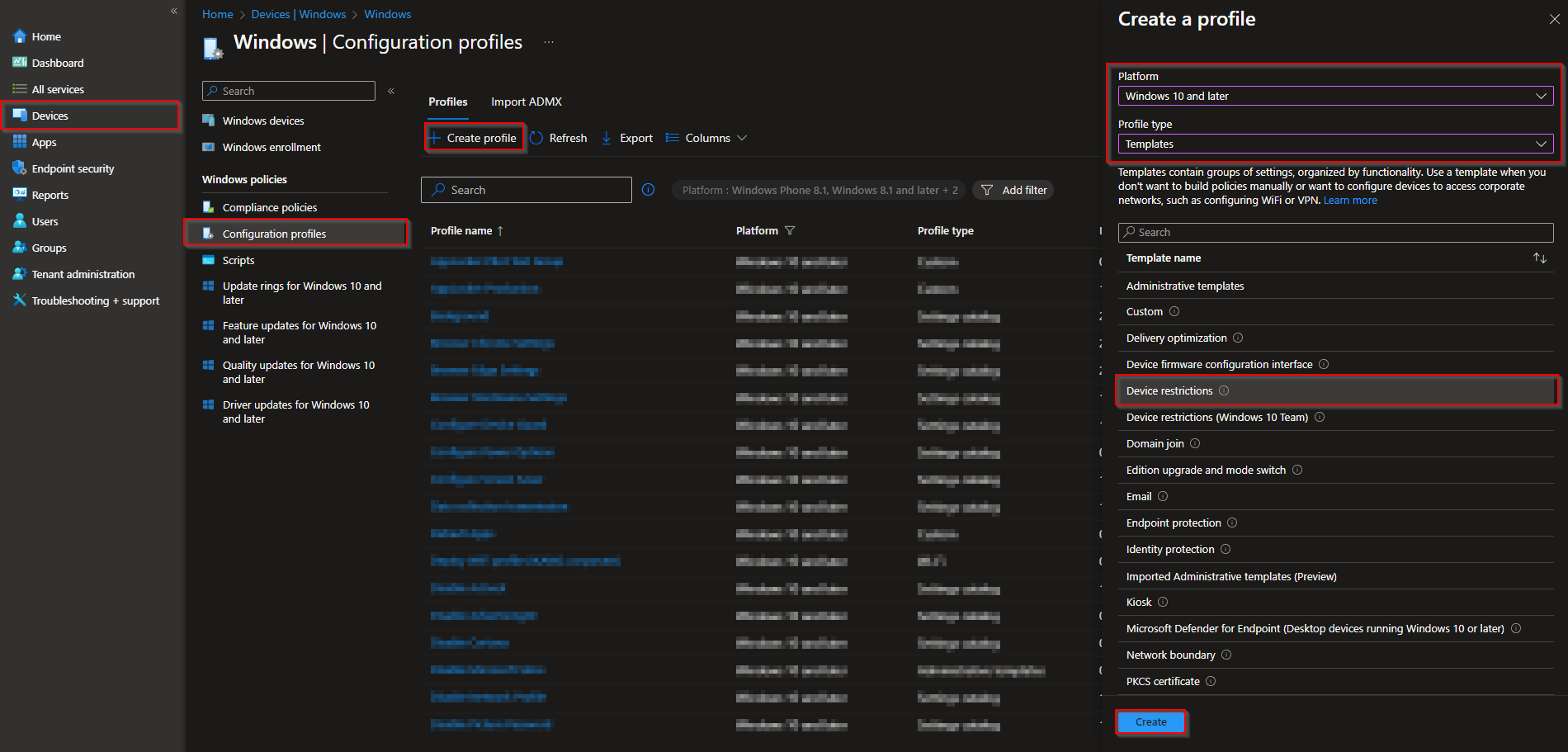
In the Microsoft Intune admin center, go to Devices → Windows → Configuration profiles. Click Create → Create profile.
Set Platform to Windows 10 and later, Profile type to Templates, and Template name to Device restrictions. Click Create.
Step 2: Name the Profile
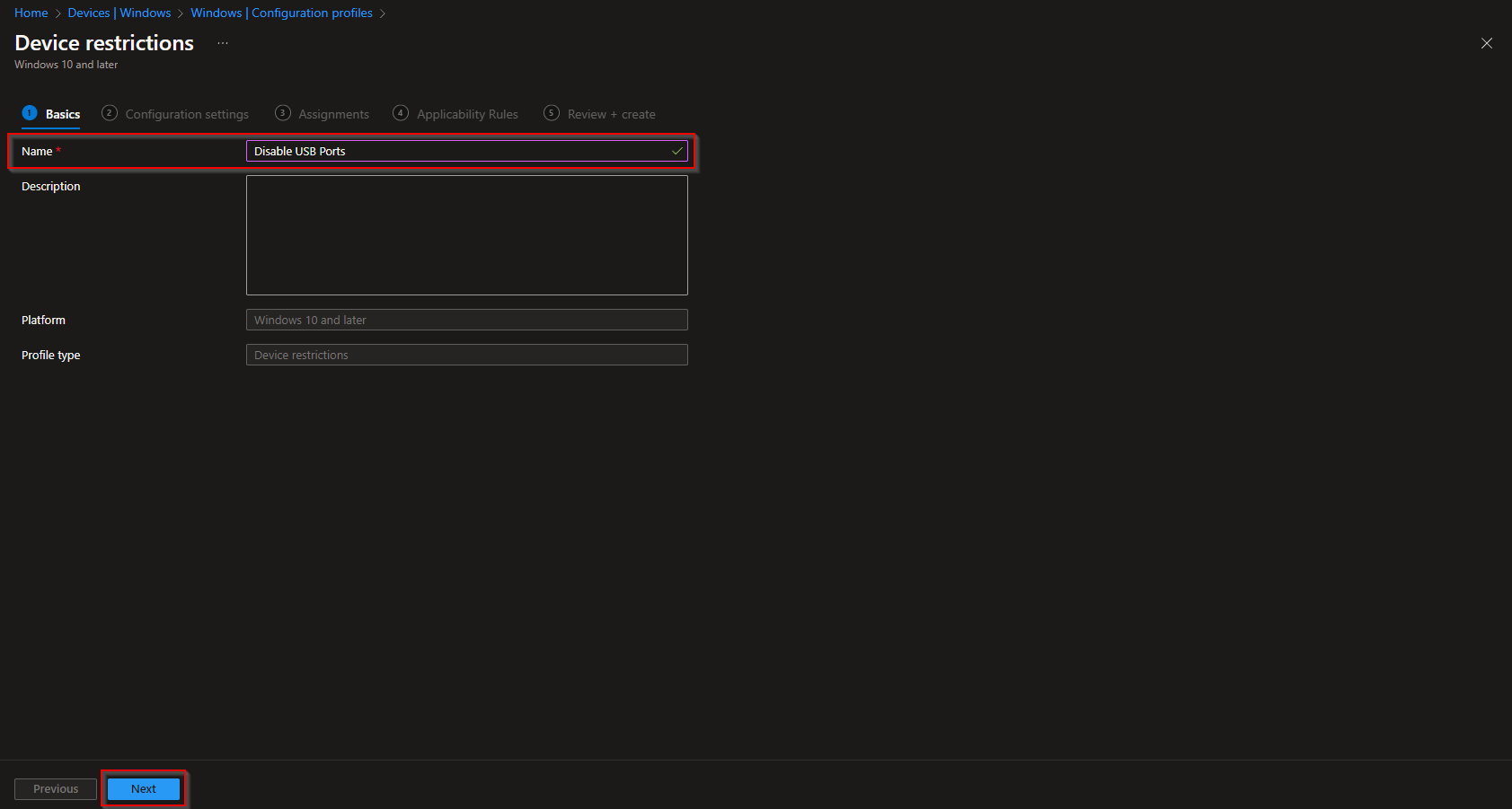
On the Basics tab, enter a Name (e.g. “Block removable storage – managed PCs”) and optionally a Description. Click Next.
Step 3: Configure Removable Storage or USB Block
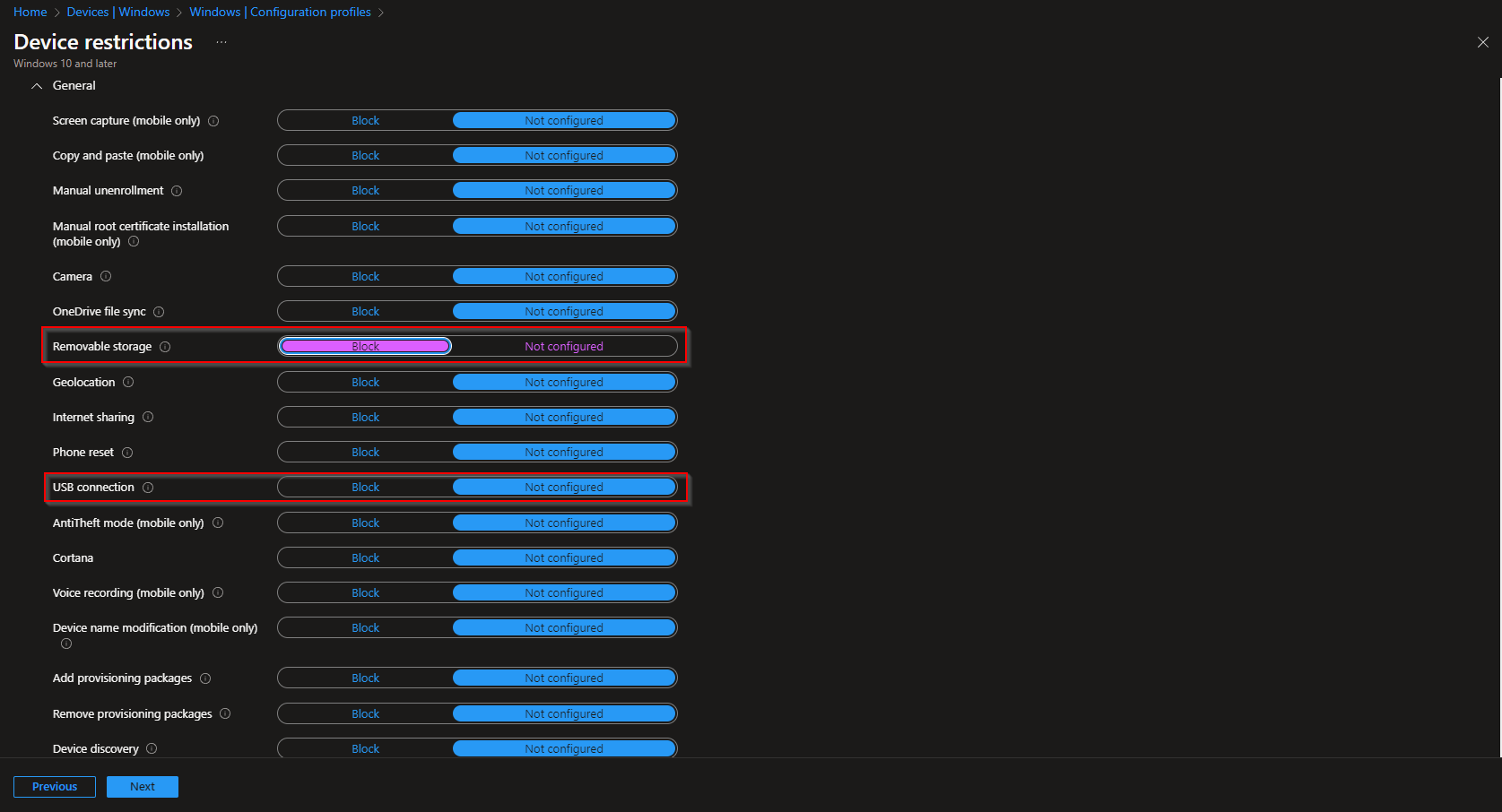
On the Configuration settings tab, expand General. You will see:
- Removable storage – Block . Disables access to removable storage (USB drives, memory cards, etc.) only. Other USB devices (keyboards, mice, chargers) continue to work.
- USB connection – Block . Blocks all USB data connections. Charging over USB is not affected.
Set Removable storage to Block if you only want to block drives and cards; set USB connection to Block if you want to lock down all USB data. Click Next.
Step 4: Assignments and Create
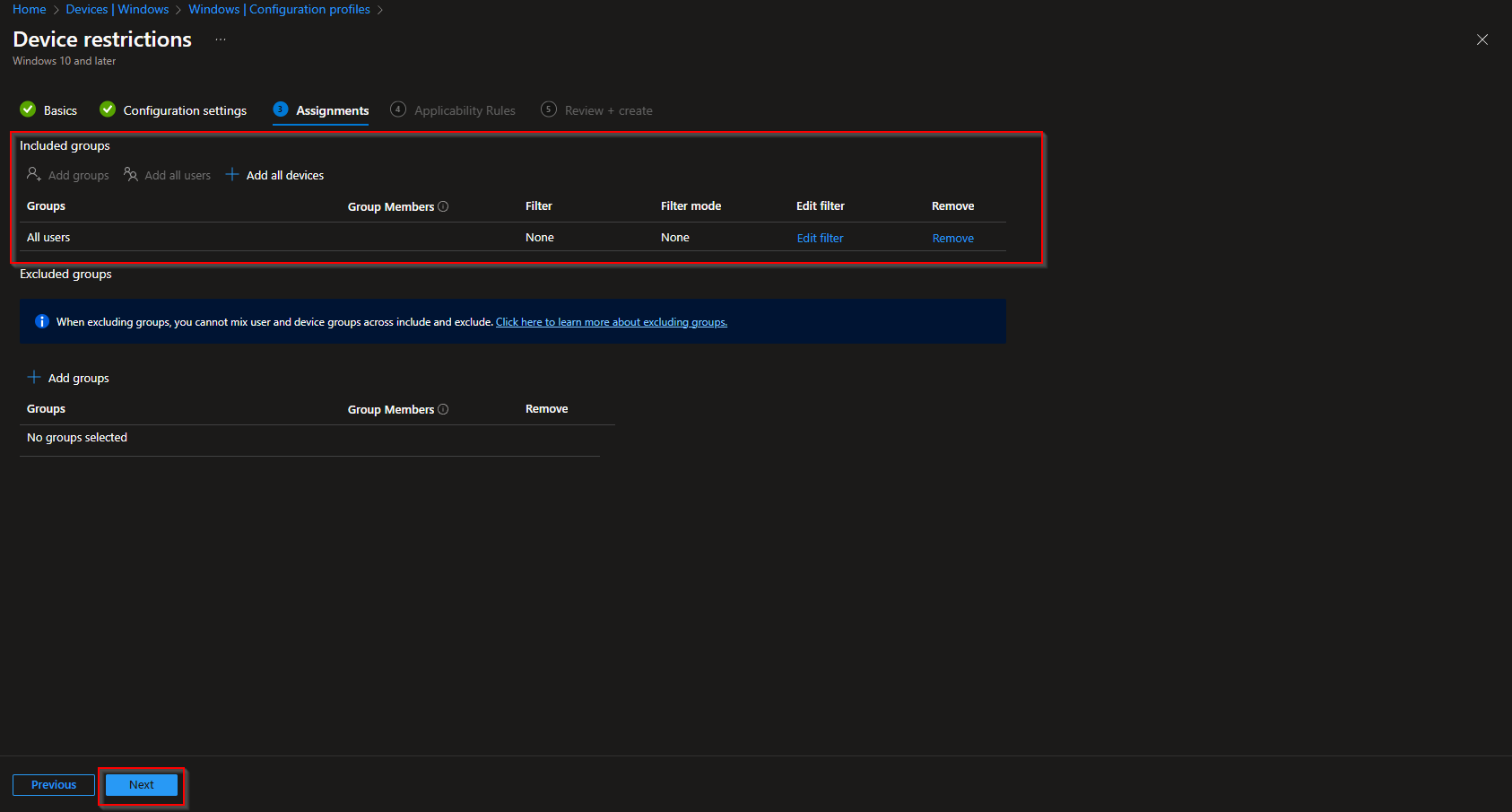
On Assignments, add the groups (or All Users / All Devices) that should have removable storage or USB blocked. You can skip Applicability rules unless you use them. On Review + create, review the profile and click Create.
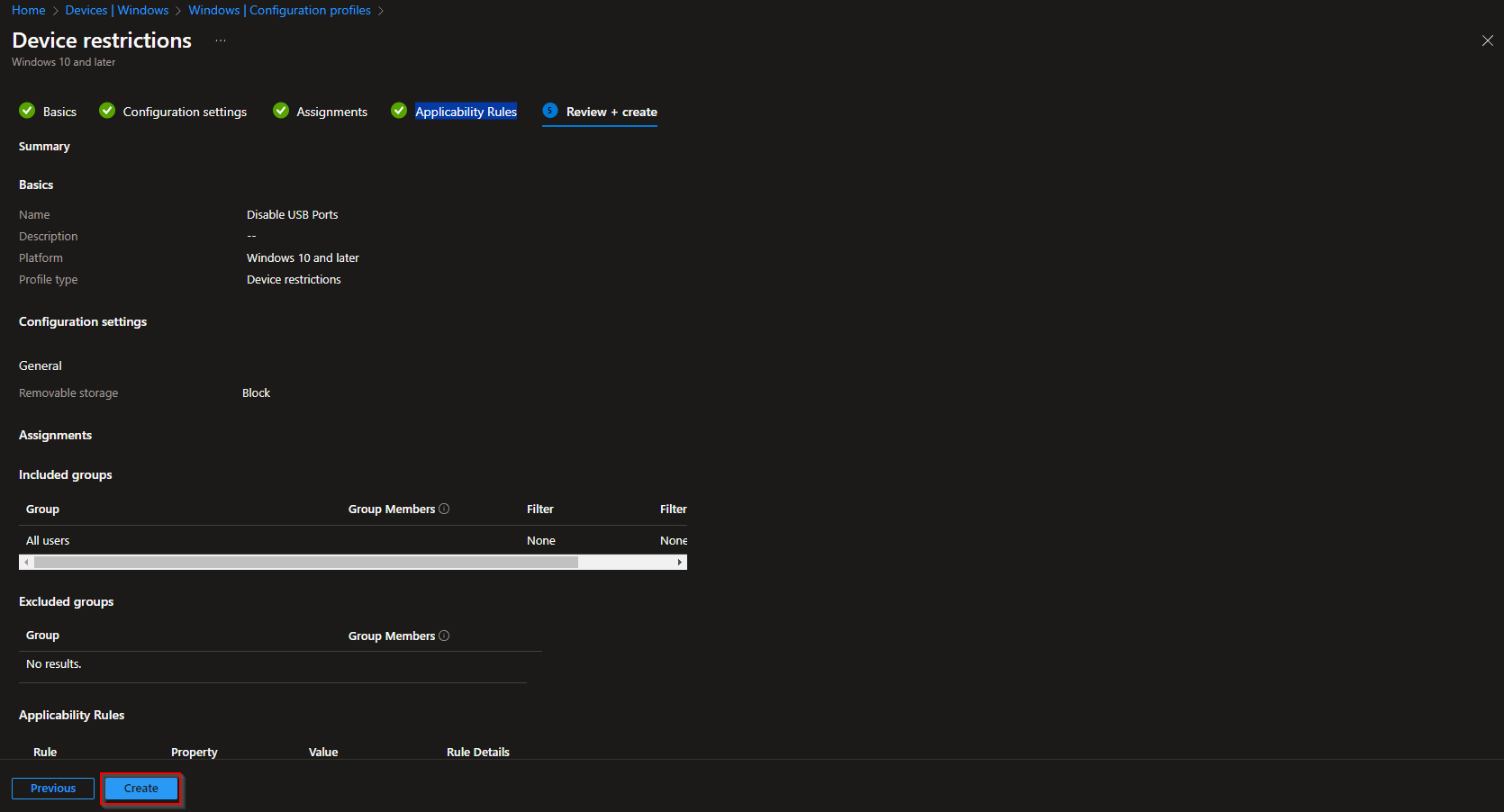
Once the profile syncs to targeted devices, users will no longer be able to access removable storage (or USB data, depending on the option you chose).
Wrap-up
You can block removable storage with Intune by creating a Device restrictions profile for Windows 10 and later, then under General setting Removable storage to Block (or USB connection to Block for all USB data). Assign the profile to the right users or devices to reduce the risk of data loss or malware via USB drives and other removable media.





