Control Panel and Windows Settings let users change system options such as display, network, accounts, and updates. On locked-down or shared devices you may want to prevent users from opening these so they cannot alter configurations that IT manages via Intune or Group Policy. With Microsoft Intune you can block access using a single Settings catalog profile: enable Prohibit access to Control Panel and PC settings (User) under Administrative Templates → Control Panel. This guide walks through creating and assigning that profile.
Why Restrict Control Panel and Settings?
Blocking access helps with:
- Security . Users cannot change firewall, update, or account settings that could weaken the device posture or bypass policy.
- Consistency . System configuration stays under IT control (Intune, GPO) instead of being changed locally.
- Compliance . Reduces the chance that users disable required settings (e.g. BitLocker, Windows Update) or introduce misconfigurations.
- Support . Fewer “I changed something and now it’s broken” cases; changes are made through managed policies.
When the policy is applied, users cannot open Control Panel or the Windows Settings app. Links and shortcuts to these (e.g. from Start or Run) will not open the UI. Use this only where you intend to fully manage the device; users will not be able to adjust things like display or sound from the standard UI.
What You’ll Configure
You will create one Settings catalog configuration profile for Windows 10 and later, add the setting Prohibit access to Control Panel and PC settings (User) under Administrative Templates → Control Panel, enable it, then assign the profile to the users or devices where you want access blocked.
Step 1: Create the Configuration Profile
In the Microsoft Intune admin center, go to Devices → Windows → Configuration profiles. Click Create → New policy. Set Platform to Windows 10 and later and Profile type to Settings catalog. Click Create.
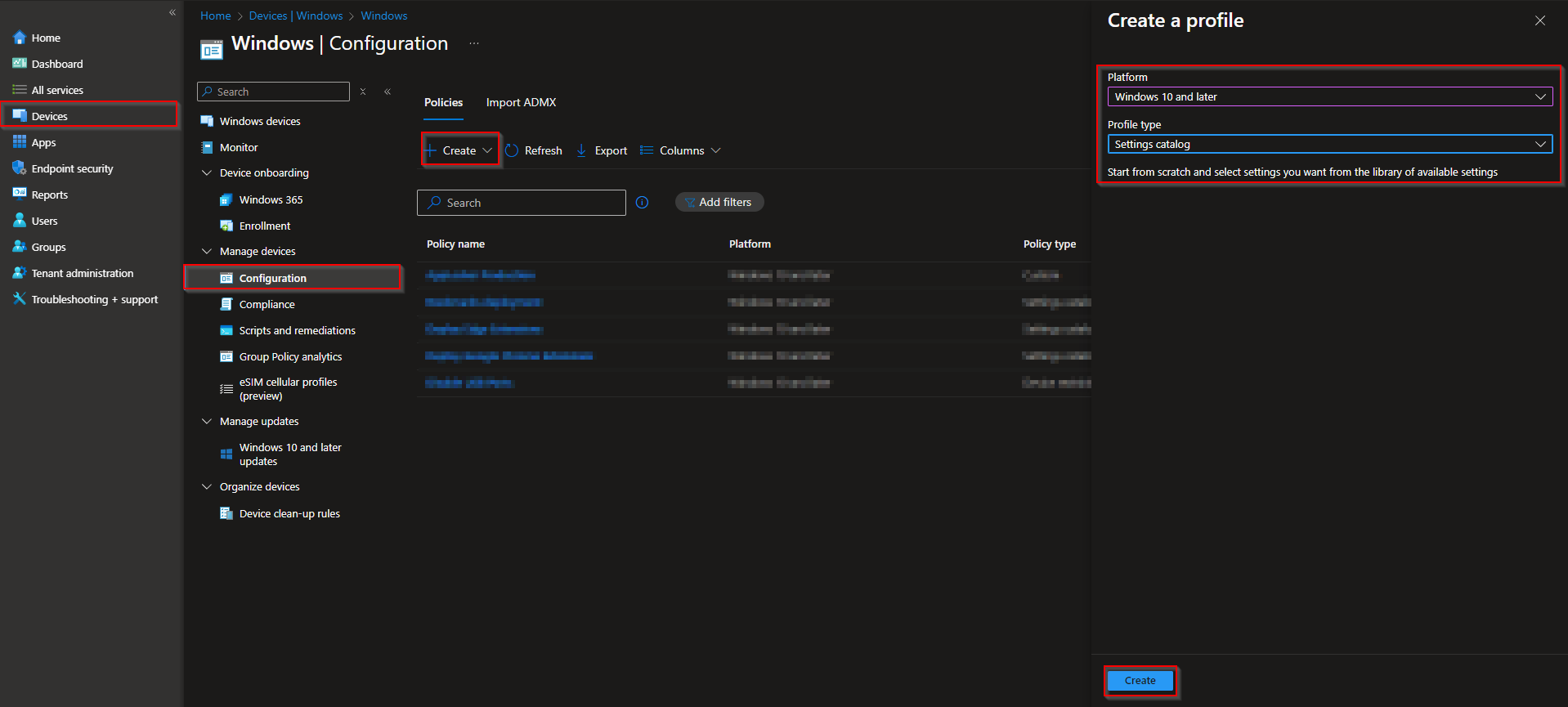
On Basics, enter a Name (e.g. “Block Control Panel and Windows Settings”) and optionally a Description. Click Next.

Step 2: Add the Restriction Setting
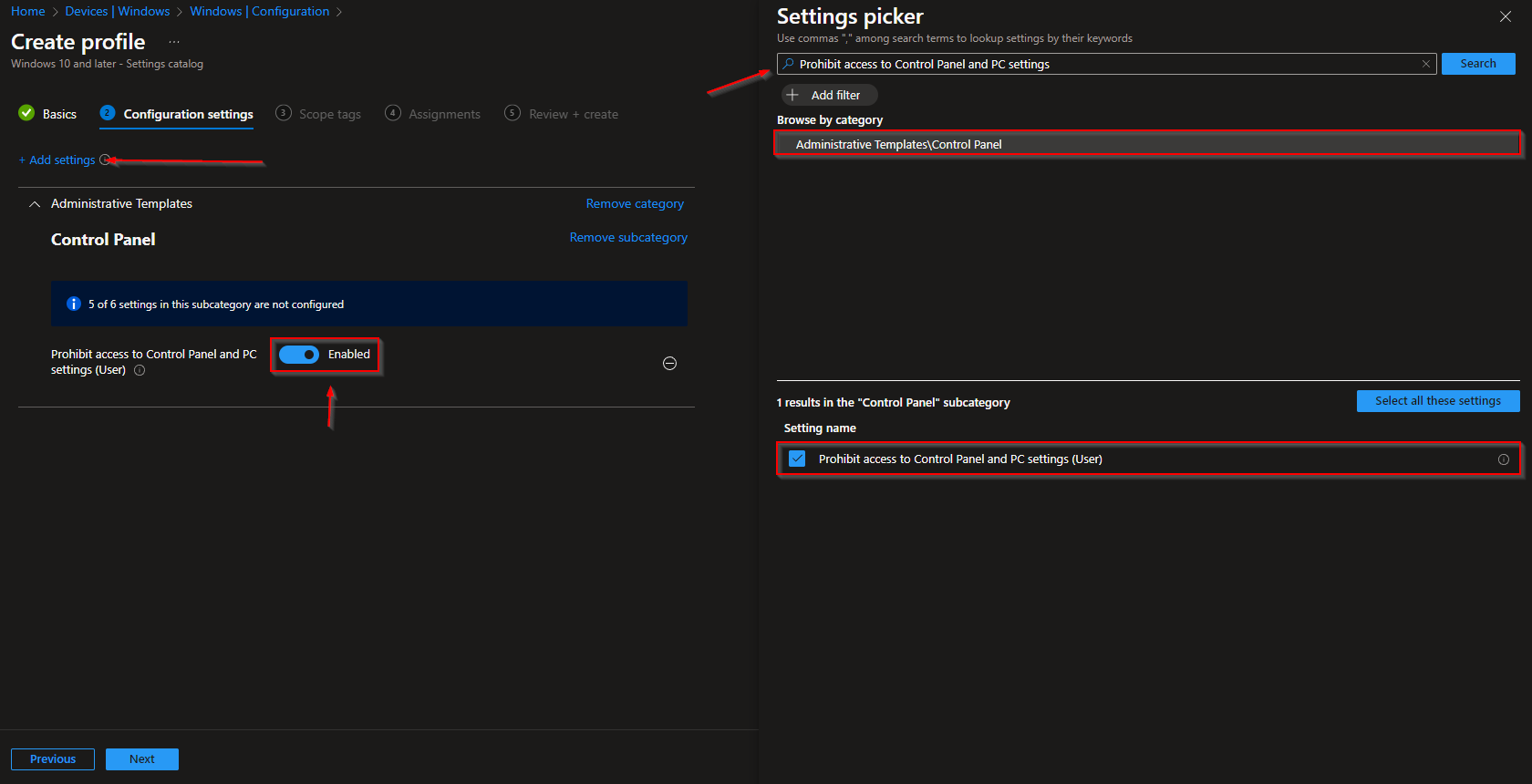
On Configuration settings, click Add settings. Search for Prohibit access to Control Panel and PC settings. Open Administrative Templates → Control Panel, select Prohibit access to Control Panel and PC settings (User), and enable the setting. Click Next.
Set scope tags if your tenant uses them, then on Assignments add the groups (or All Users / All Devices) that should receive this policy. Click Next, then Review + create, and Create.
After the profile syncs to targeted devices, affected users will no longer be able to open Control Panel or the Windows Settings app. Ensure you manage display, network, updates, and other options via Intune or Group Policy for those devices so users are not left without a way to address legitimate needs (e.g. via help desk or self-service portals).
Wrap-up
You can block Control Panel and Windows Settings with Microsoft Intune by creating a Settings catalog profile for Windows 10 and later, enabling Prohibit access to Control Panel and PC settings (User) under Administrative Templates → Control Panel, and assigning the profile to the users or devices where you want access restricted. Use this for kiosks, shared PCs, or locked-down workstations where all configuration is managed centrally.





