Keeping Google Chrome up to date on managed Windows devices helps close security gaps and ensures a consistent experience. By default, Chrome uses its own updater; you can still enforce how and when updates apply using Microsoft Intune. Because the Chrome update policy is not built into the Intune Settings catalog, you use imported Administrative templates (ADMX): download the templates from Google and Microsoft, import them into Intune, then create a configuration profile that sets the update policy.
Why Manage Chrome Updates in Intune?
Centralizing update behavior gives you:
- Consistency . Same update policy (e.g. always allow updates, or silent-only) across all devices.
- Security . Ensure updates are allowed and applied rather than disabled by users or other policies.
- Visibility . One place (Intune) to change behavior for groups or the whole tenant.
If you already deploy Chrome via Intune, adding an update policy profile completes the picture.
Overview: Three Phases
You will (1) download the Chrome and Google Update ADMX/ADML files plus the Windows ADMX bundle, (2) import those templates into Intune, and (3) create a new configuration profile using Imported Administrative templates and set Update policy override under Google → Google Update → Applications → Google Chrome. Skip the download or import steps if you have already added these templates to your tenant.
Phase 1: Download the ADMX and ADML Files
The Chrome update setting is exposed via ADMX. Get the files from Google and Microsoft as follows.
Chrome policy templates (and Google Update)
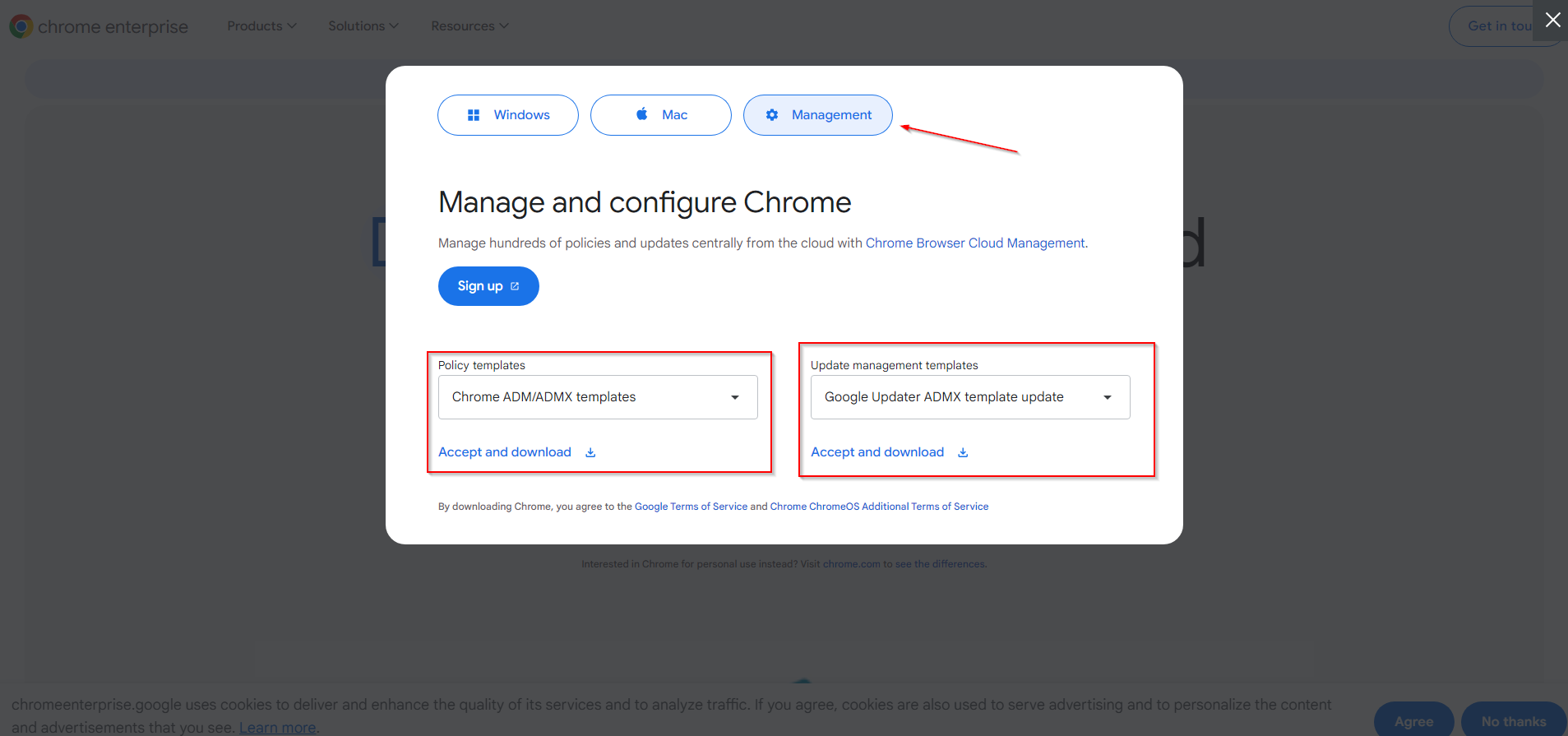
Go to the Chrome Enterprise download page. Download the Chrome ADM/ADMX templates and the Google Update ADMX package. You will get a ZIP that contains policy definitions for Chrome and for Google Update.
Windows ADMX templates
Some dependencies may require the Windows ADMX set. Download the Windows 10/11 Administrative Templates from Microsoft. Choose the download that includes the ADMX files (often a ZIP and an MSI).
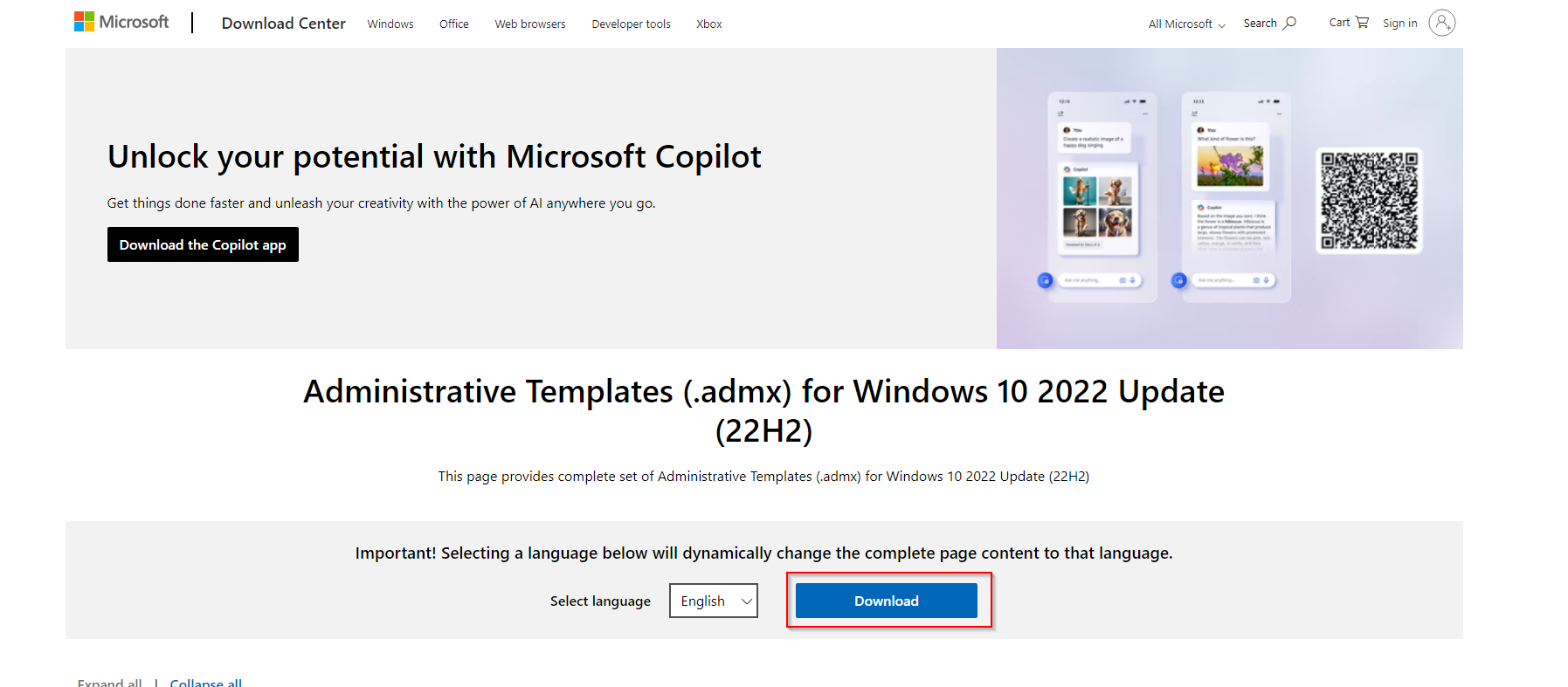
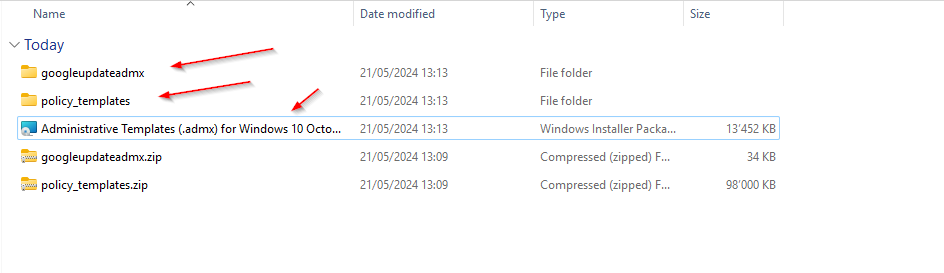
After downloading, you should have at least one ZIP (Chrome/Google Update) and possibly a second ZIP plus an MSI (Windows). Extract the ZIPs to a folder. If you use the Windows ADMX MSI, run it so that it installs files under C:\Windows\PolicyDefinitions (and en-US for ADML).
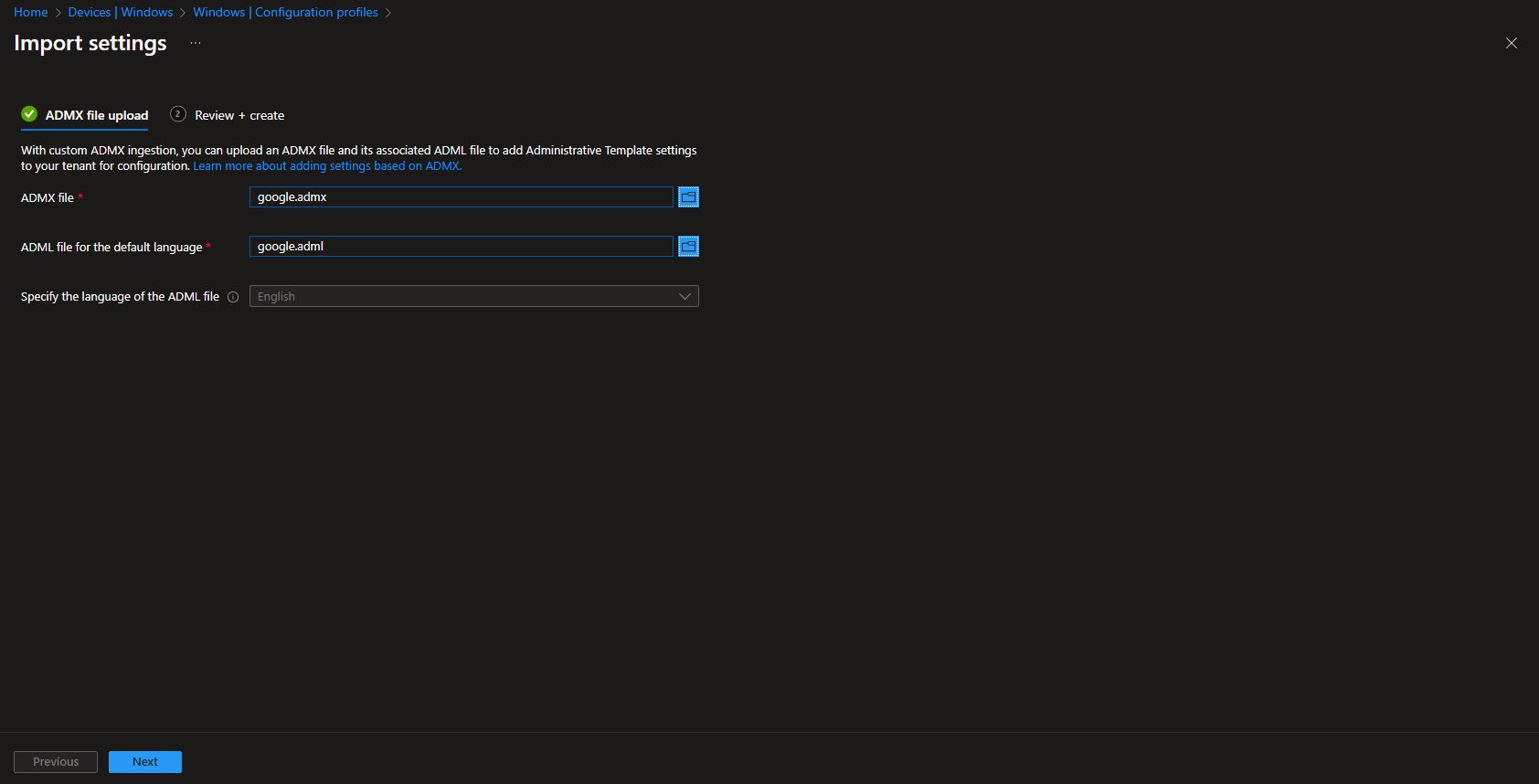
Phase 2: Import ADMX into Intune
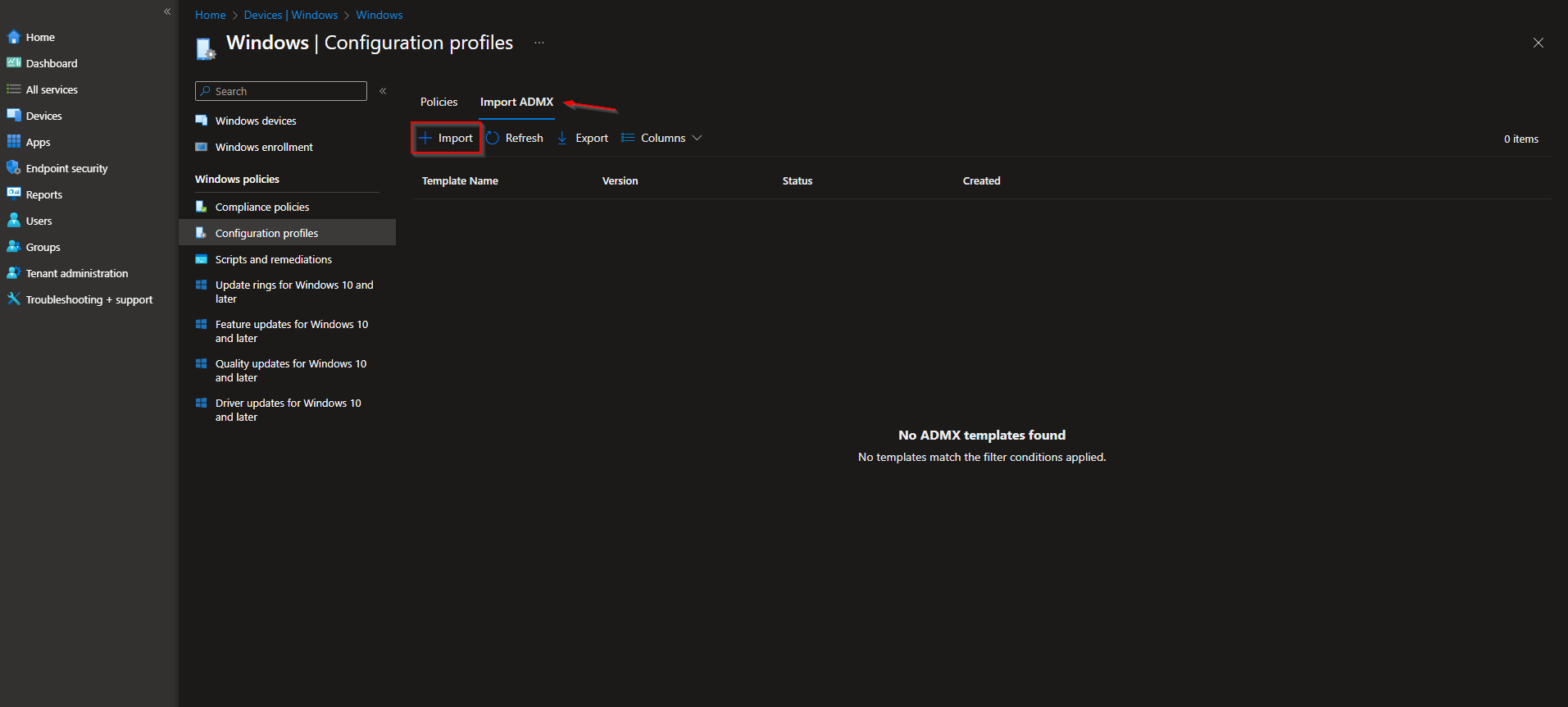
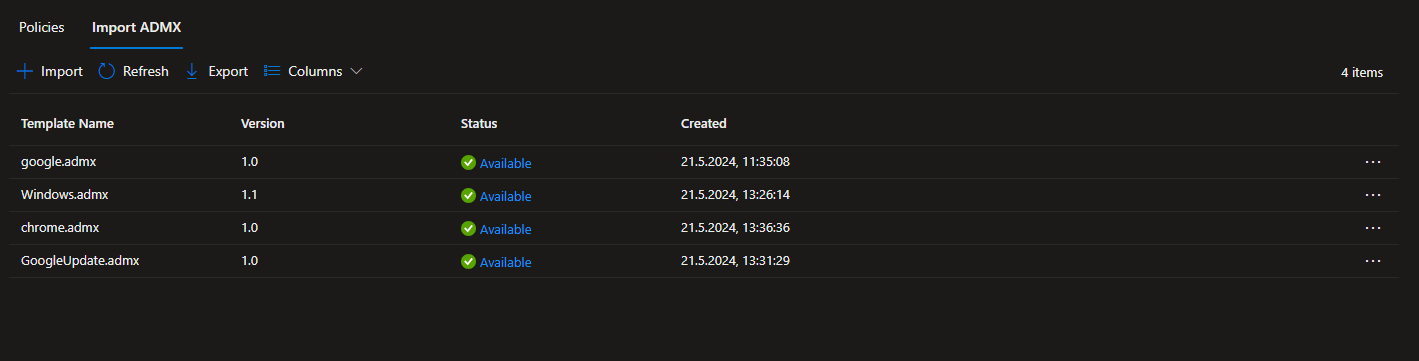
In the Microsoft Intune admin center, go to Devices → Windows → Configuration profiles. Click Import ADMX, then Import.
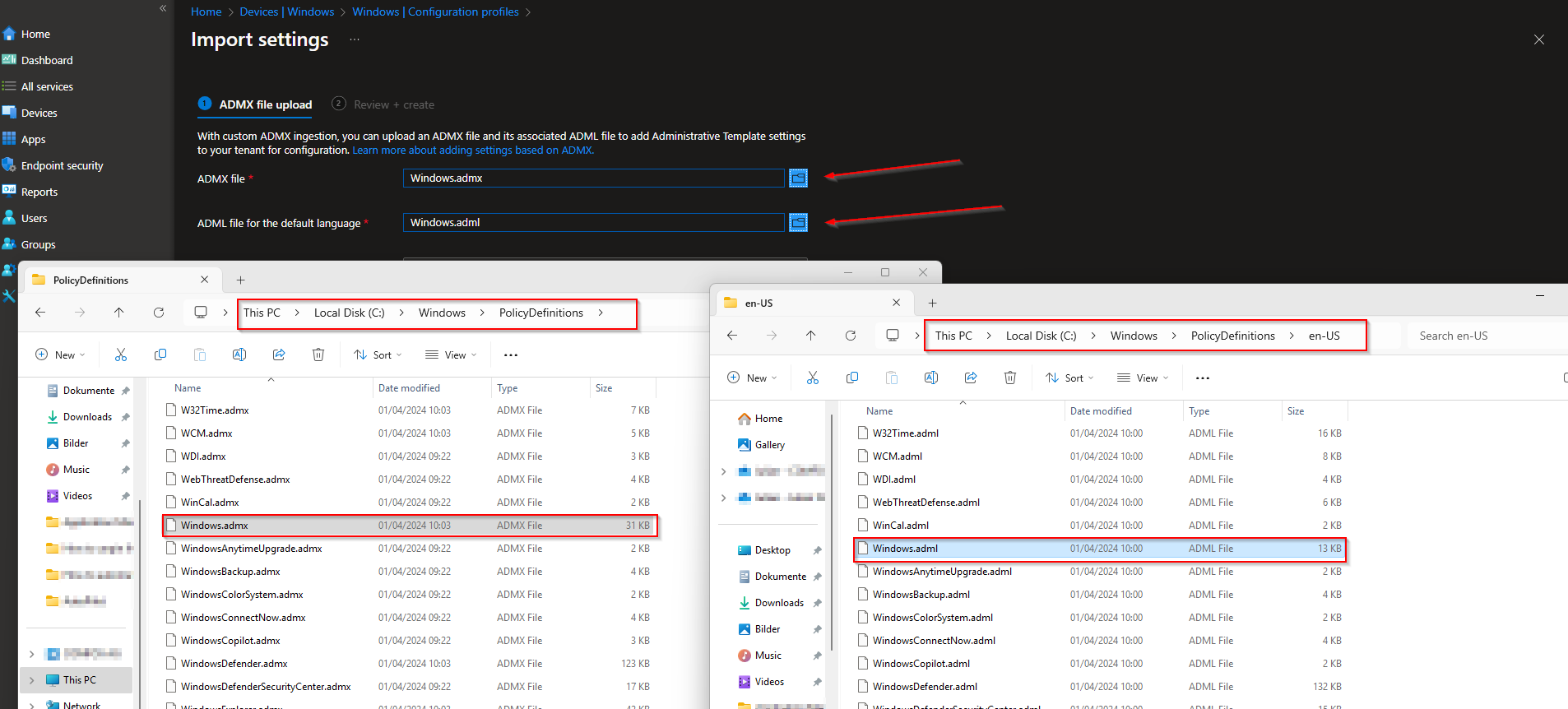
Import each pair of ADMX + ADML (language) files as follows. Use the same language ADML as your tenant (e.g. en-US).
- Google base: Upload
google.admxfrom the Chrome policy ZIP (e.g.policy_templates\windows\admx\google.admx) andgoogle.admlfrom the matchingen-USfolder. Click Next and Create. - Windows: Upload
windows.admxfromC:\Windows\PolicyDefinitions\windows.admxandwindows.admlfromC:\Windows\PolicyDefinitions\en-US\windows.adml. Create. - Google Update: Upload
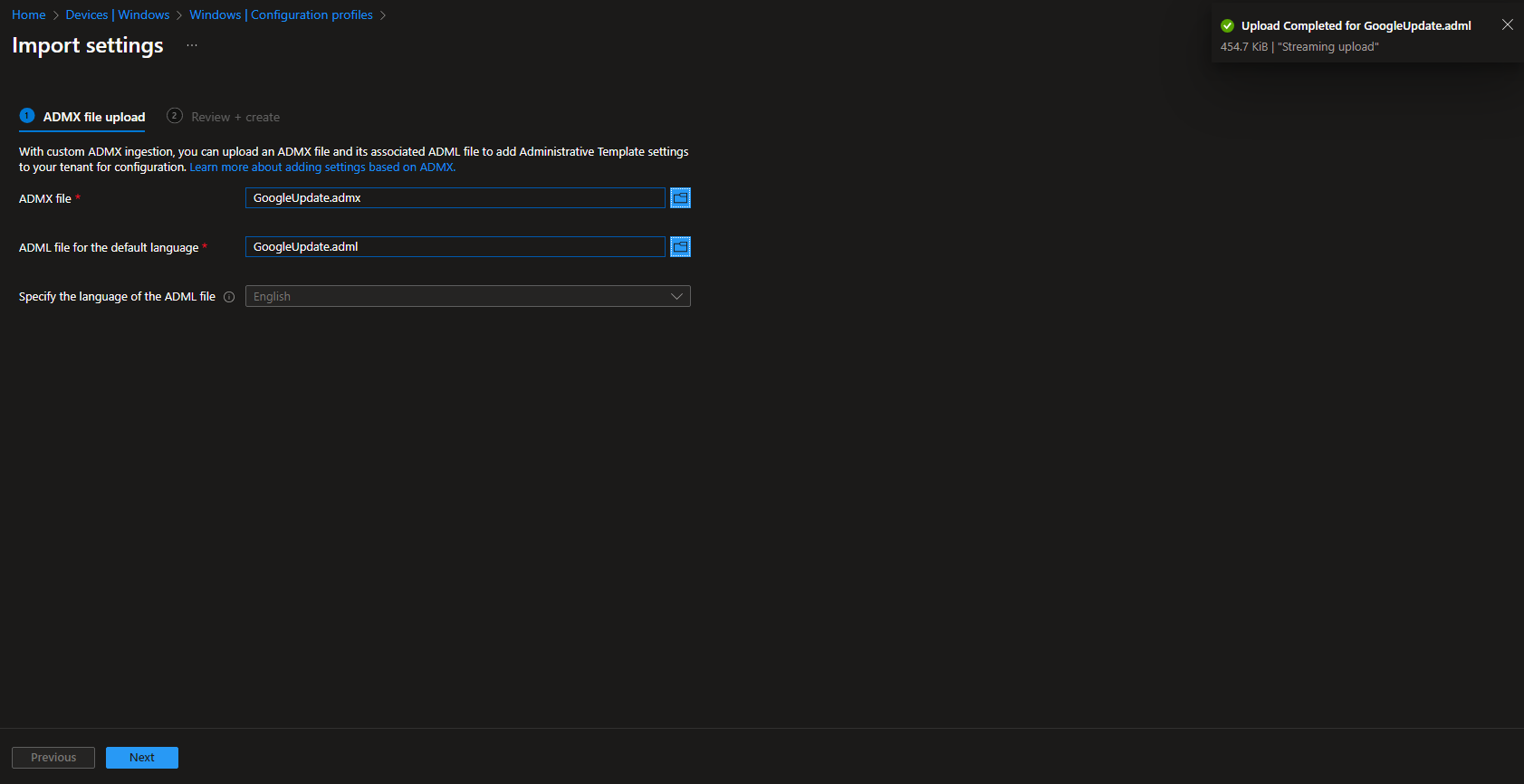
GoogleUpdate.admxandGoogleUpdate.admlfrom the Google Update ADMX package (e.g.googleupdateadmxfolder). Create. - Chrome: Upload
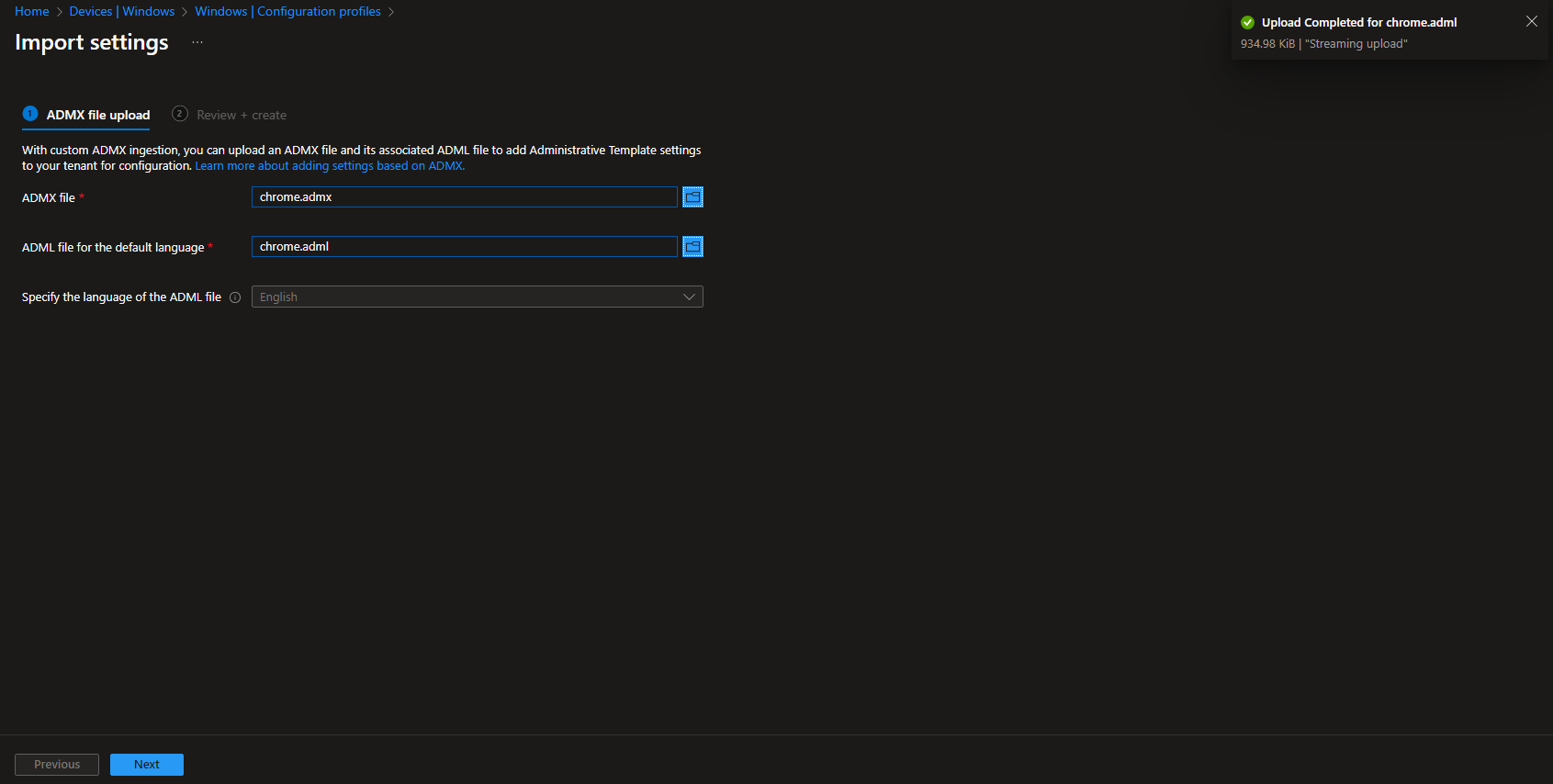
chrome.admxfrom the Chrome policy ZIP (e.g.policy_templates\windows\admx\chrome.admx) andchrome.admlfrom theen-USfolder. Create.
Phase 3: Create the Update Policy Profile
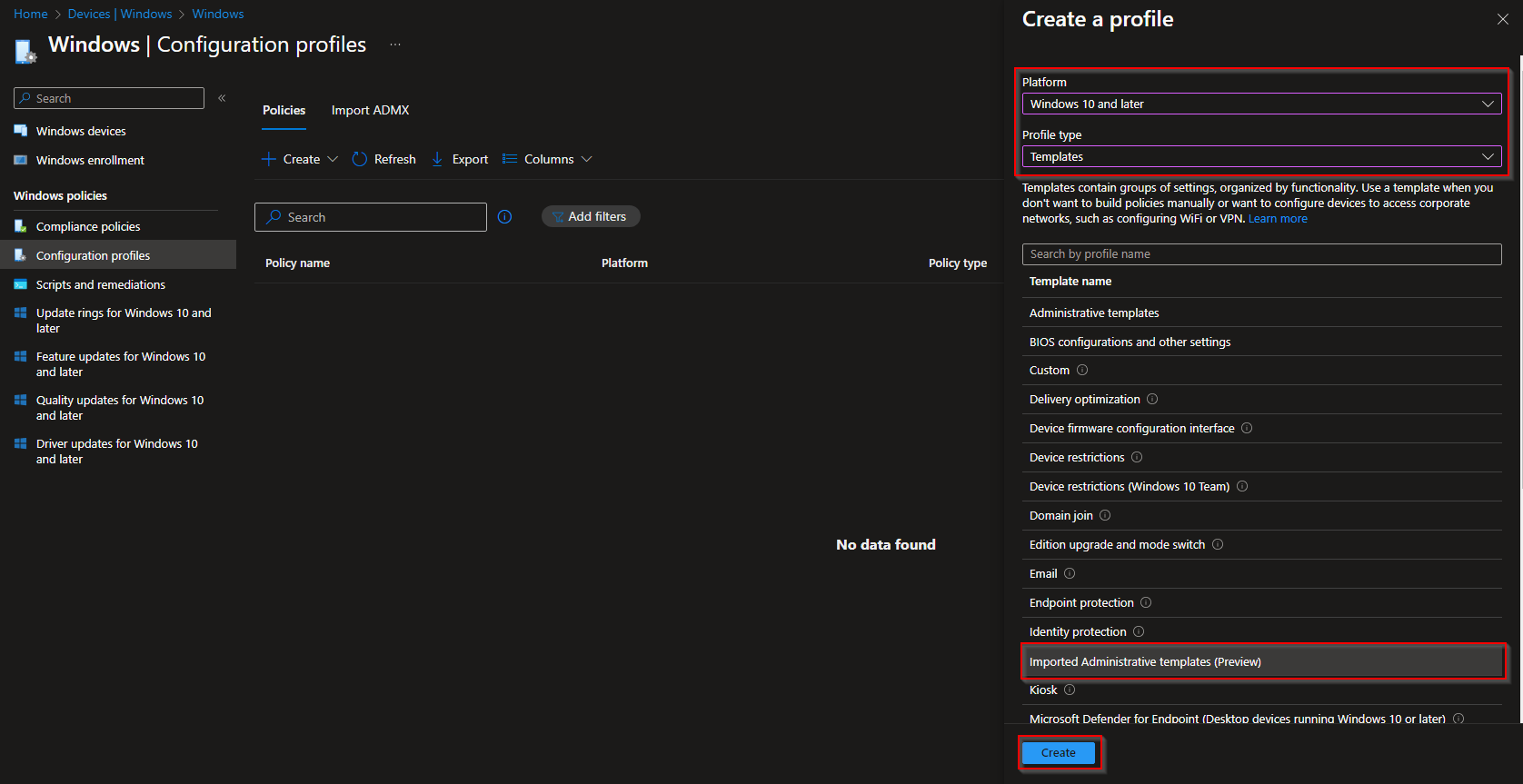
Go to Devices → Windows → Configuration profiles. Click Create → New policy. Set Platform to Windows 10 and later, Profile type to Templates, and choose Imported Administrative templates. Click Create.
On Basics, give the profile a name (e.g. “Chrome – Update policy”) and an optional description. Click Next.
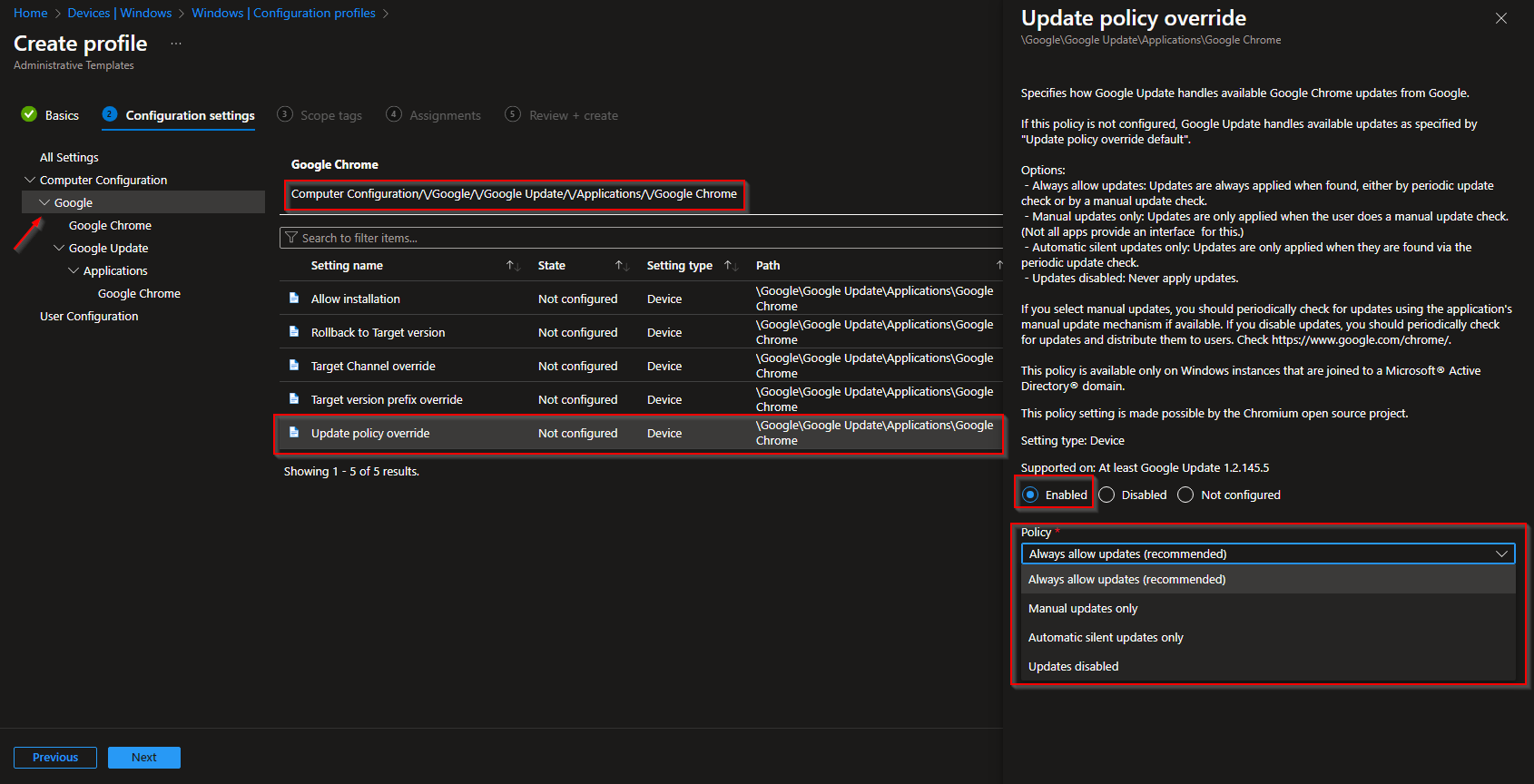
On Configuration settings, open Google → Google Update → Applications → Google Chrome. Find Update policy override and set it to Enabled. Choose the behavior you want:
- Always allow updates (recommended) . Updates apply whenever found (periodic or manual check).
- Manual updates only . Updates apply only when the user triggers an update check.
- Automatic silent updates only . Updates apply only from the background updater, not manual checks.
- Updates disabled . No updates; use only if you have another mechanism and understand the risk.
Click Next. Set scope tags if needed, then on Assignments add the groups (or All Users / All Devices) that should receive the policy. Click Next, then Review + create, and Create.
Wrap-up
You can automatically control Google Chrome updates with Microsoft Intune by downloading the Chrome and Google Update ADMX/ADML files (and Windows ADMX if needed), importing them into Intune under Configuration profiles → Import ADMX, and creating an Imported Administrative templates profile that enables Update policy override under Google → Google Update → Applications → Google Chrome. Use “Always allow updates” for most environments so devices stay current without blocking the built-in updater.





