Managed Windows devices often have a built-in or connected camera. In enterprise, education, or high-security environments you may want to allow the camera for collaboration (e.g. Teams) or block it for privacy and compliance. With Microsoft Intune you can set this centrally using a Settings catalog profile: add Allow Camera under Camera and set it to Allow or Block. This guide walks through creating and assigning that profile.
Why Control Camera Access?
Allowing or blocking the camera at the policy level helps with:
- Privacy and security . In areas that handle sensitive data (e.g. finance, healthcare, government), disabling the camera reduces the risk of unauthorized recording or data leakage.
- Compliance . Internal or industry policies may prohibit image or video capture in the workplace; blocking the camera enforces that.
- Shared and kiosk devices . On shared or student devices, blocking the camera helps prevent misuse and protects user privacy.
- Flexibility . You can allow the camera for some groups (e.g. standard users or meeting rooms) and block it for others (e.g. kiosks or locked-down workstations) by using separate profiles and assignments.
What You’ll Configure
You will create one Settings catalog configuration profile for Windows 10 and later, add Allow Camera under Camera, set it to Allow or Block, then assign the profile to the users or devices where you want the setting applied.
Step 1: Create the Configuration Profile
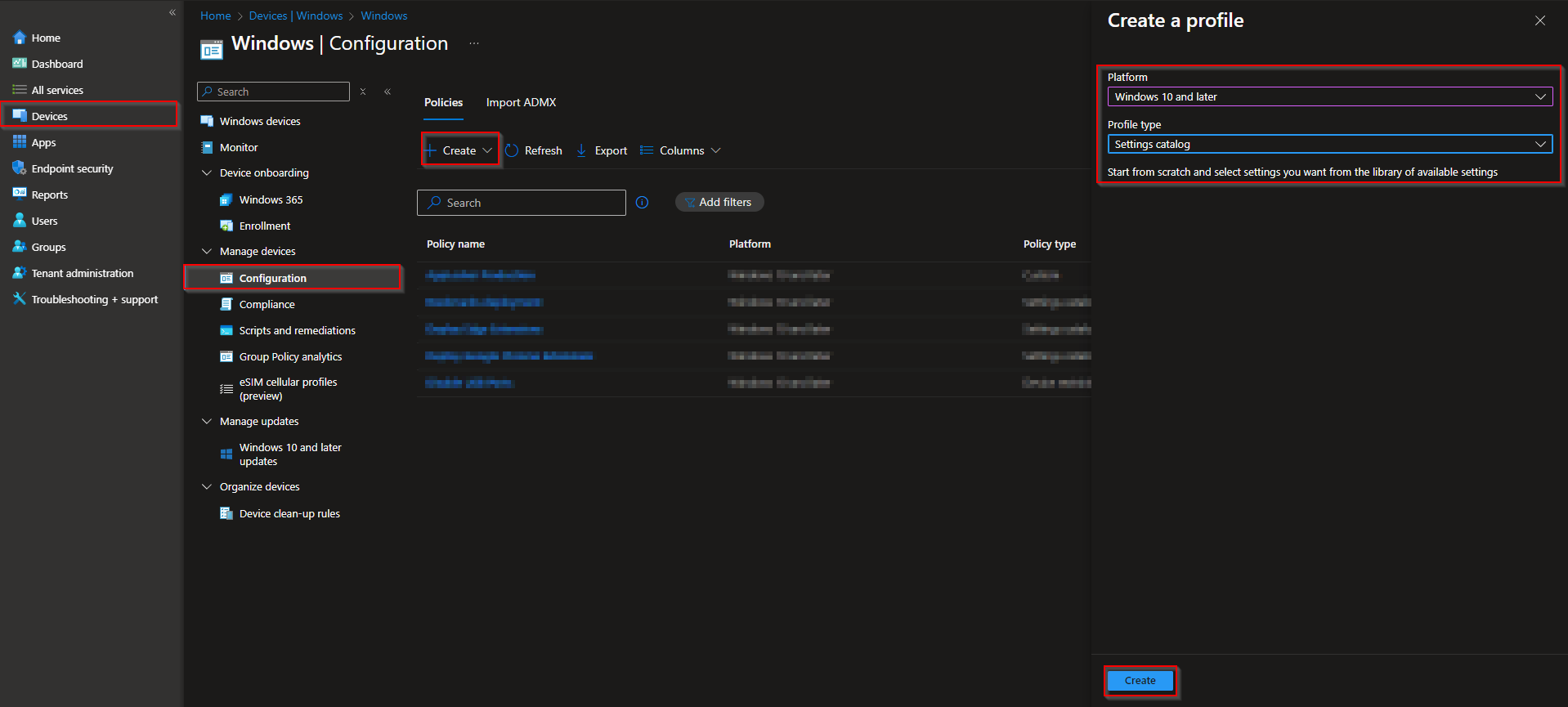
In the Microsoft Intune admin center, go to Devices → Windows → Configuration profiles. Click Create → New policy. Set Platform to Windows 10 and later and Profile type to Settings catalog. Click Create.
On Basics, enter a Name (e.g. “Camera – Block” or “Camera – Allow”) and optionally a Description. Click Next.
Step 2: Set the Camera Policy
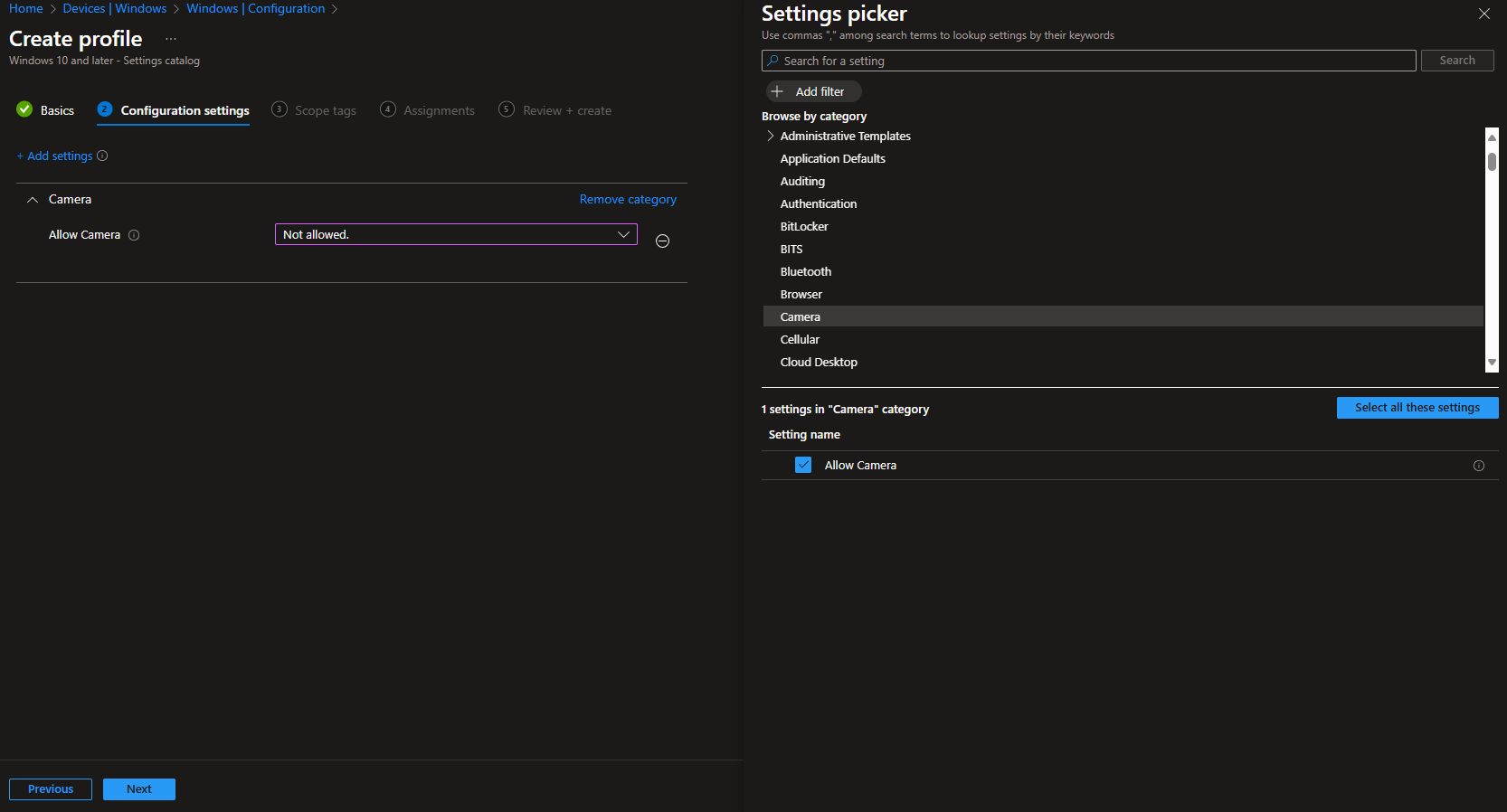
On Configuration settings, click Add settings. Search for Camera. Open Camera, select Allow Camera, and set it to Allow or Block depending on your policy. Click Next.
Set scope tags if your tenant uses them, then on Assignments add the groups (or All Users / All Devices) that should receive this policy. Click Next, then Review + create, and Create.
After the profile syncs to targeted devices, the camera will be allowed or blocked system-wide. Blocked users and apps will not be able to access the camera; allow the setting (or use a separate Allow profile) where you want camera access for video calls or other apps.
Wrap-up
You can allow or block the camera with Microsoft Intune by creating a Settings catalog profile for Windows 10 and later, adding Allow Camera under Camera, and setting it to Allow or Block. Assign the profile to the users or devices where you want the setting applied. Use Block for sensitive areas, shared devices, or kiosks; use Allow (or leave unconfigured) where camera access is required for collaboration or other apps.





