Windows loads drivers during boot before the rest of the system. If a malicious or tampered driver loads early, it can persist across reboots and hide from the OS. The kind of behavior rootkits and bootkits rely on. The Boot-Start Driver Initialization policy (part of Early Launch Antimalware, or ELAM) lets you decide which boot-start drivers are allowed to load. An antimalware driver such as Microsoft Defender’s WdBoot.sys can start before other third-party drivers and classify them as Good, Bad, Bad but required for boot, or Unknown. You then choose which of those categories are allowed to initialize.
Enabling this policy in Microsoft Intune via a Settings catalog profile helps ensure only trusted drivers run at boot and that known-bad or unknown drivers are blocked before they touch the kernel. This post walks through creating that profile and choosing the right driver categories.
Why Boot-Start Driver Initialization Matters
When you enable Boot-Start Driver Initialization:
- Only drivers you allow (e.g. Good, and optionally Unknown) are initialized at boot; known-bad drivers are blocked.
- Malicious or unauthorized drivers cannot load at boot time, reducing the impact of malware that relies on early execution.
- Resilience against rootkits and bootkits improves, since they often depend on loading before or alongside the antimalware stack.
If the policy is disabled or not configured, Windows initializes drivers classified as Good, Unknown, or Bad but Boot Critical, and skips only those classified as Bad. Enabling the policy gives you explicit control over each category.
Driver Categories
When the policy is enabled, you can choose which of these categories are allowed to initialize at the next boot:
- Good . Driver is signed and not tampered with. Safe to allow.
- Bad . Driver has been identified as malware. Do not allow known-bad drivers to initialize.
- Bad, but required for boot . Driver is identified as malware but the system cannot boot without it. Use only when necessary and with caution.
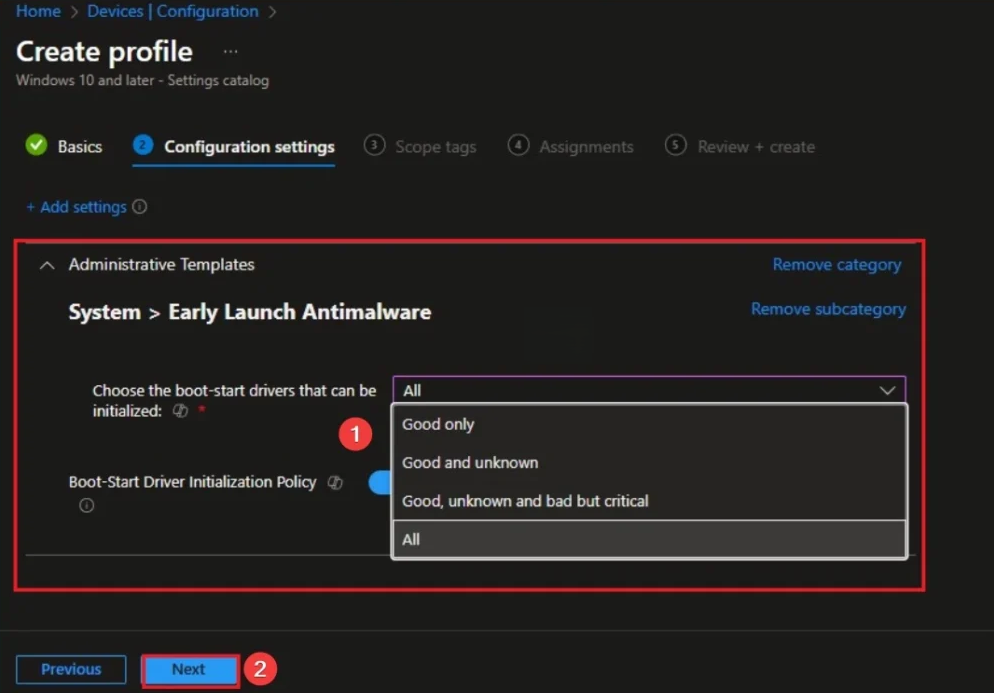
- Unknown . Driver has not been attested or classified by the antimalware/ELAM component. You can allow or block depending on your risk tolerance.
Typically you allow Good and optionally Unknown, and do not allow Bad. Allow Bad, but required for boot only in exceptional cases where the machine would otherwise fail to boot and you have a remediation plan.
Create a Configuration Profile
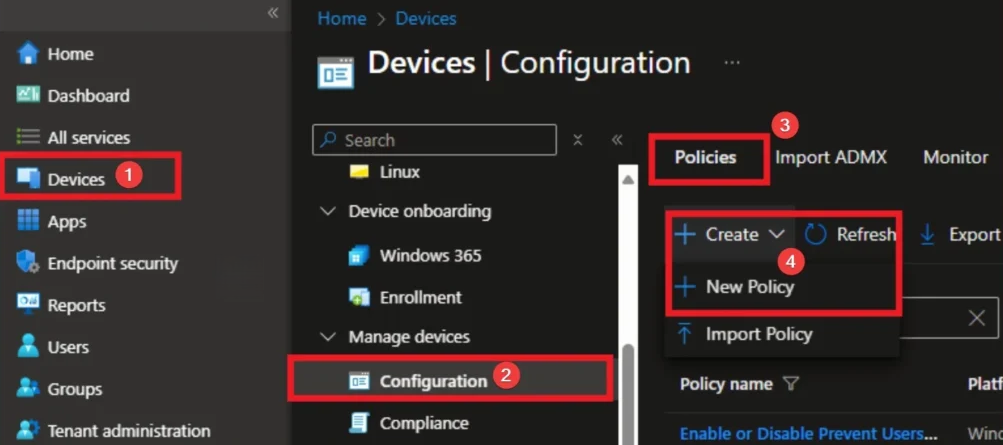
In the Microsoft Intune admin center, go to Devices → Configuration. Click Create → New policy.
Choose Platform and Profile Type
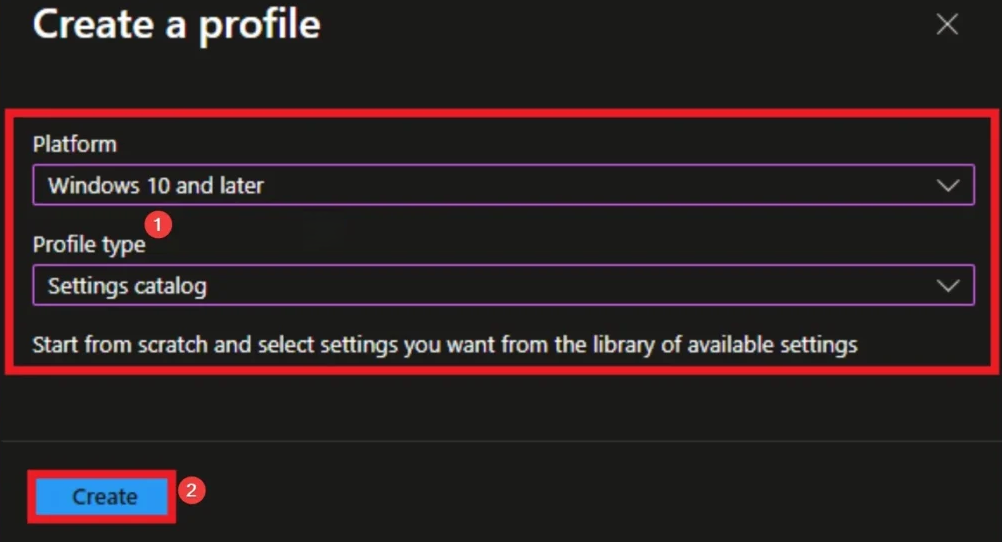
Select Windows 10 and later as the platform and Settings catalog as the profile type. Click Create to open the wizard.
Basics: Name and Description
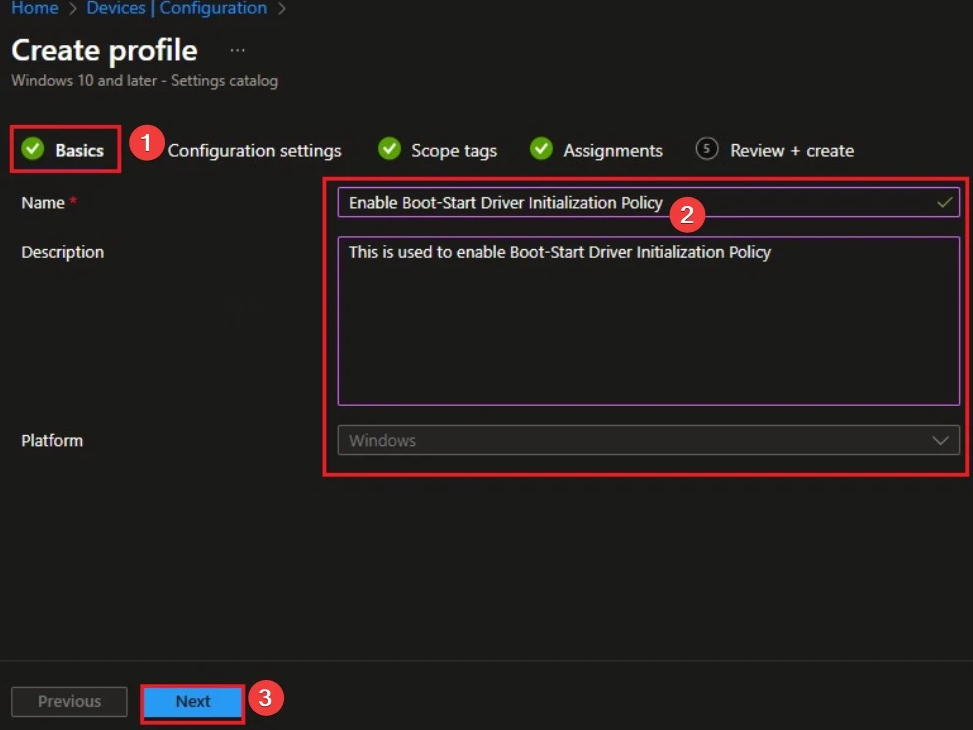
On Basics, enter a name (e.g. “Boot-Start Driver Initialization – Block Bad and Unknown”) and an optional description so other admins know the policy controls ELAM boot driver loading. Click Next.
Add the Boot-Start Driver Initialization Setting
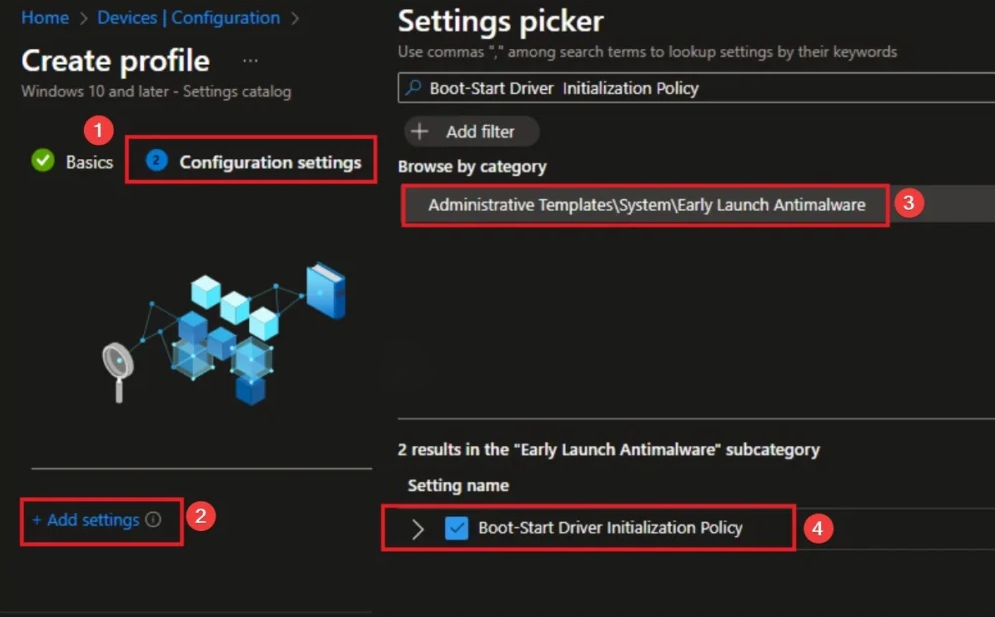
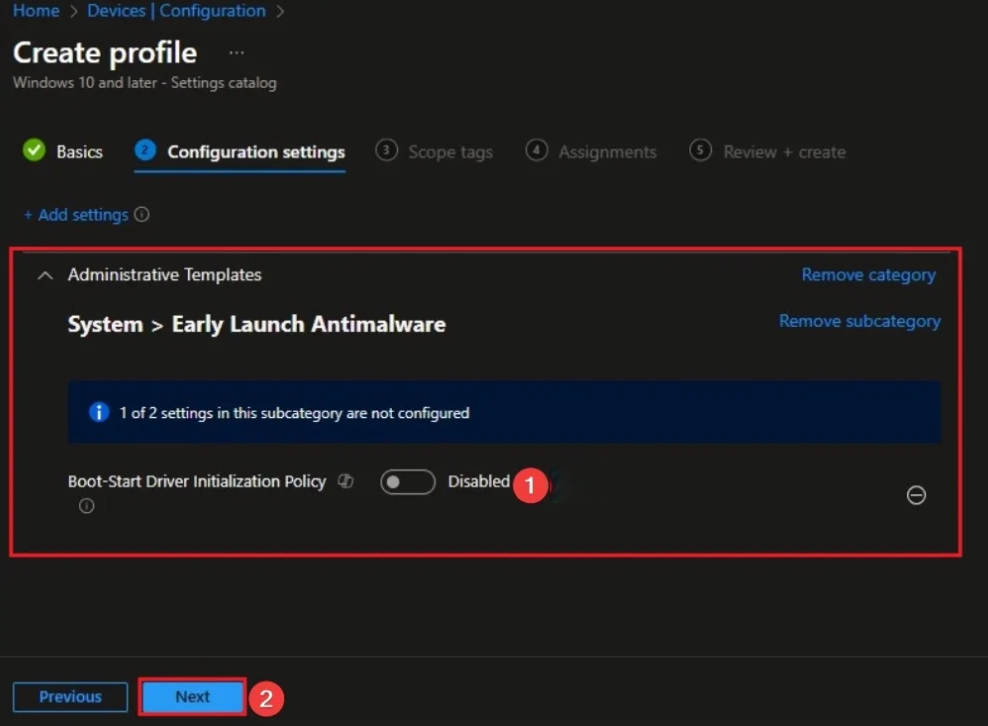
On Configuration settings, click Add settings. In the settings picker, browse by Category. Go to Administrative Templates → System → Early Launch Antimalware → Choose the boot-start drivers that can be initialized, and select Boot-Start Driver Initialization Policy. Add it to the profile.
Adding the Boot-Start Driver Initialization Policy from the Settings catalog.
Enable the Policy and Choose Driver Categories
Enable the policy and select which driver categories are allowed to initialize. For example, allow Good and Unknown (or only Good if you want to block all unclassified drivers), and do not allow Bad. Allow Bad, but required for boot only when necessary. Click Next.
Scope Tags and Assignments
On Scope tags, add tags if required; otherwise leave default and click Next. On Assignments, add the device or user groups that should receive this profile (e.g. all Windows devices or a pilot group). Click Next.
Review and Create
On Review + create, confirm the name, the Boot-Start Driver Initialization options (Good, Unknown, etc.), scope tags, and assignments. Click Create to save. The profile will deploy to assigned devices on their next sync. A reboot may be required for the boot driver behavior to take effect.
Verify Deployment
Under Devices → Configuration, open the profile and check per-device status (Succeeded, Error, Conflict, etc.). To test sooner, trigger a sync from the Company Portal on a device, then reboot. Once applied, only the driver categories you allowed will be initialized at boot, and known-bad or blocked drivers will not load. Reducing the impact of malware that depends on early driver load.
Summary
Enable the Boot-Start Driver Initialization Policy in Intune with a Settings catalog profile so only trusted drivers load at boot. Add the setting under Administrative Templates → System → Early Launch Antimalware → Boot-Start Driver Initialization Policy, enable it, and choose which categories (Good, Bad, Bad but required for boot, Unknown) are allowed to initialize. Assign the profile to your groups, create, and verify in Configuration status. With the policy in place, malicious or unauthorized drivers are blocked before they reach the kernel, strengthening endpoint security and resilience against rootkits.





