Keeping Microsoft Defender current is important for security, but rolling out every update to every device at once can backfire. A bad update can affect your whole estate if you don’t control who gets it first. Using deployment rings. Test, pilot, then production. Lets you validate Defender updates on a small set of devices before broadening the rollout. This post walks through the types of Defender updates, the update channels you can use, and how to build and assign Defender update ring policies in Microsoft Intune.
What Gets Updated
Defender has three main update streams:
- Platform updates . Changes to the overall Defender stack: new features, OS integration, bug fixes, and improvements. These ship roughly once per month and are delivered via KB4052623.
- Engine updates . Updates to the core scanning engine that finds and removes malware. Also on a monthly cadence.
- Security intelligence updates . Threat definitions and detection logic. These are released multiple times per day and are delivered via KB2267602.
For platform and engine updates you can choose from several channels (Beta, Preview, Staged, Broad, and Critical – Time Delay, or leave them unconfigured). For security intelligence you have fewer choices: Staged, Broad, or Default (unconfigured). Even with fewer options, defining the channel in policy is still useful so devices don’t fall into an early or beta path automatically.
Platform and Engine Channels
For the monthly platform and engine updates, the main channels are:
- Beta Channel . First to receive new updates; best for manual test environments or a handful of IT devices (day 0).
- Current Channel (Preview) . Early in the gradual release cycle; suitable for pilot devices.
- Current Channel (Staged) . After the initial rollout; aim at a small, representative slice of production (e.g. around 10%).
- Current Channel (Broad) . Final stage; for the rest of production (e.g. 10–100%).
- Critical – Time Delay . Updates arrive about 48 hours after Broad; for critical or highly sensitive systems.
- Default (Unconfigured) . Device follows the standard gradual release; good for general-purpose machines when you don’t need a specific ring.
If you use ring groups (e.g. one test, one pilot, three production), you can map four of these channels to four rings and reserve Critical – Time Delay for a separate group if you have high-sensitivity devices.
Security Intelligence Channels
For the daily security intelligence updates you only have Current Channel (Staged), Current Channel (Broad), and Default (Unconfigured). Staged gets updates first (shortly after Microsoft’s internal validation); Broad follows once the staged rollout looks good. Even though the gap is small, setting the channel explicitly in policy avoids leaving it to chance. Unconfigured devices can be placed in Broad or an early channel by Microsoft, which you may not want for critical or production machines.
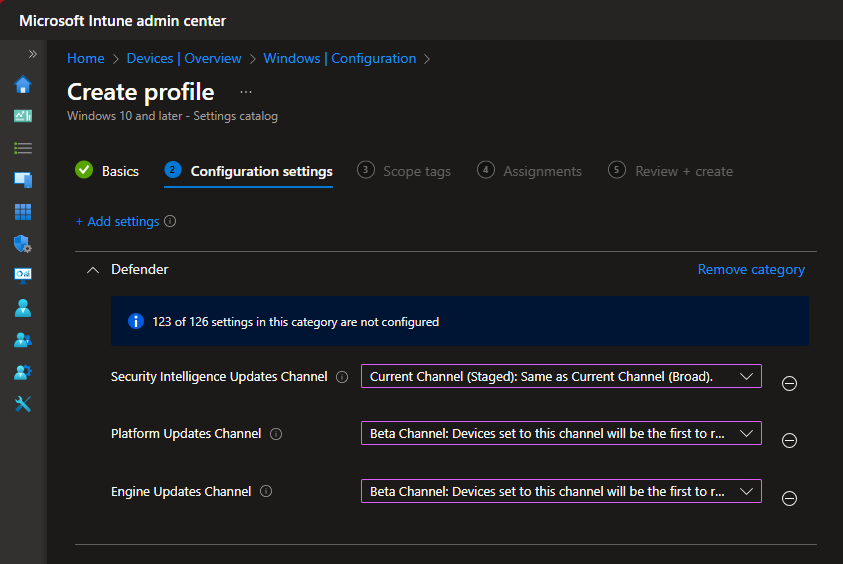
The screenshot below shows where to create a Defender Update controls policy in Intune (Endpoint Security → Antivirus).
Mapping Rings to Defender Policies
One practical approach is to create four Defender update policies, one per ring, using the four main monthly channels (Beta, Preview, Staged, Broad). For security intelligence, with only two configurable channels (Staged and Broad), you assign Staged to rings that should get definitions earlier (e.g. test, pilot, and one production ring) and Broad to the remaining production rings. On the assignment side, include the right device groups in each policy and exclude test and pilot groups from the production policies so that devices that belong to multiple groups (e.g. dynamic production groups) only get the policy for their intended ring. You can add a fifth policy for Critical – Time Delay and assign it to a dedicated group if needed.
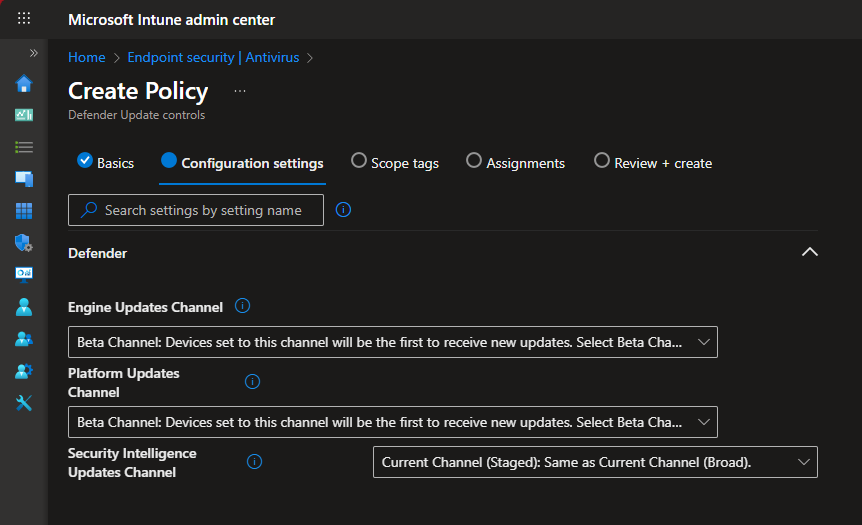
Below: the Settings Catalog option under Devices → Configuration, which can also be used to configure Defender update channels.
Creating the Policies in Intune
In the Microsoft Intune admin center, go to Endpoint Security → Antivirus and create a Defender Update controls policy. There you set the update channel for Platform updates, Engine updates, and Security intelligence updates and assign the policy to the group(s) for that ring. Alternatively, use a Settings catalog profile under Devices → Configuration and configure the same Defender update settings. Create one policy per ring (e.g. “PRD WIN Defender Updates Ring 1 Test”, “Ring 2 Pilot”, “Ring 3 Production”, “Ring 4 Production”) and assign each to the corresponding ring group; for production policies, exclude test and pilot groups so assignment is unambiguous.
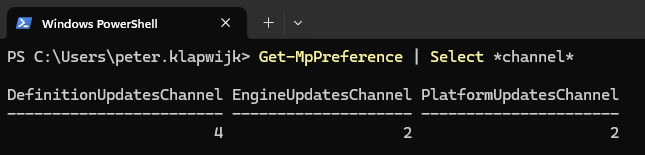
Below: PowerShell output on a device in ring 1, showing the configured update channels (Beta for platform and engine, Staged for security intelligence).
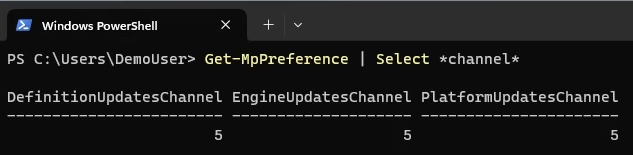
The following screenshot shows the same command on a device in ring 4 (Broad channel).
Checking the Result
On a Windows device you can confirm which channels are in use with PowerShell:
Get-MpPreference | Select *channel*The output shows EngineUpdatesChannel, PlatformUpdatesChannel, and SecurityIntelligenceUpdatesChannel. Compare these values to the channel IDs in Microsoft’s documentation to confirm they match the policy you assigned. Run this on a device in ring 1 (e.g. Beta) and on a device in a later ring (e.g. Broad) to validate that each ring has the expected channels.
Summary
Deploying Microsoft Defender updates in rings reduces the risk of a bad update impacting your entire fleet. Use separate Intune policies (Defender Update controls or Settings catalog) for each ring, set the appropriate platform, engine, and security intelligence channels, and assign policies to your ring groups while excluding test and pilot from production policies where needed. Verify with Get-MpPreference | Select *channel* and adjust ring membership or channels as your organisation’s needs change.