Microsoft Intune can deploy macOS apps that are packaged as DMG (disk image) files. You upload the DMG, provide app information and detection details, then assign the app to user or device groups. Intune uses the app’s CFBundleIdentifier and CFBundleShortVersionString from the app’s Info.plist for detection. So you must obtain those values before or while adding the app. The Microsoft documentation describes the flow; this post summarizes how to get the bundle ID and version (on a Mac or without one), add a DMG app in Intune, and verify installation. CFBundleIdentifier and CFBundleShortVersionString are case sensitive. Typos or wrong casing can cause detection to fail. DMG apps in Intune support Required and Uninstall assignments only (no “Available” like some other app types).
Getting the Bundle ID and Version (On a Mac)
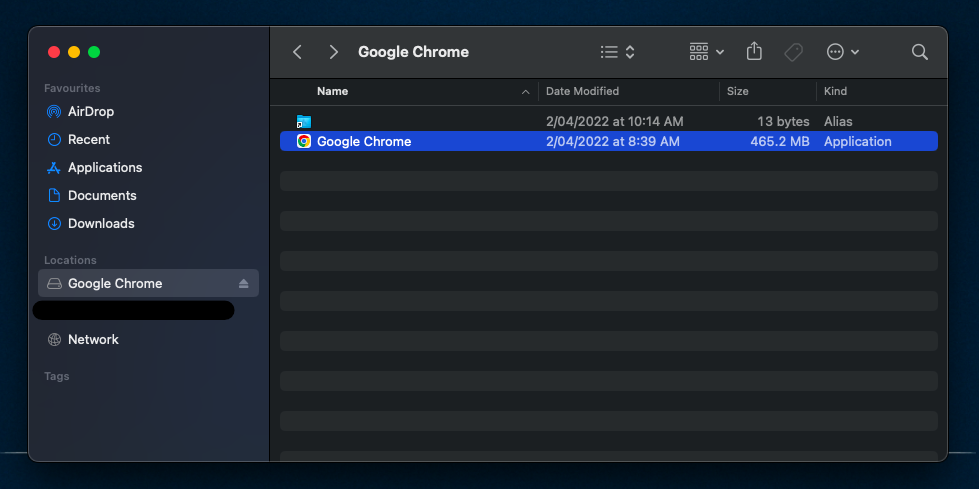
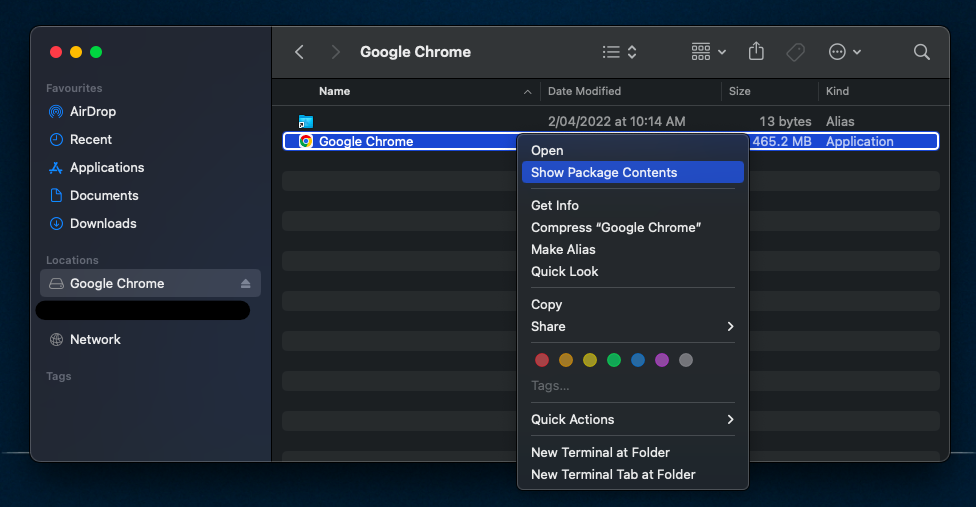
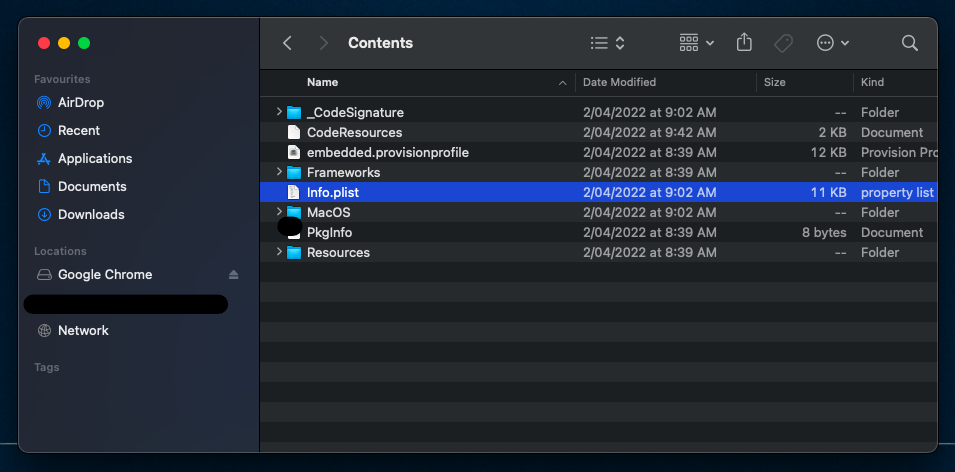
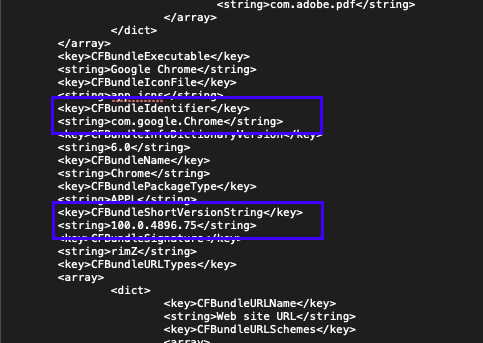
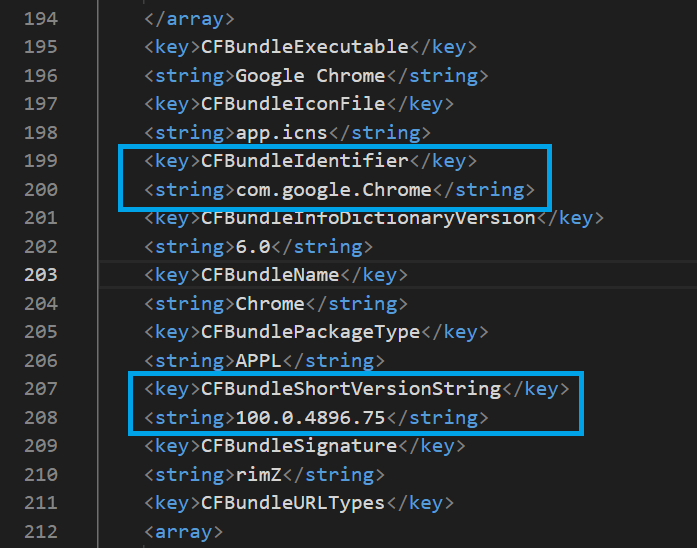
If you have access to a Mac, mount the DMG (double-click or open from Terminal). In Finder, open the mounted volume, locate the .app bundle (e.g. Google Chrome.app), right-click it and choose Show Package Contents. Open the Contents folder and open Info.plist (in a text editor or with defaults read). Find CFBundleIdentifier (e.g. com.google.Chrome) and CFBundleShortVersionString (e.g. 100.0.4896.75). Alternatively, from Terminal (with the DMG mounted and the volume name known):
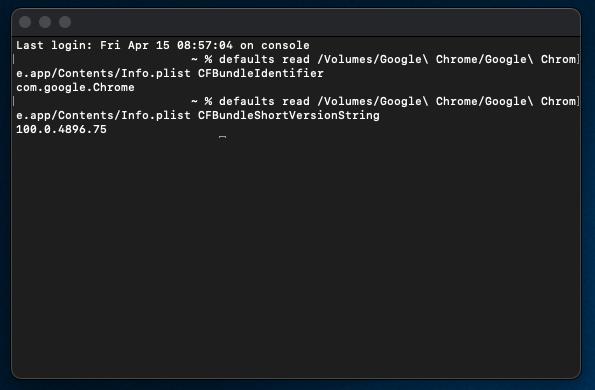
defaults read /Volumes/Google\ Chrome/Google\ Chrome.app/Contents/Info.plist CFBundleIdentifier
defaults read /Volumes/Google\ Chrome/Google\ Chrome.app/Contents/Info.plist CFBundleShortVersionString
Use the exact strings returned; they are case sensitive.
Below: mounting the DMG image file on macOS.
The screenshot shows Show Package Contents on the app.
Below: the Contents folder with Info.plist.
The following screenshot shows Info.plist with CFBundleIdentifier and CFBundleShortVersionString.
Below: Terminal defaults read for bundle ID and version.
Getting the Bundle ID and Version (Without a Mac)
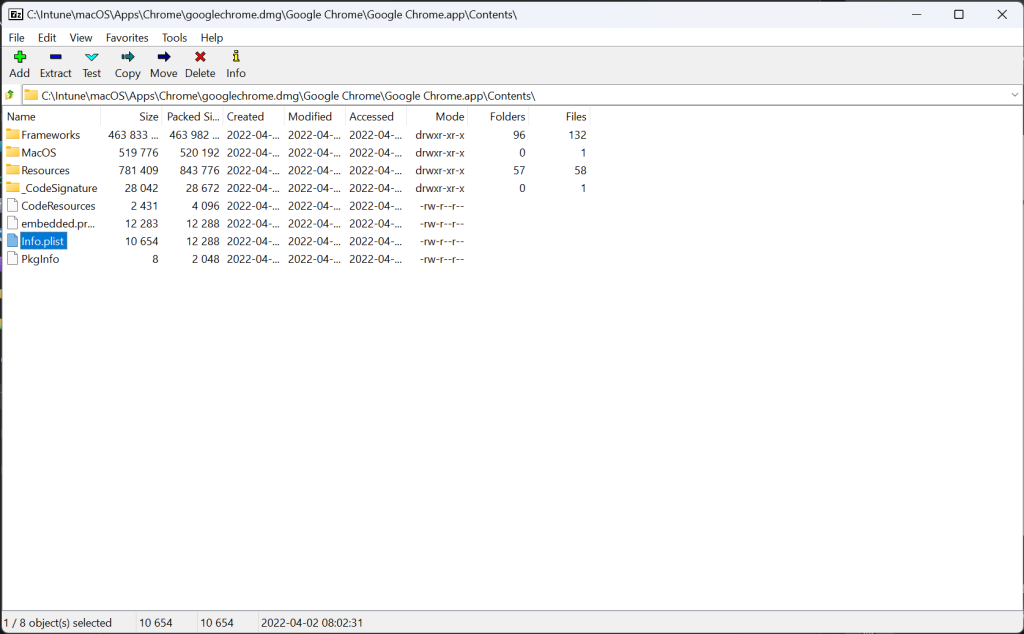
If you do not have a Mac, you can often extract the app or at least the Info.plist from the DMG using a tool such as 7-Zip on Windows: open the DMG with 7-Zip, navigate to the .app bundle and then Contents, and extract Info.plist. Open the plist in a text editor and search for CFBundleIdentifier and CFBundleShortVersionString. This approach does not work for every DMG (e.g. some Adobe or VLC layouts may differ); for those you may need a Mac or a different extraction method. Copy the values exactly; case matters.
The screenshot below shows extracting Info.plist from the DMG using 7-Zip.
Below: extracted Info.plist with bundle ID and version.
Adding the DMG App in Intune
In the Microsoft Intune admin center, go to Apps → macOS and choose Add. Select macOS app (DMG). On the Select app package file step, browse to and select your .dmg file. On App information, set name, description, publisher, and other metadata. Set the Minimum operating system (e.g. macOS 11 or later). On the detection step, enter the App bundle ID (the CFBundleIdentifier value) and the App version (the CFBundleShortVersionString value). Exactly as they appear in Info.plist. If the app updates itself (e.g. Google Chrome) and you want Intune to consider it installed regardless of the exact version, set Ignore app version to Yes; otherwise set it to No. Complete the wizard, then go to Assignments and assign the app as Required (or Uninstall) to the right user or device groups. Save. DMG apps do not support “Available for enrolled devices” assignment type.
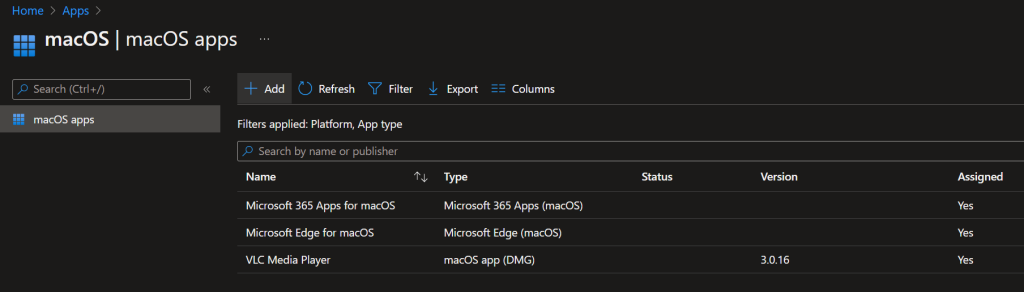
Below: Intune Apps – macOS – Add app.
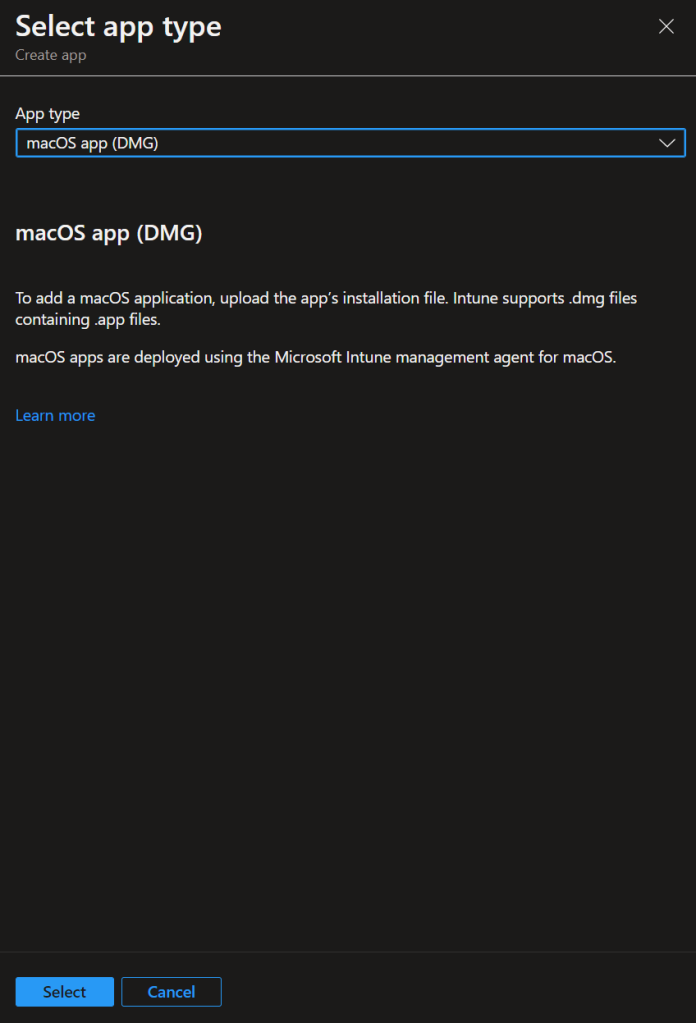
The screenshot shows selecting macOS app (DMG).
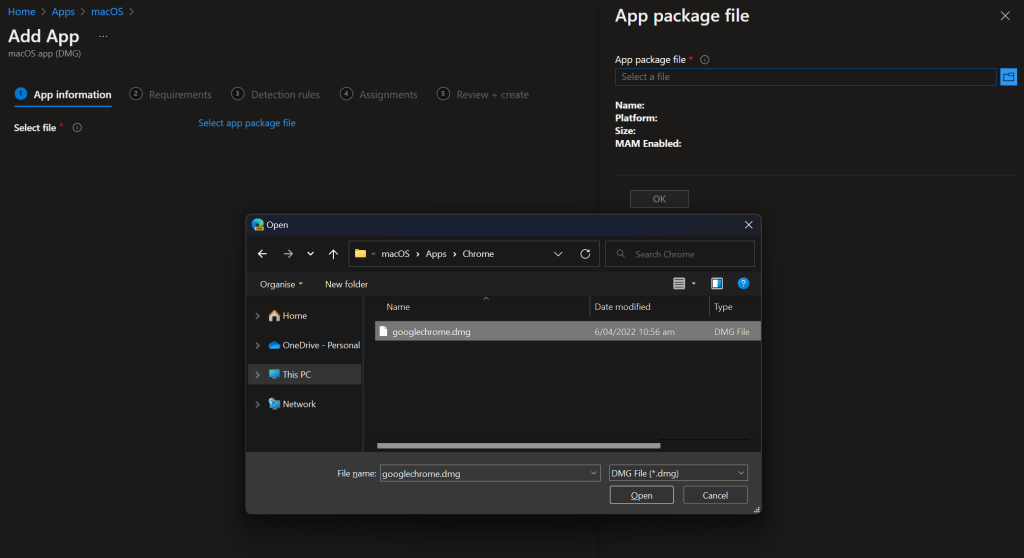
Below: selecting the DMG file location.
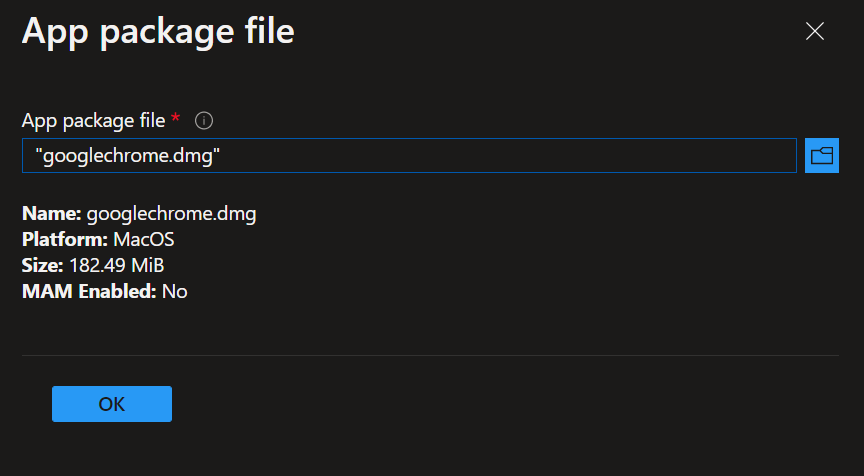
The following screenshot shows the DMG file selected.
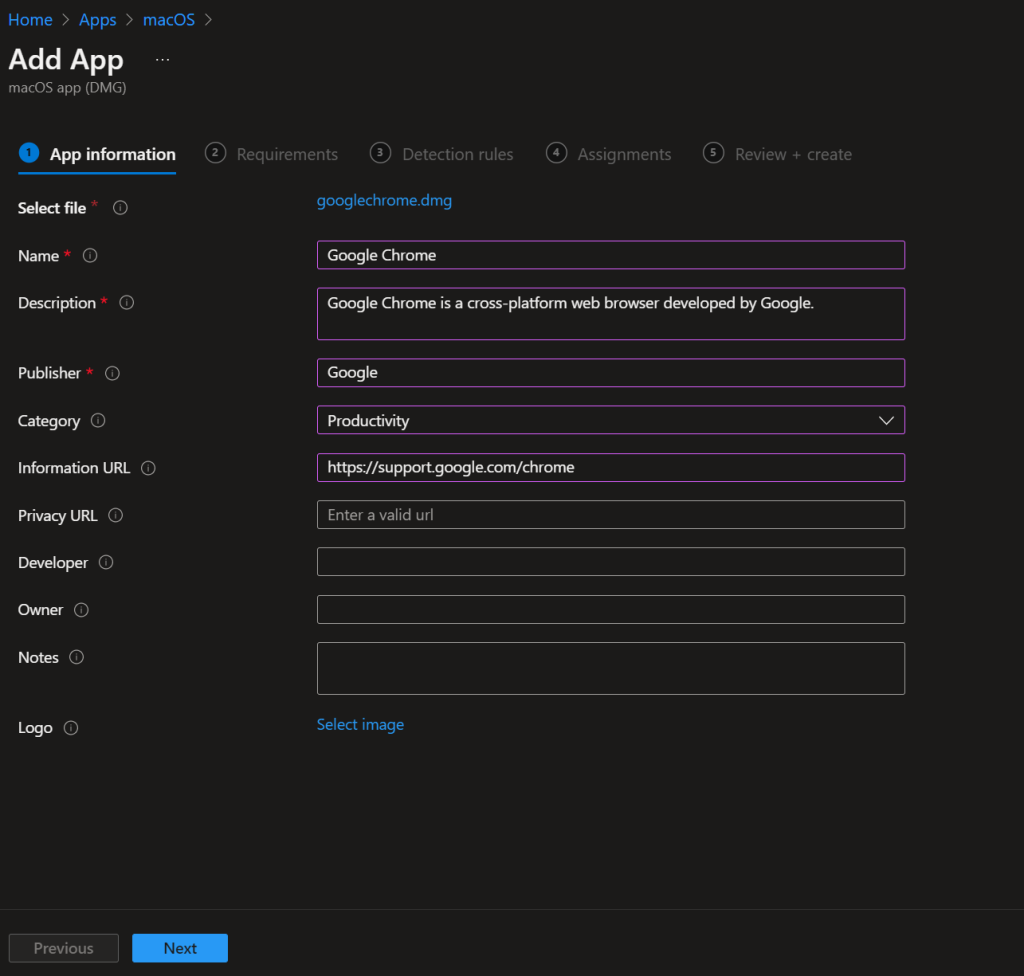
Below: App Information fields.
The screenshot shows minimum operating system selection.
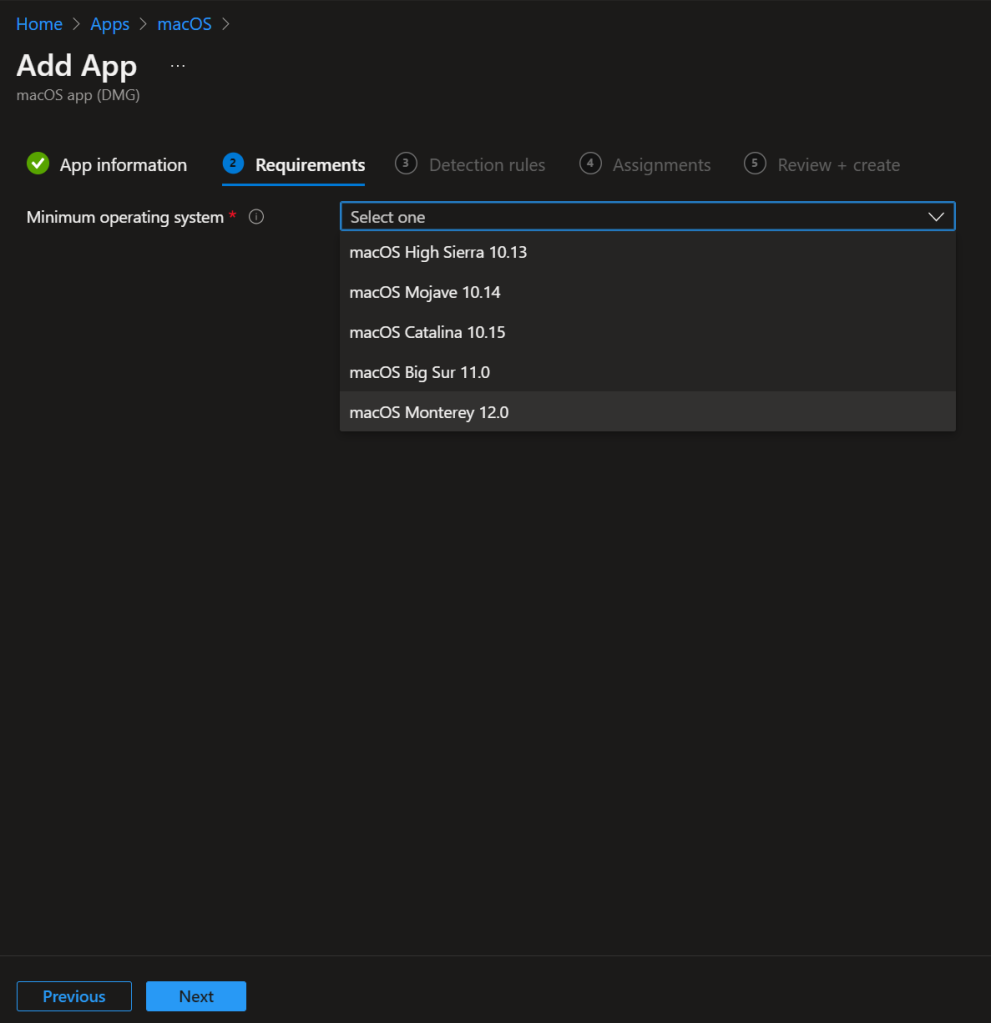
Below: entering CFBundleIdentifier and CFBundleShortVersionString.
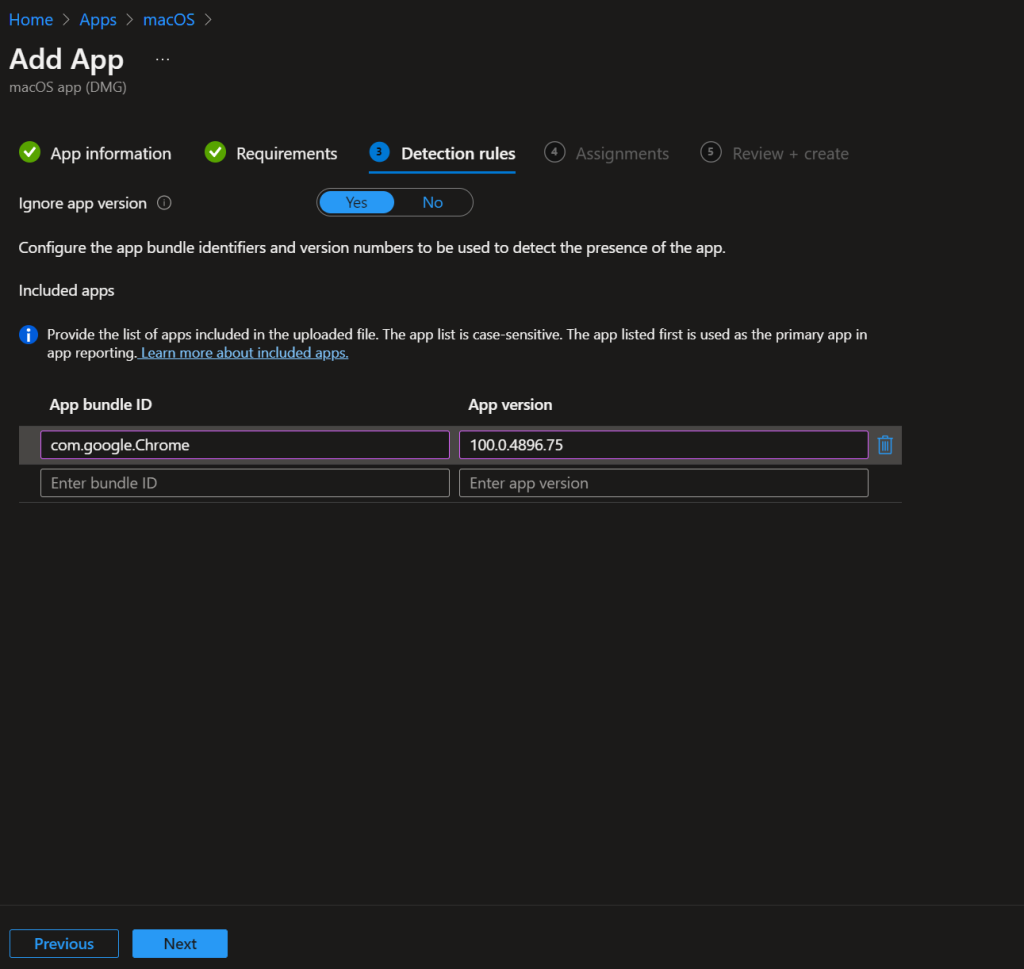
The following screenshot shows the Ignore app version setting.
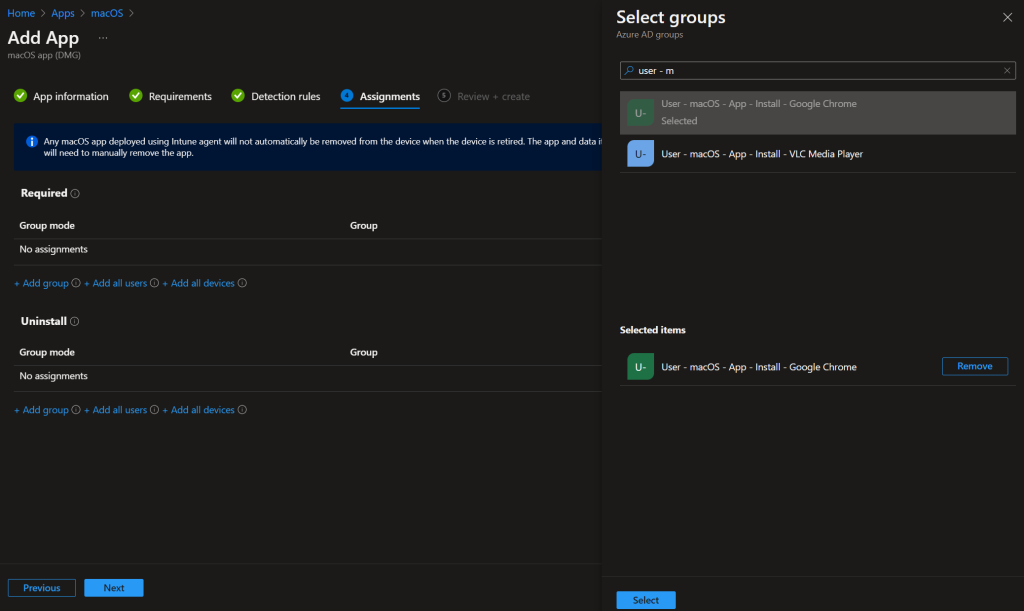
Below: assigning the app to an Azure AD group.
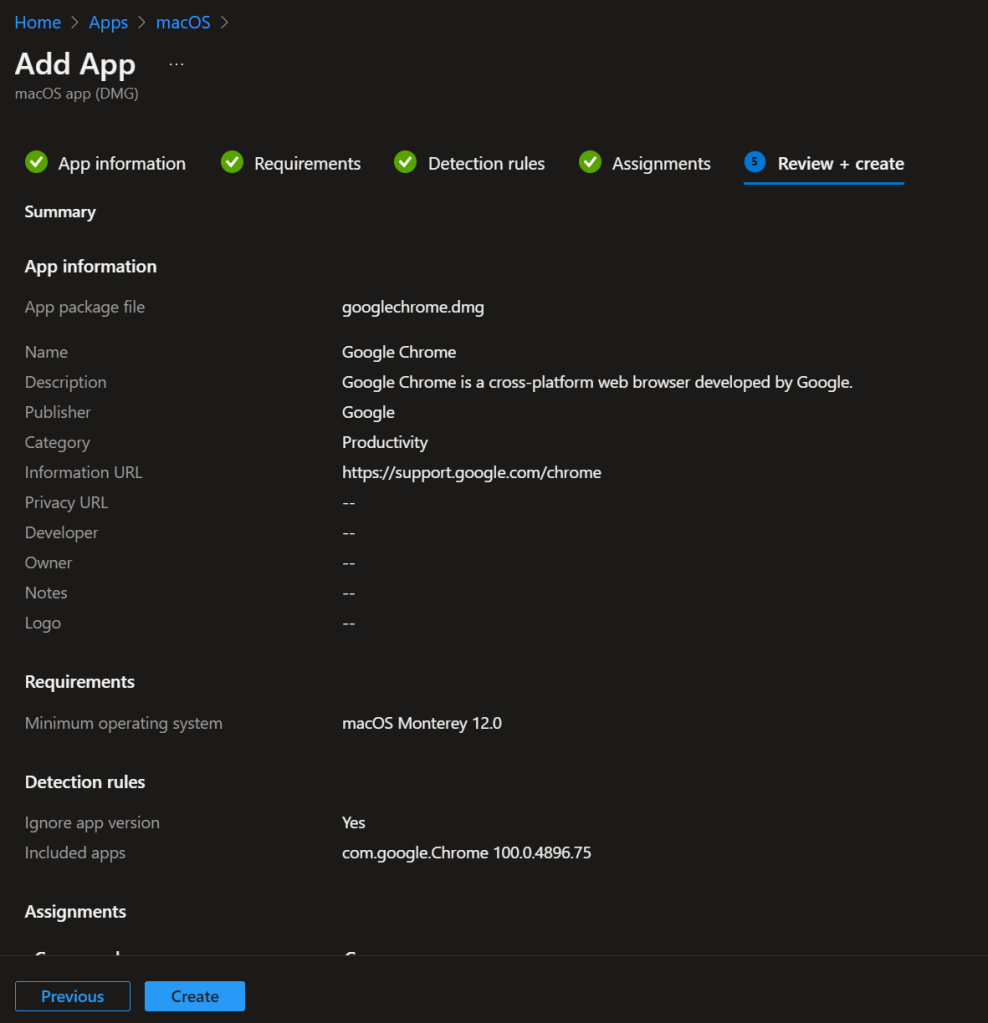
The screenshot shows review and create app.
Verify Installation
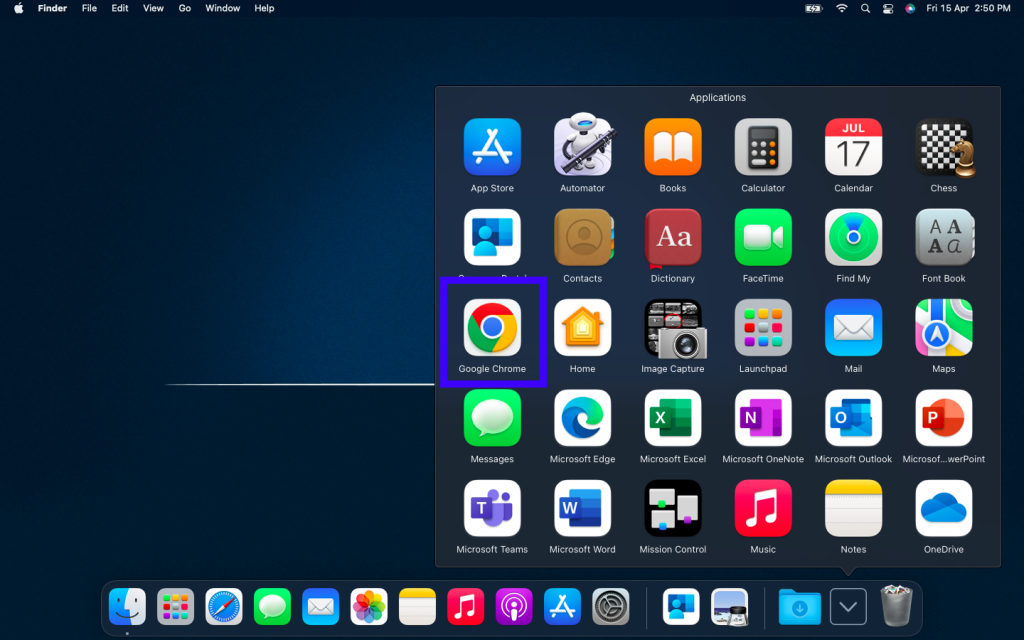
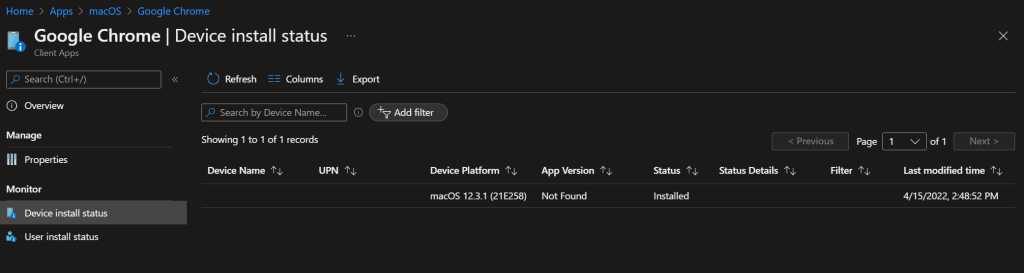
After the next sync, assigned macOS devices will receive the app and Intune will install it from the DMG. You can check Device status (or User status) for the app in Intune to see install success or failure. On the device, confirm the app is present and launches. If installation fails, confirm the bundle ID and version match the Info.plist exactly (including case), that the DMG structure is supported by Intune, and review the documentation for known issues and size limits.
Below: app installation on the macOS device and verifying install status in Intune.
Summary
To deploy a DMG app to Intune managed macOS devices: (1) Obtain CFBundleIdentifier and CFBundleShortVersionString from the app’s Info.plist. On a Mac by mounting the DMG and opening the .app’s Contents/Info.plist (or using defaults read), or on Windows by extracting the plist from the DMG (e.g. with 7-Zip) and reading the values. Copy them exactly; they are case sensitive. (2) In Intune, go to Apps → macOS → Add → macOS app (DMG), upload the DMG, fill in app information and minimum OS, then set App bundle ID and App version to those values. Set Ignore app version to Yes if the app self-updates and you want to avoid version drift. (3) Assign the app as Required (or Uninstall) to the right groups. (4) Verify install in Intune and on the device. DMG apps support only Required and Uninstall assignments; check Microsoft docs for current limits and known issues.