Microsoft Edge (Chromium) is the default browser on Windows and is available on macOS as well. In Microsoft Intune, you can deploy Edge to both platforms without downloading or wrapping installers. Edge is offered as a built-in app type, similar to Microsoft 365 apps. After deployment, you manage settings with Administrative Templates and Security Baselines on Windows, and with a Settings Catalog or preference-file profile on macOS. This post covers adding and assigning the Edge app on Windows and macOS, then configuring policies and baselines so you get a consistent, secure browser experience across devices.
Deploy Edge on Windows
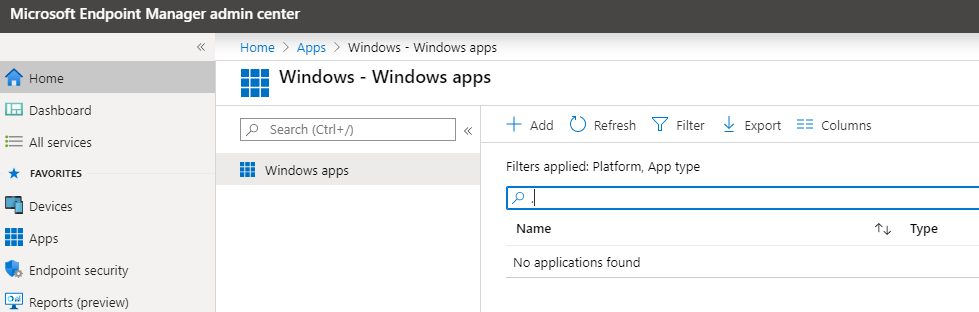
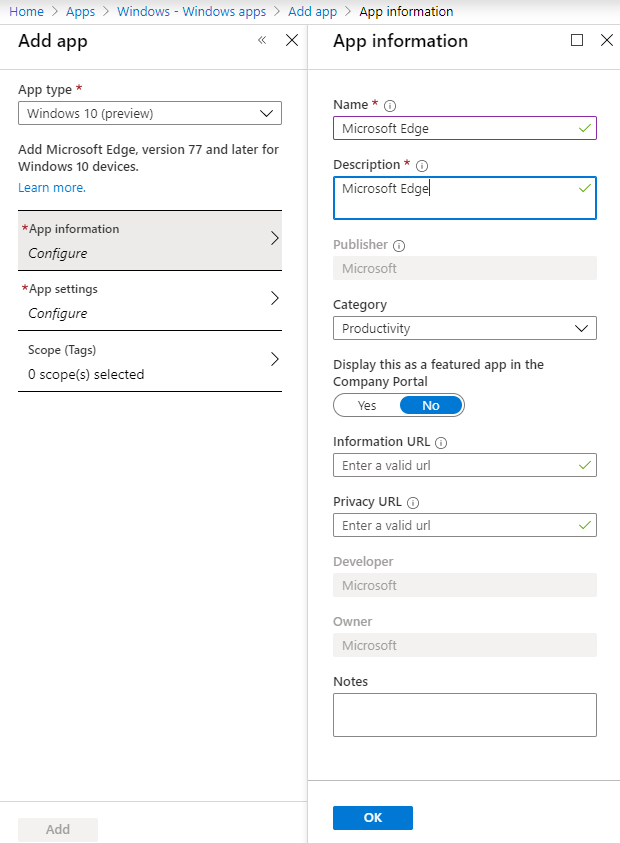
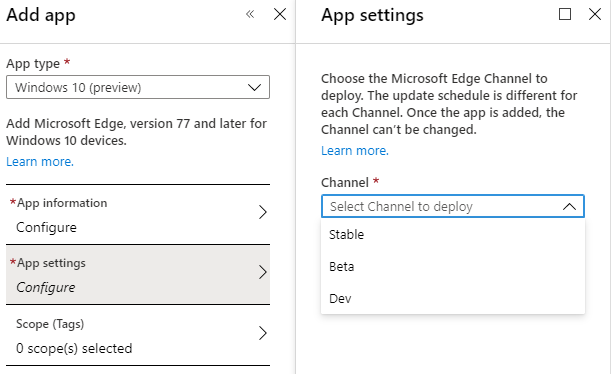
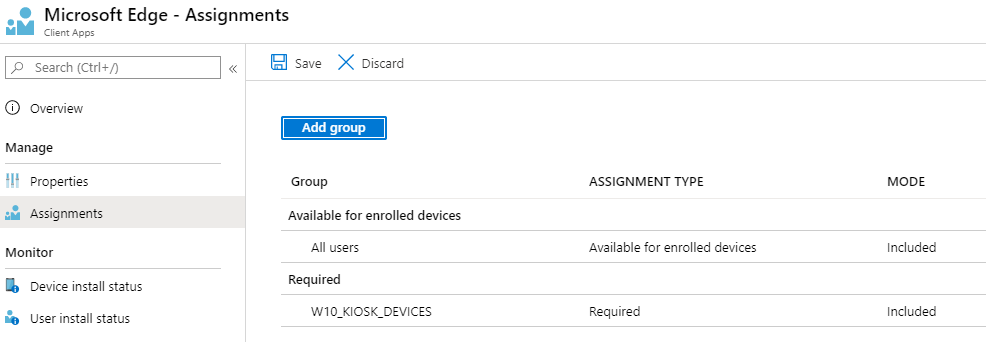
In the Microsoft Intune admin center, go to Apps → Windows → All apps and choose Add. Under App type, select Windows 10 and pick Microsoft Edge from the list. Click Select. On App information, set a name (e.g. “Microsoft Edge”) and an optional description, then click Next. On App settings, choose the Channel you want (Stable, Beta, or Dev). Click Next, configure Assignments (e.g. Required for all devices or Available for users), then complete the wizard and Add the app. Intune will deploy Edge from Microsoft; no installer packaging is required.
Below: adding the Microsoft Edge app for Windows 10 from the Apps list.
The screenshot shows the App information step where you set the app name and description.
Below: the App settings step where you select the Edge channel (Stable, Beta, or Dev).
The following screenshot shows assigning the Edge app to users or device groups (Required or Available).
Deploy Edge on macOS
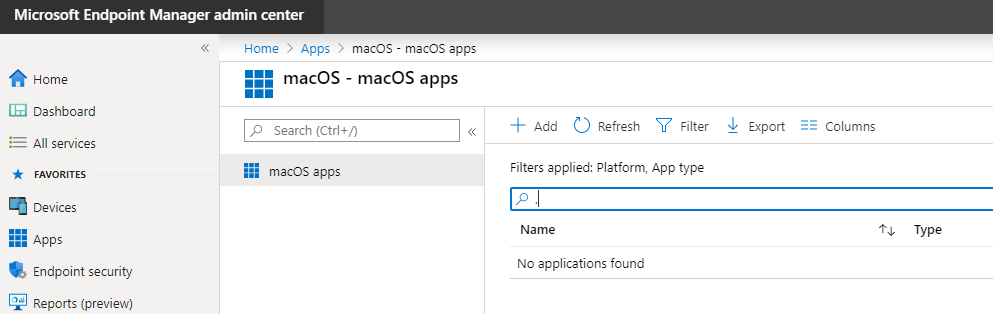
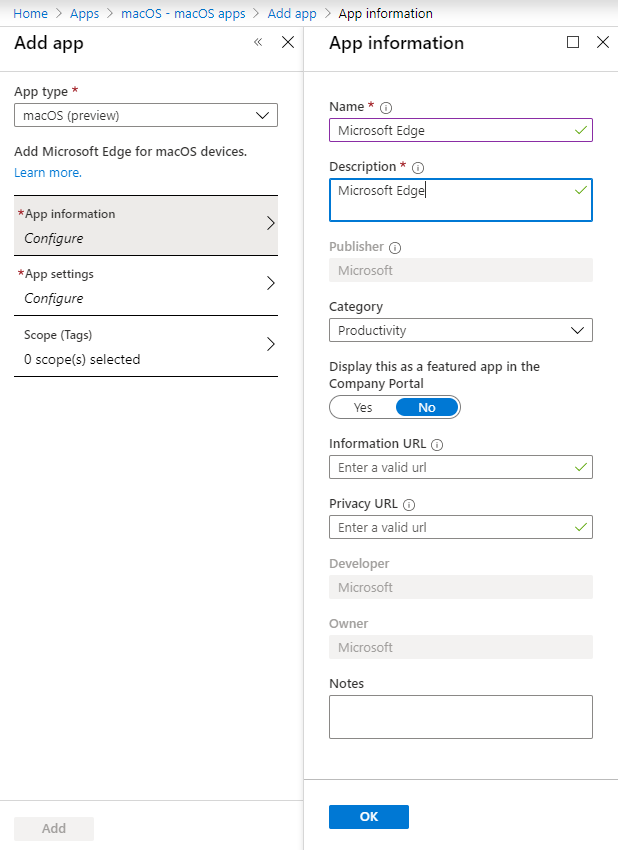
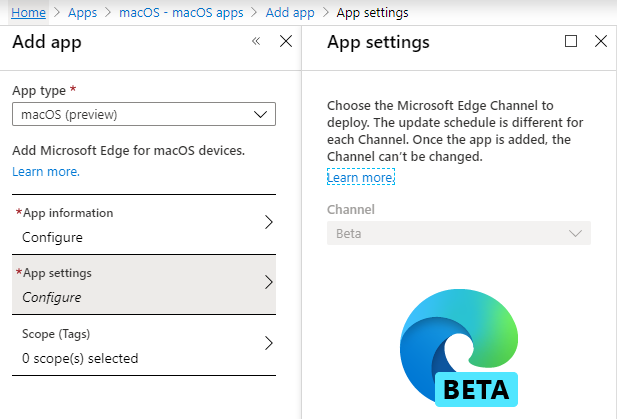
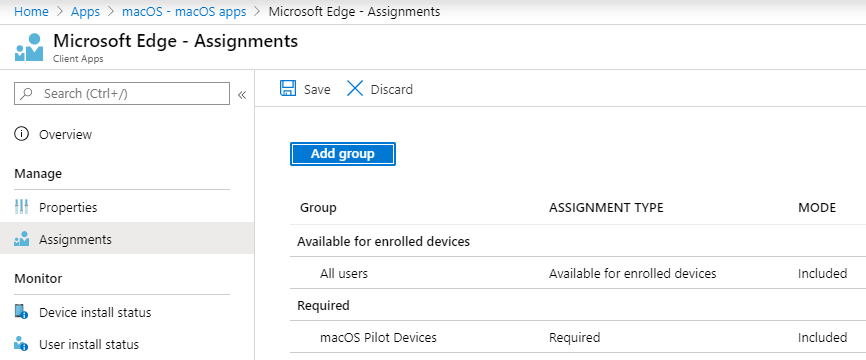
Edge is also available as a built-in app type for macOS. Go to Apps → macOS → All apps and choose Add. Select macOS and Microsoft Edge, then click Select. On App information, set a name and optional description and click Next. On App settings, choose the channel (e.g. Beta or Stable, depending on what’s offered). Click Next, set Assignments, and complete the wizard. Edge will be deployed to the assigned macOS groups without a custom package.
Below: adding the Microsoft Edge app for macOS from the Apps list.
The screenshot shows App information and App settings for the macOS Edge app (e.g. channel selection).
Below: assigning the macOS Edge app to user or device groups.
Manage Edge on Windows: Administrative Templates
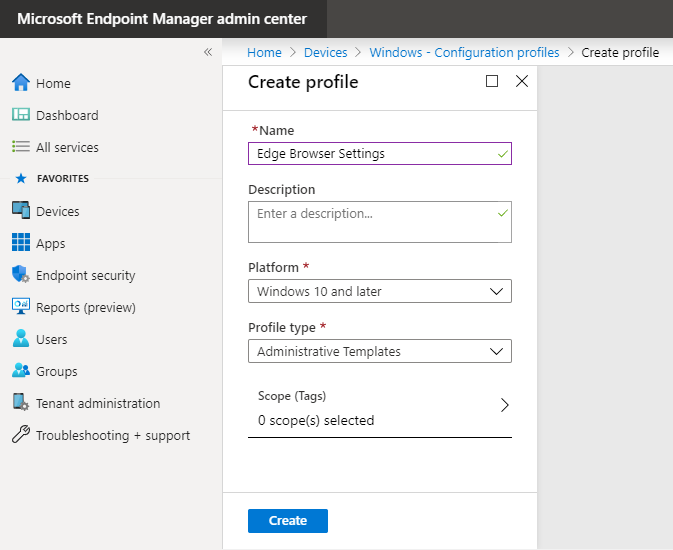
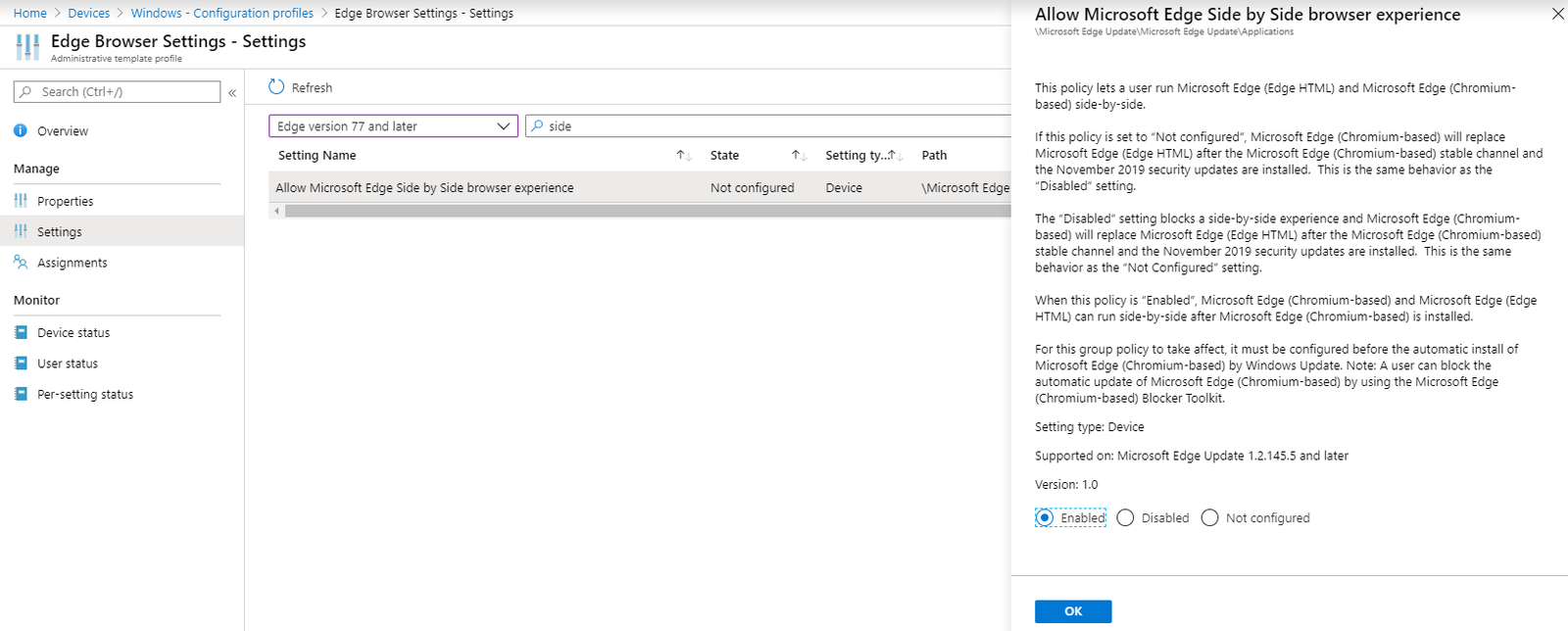
To control Edge behaviour on Windows, use an Administrative Templates configuration profile. Go to Devices → Windows → Configuration profiles and choose Create → New policy. Set Platform to Windows 10 and later and Profile type to Administrative templates, then click Create. On Basics, give the profile a name (e.g. “Edge – Policies”) and an optional description. Open the Settings tab. In the template list, select Microsoft Edge (e.g. Edge version 77 and later). Search or browse for the settings you need. E.g. homepage URL, new-tab page, side-by-side with legacy Edge, or hundreds of other options. Open each setting, set it to Enabled or Disabled (and any options), and click OK. Assign the profile to your Windows device or user groups.
Below: creating an Administrative Templates profile for Windows with Platform Windows 10 and later.
The screenshot shows the Settings tab with Microsoft Edge (version 77 and later) selected in the template list.
Below: configuring a specific Edge setting (e.g. Allow Microsoft Edge Side by Side browser experience) with Enabled/Disabled and options.
The following screenshot shows assigning the Administrative Templates profile to a security group.
Manage Edge on Windows: Security Baseline
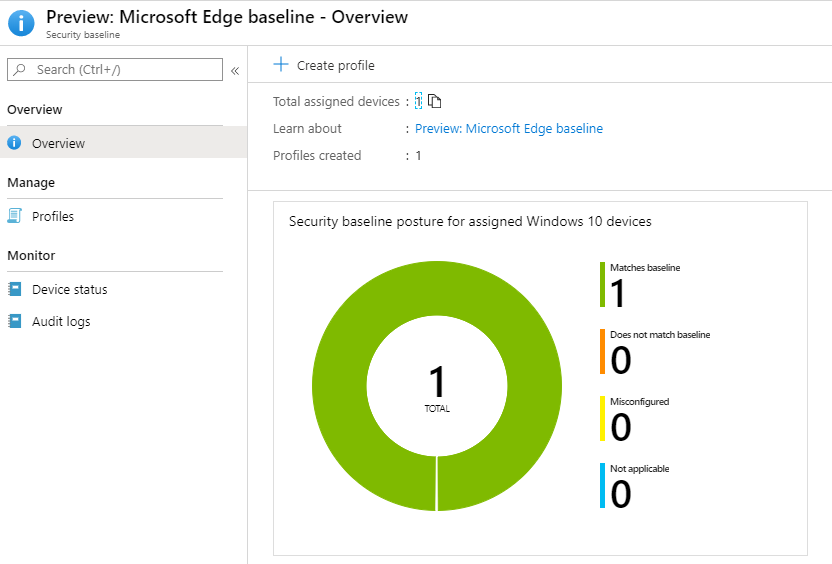
Intune includes Security Baselines for Windows, Microsoft Defender, and Microsoft Edge. The Edge baseline contains Microsoft-recommended security settings for the browser. Go to Devices → Windows → Security baselines and select Microsoft Edge baseline. Open Profiles and choose Create profile. Give the profile a name and optional description, note the platform and baseline version, and click Next. On Configuration settings, review the baseline settings. You can accept defaults or change individual values. Click Next, set Scope tags if needed, then Assignments. Assign the baseline to the device or user groups that should receive it. Review and Create. The baseline will apply alongside your Administrative Templates; resolve any conflicts per your organisation’s policy.
Below: accessing the Microsoft Edge security baseline under Devices → Windows → Security baselines.
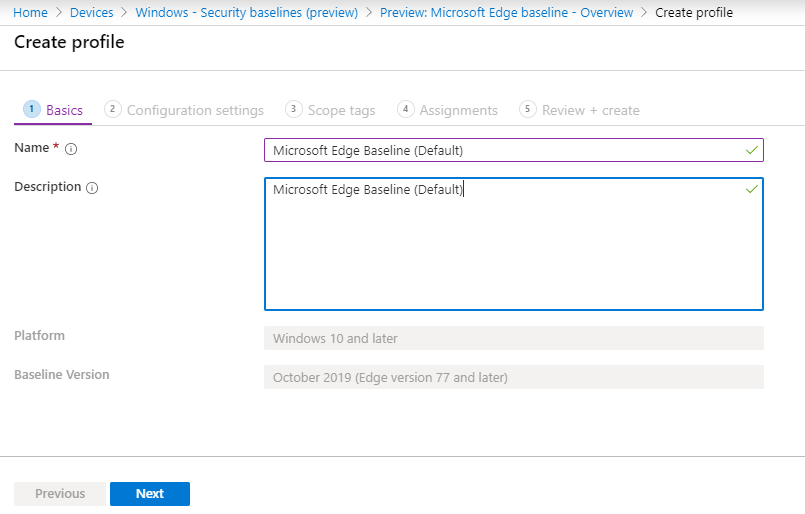
The screenshot shows creating a new profile for the Edge security baseline.
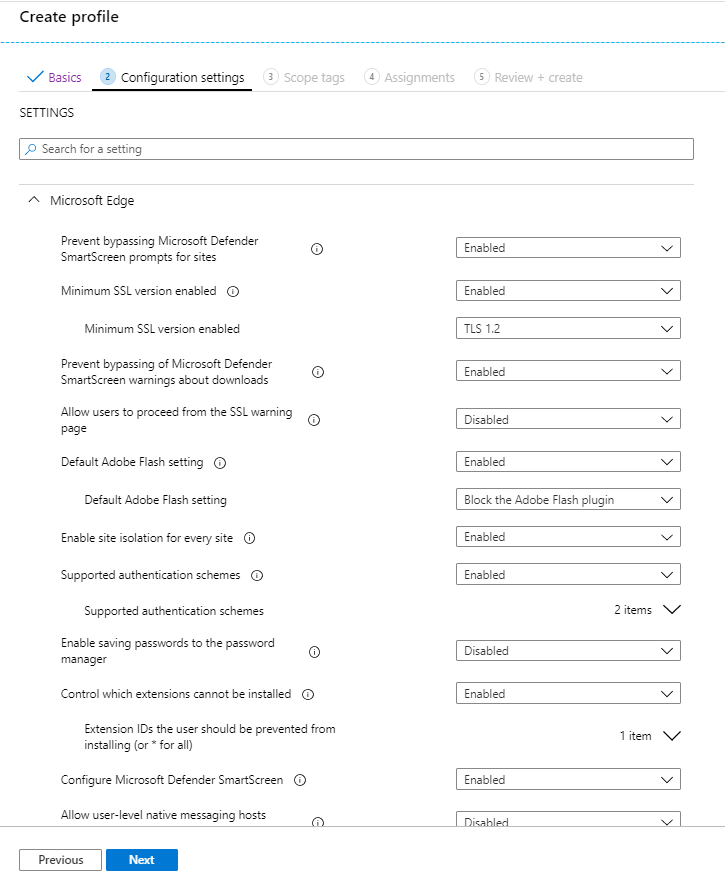
Below: the Configuration settings step where you review or override baseline values.
The following screenshot shows the review step before creating the security baseline profile.
Below: assigning the Edge security baseline to a device or user group.
Manage Edge on macOS
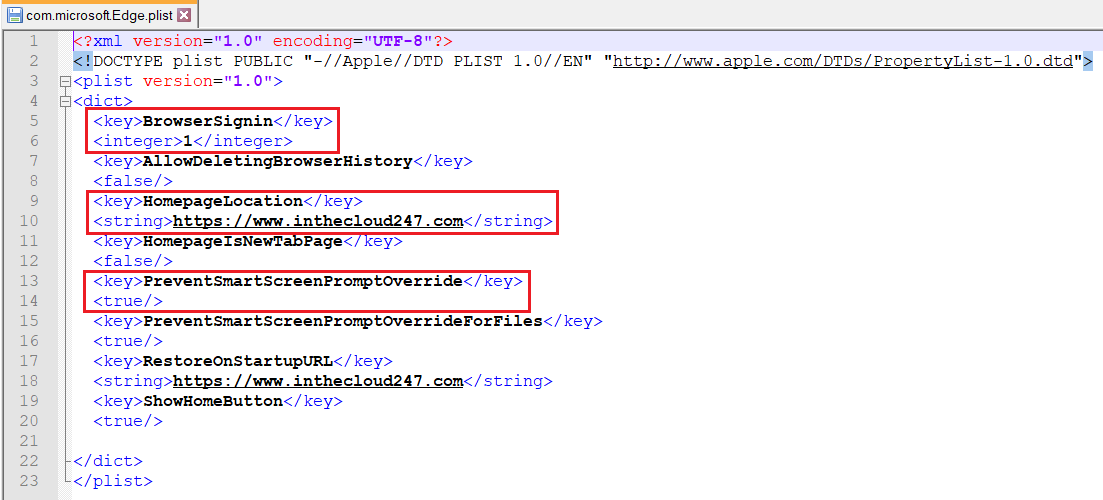
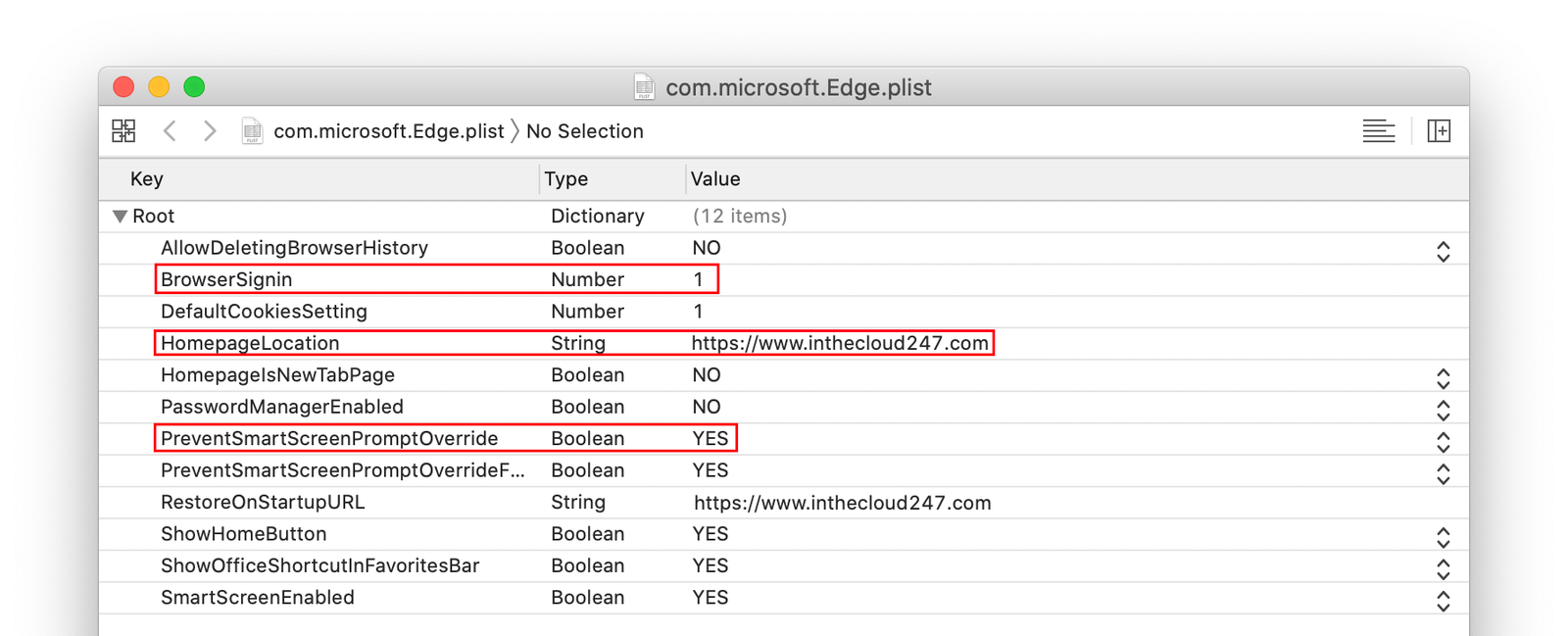
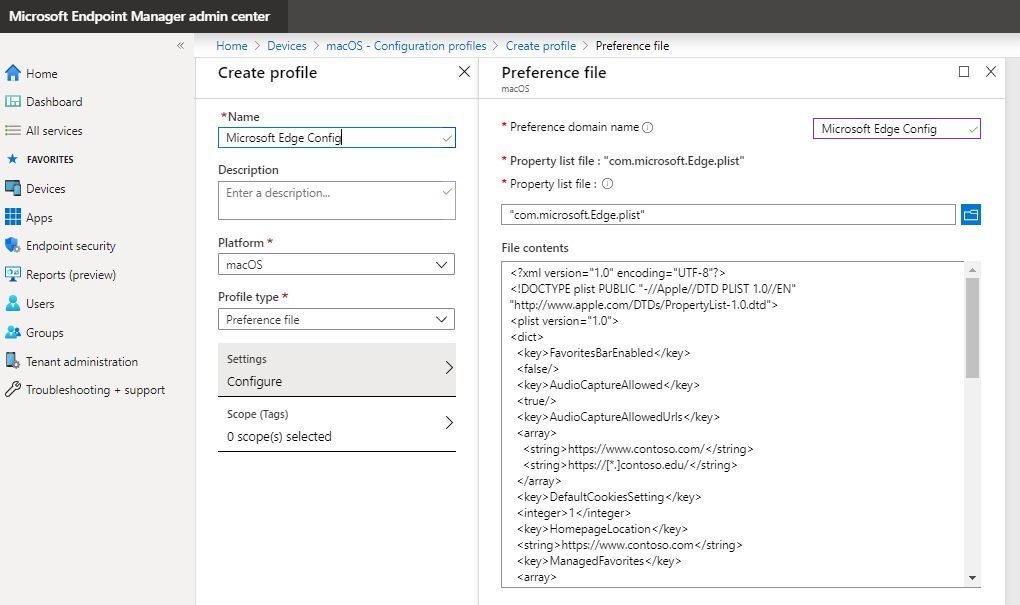
On macOS, Edge settings can be managed in two ways. The recommended approach is the Settings Catalog profile: you pick Edge settings from a visual Settings Picker in Intune (Devices → macOS → Configuration profiles → Create profile → Settings catalog) and deploy them without editing files. Alternatively, you can use a Preference list (plist) profile: you create a property list file with the desired Edge policies (e.g. in a text editor on Windows or Xcode on a Mac), convert it to a .mobileconfig using a tool such as mcxToProfile, and deploy it as a custom configuration profile. The Settings Catalog avoids manual plist creation and conversion and is the preferred method for most organisations.
Summary
To deploy Microsoft Edge Chromium with Intune: add the built-in Edge app under Apps → Windows or Apps → macOS, set name and channel, assign to groups, and Add. No installer packaging is required. To manage Edge on Windows: use an Administrative Templates profile (Devices → Windows → Configuration profiles) for granular settings (homepage, new tab, side-by-side, etc.) and optionally the Microsoft Edge Security Baseline (Devices → Windows → Security baselines) for recommended security. Assign both to your Windows groups. On macOS, use a Settings Catalog profile for Edge settings (recommended) or a plist-based preference list profile if you need a custom file. Together, deployment and policy management give you a consistent, secure Edge experience across Windows and macOS.