The Intune Company Portal is where users enroll devices, install apps, and get help. Applying your organization’s name, logo, colors, and support information makes the portal feel like part of your environment and can improve trust and adoption. This guide walks through where to configure Company Portal customization in Intune and what options are available.
Where to Configure Company Portal Customization
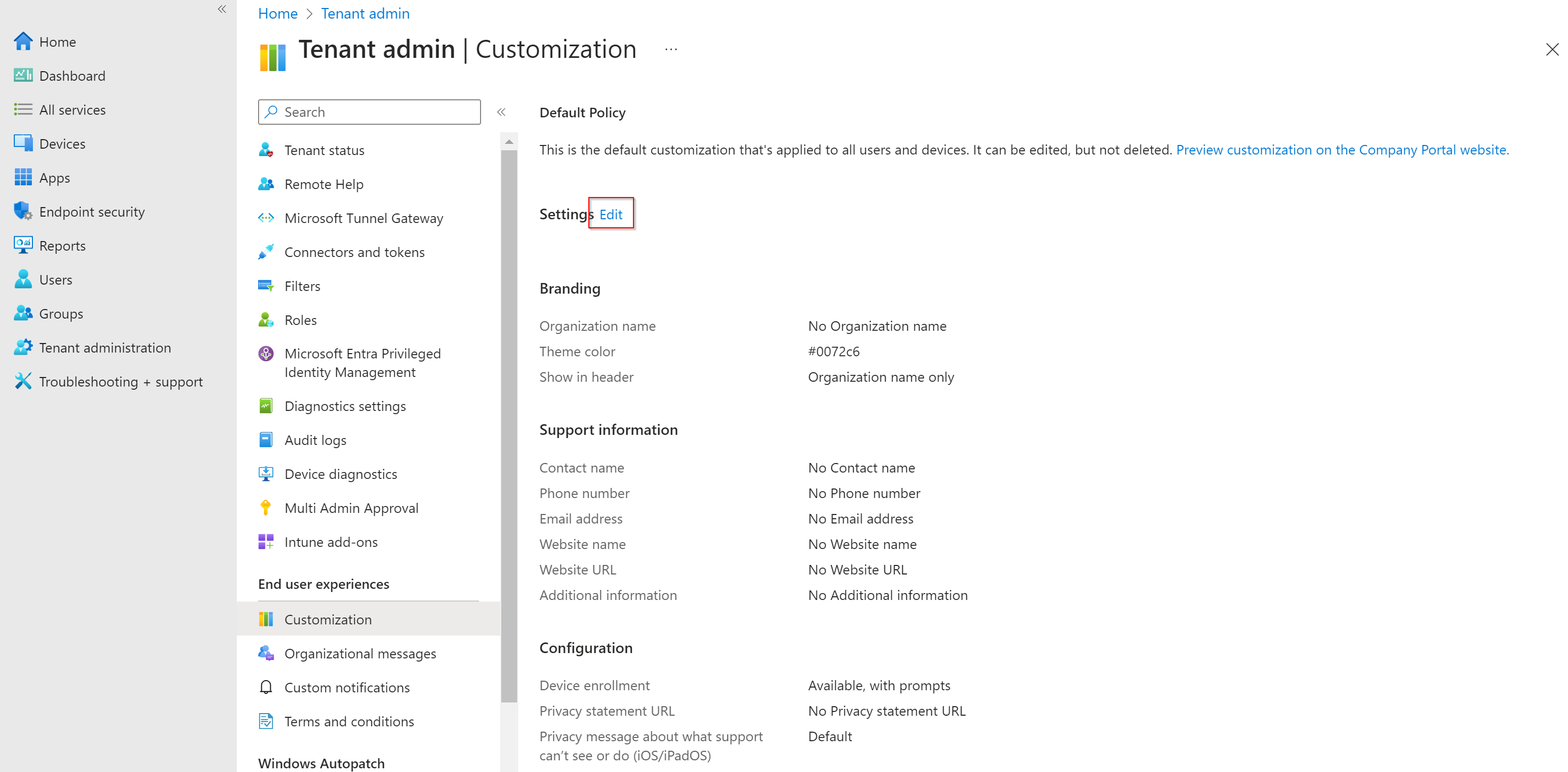
In the Microsoft Intune admin center, go to Tenant administration → Customization. Open the Settings tab and click Edit to change branding and support details. You need Intune admin (or equivalent) permissions to edit these settings.
Visual Branding
These settings control how your organization appears in the Company Portal on Windows, iOS, Android, and the web.
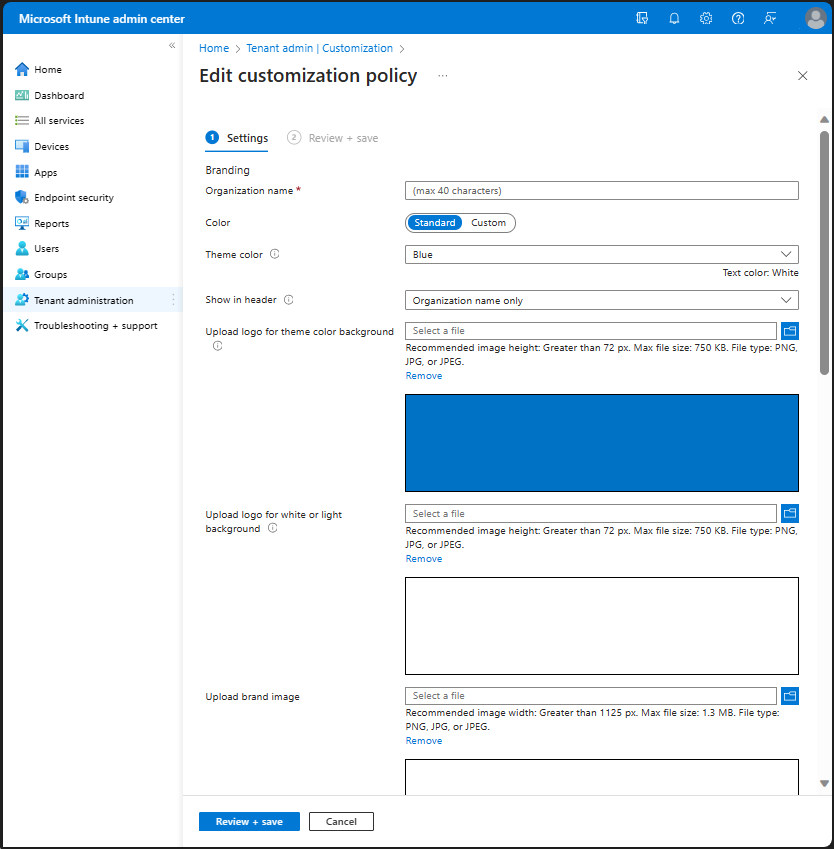
Organization name and header
Set the Organization name (e.g. your company name, up to 40 characters). This appears in notifications, headers, and other places in the portal. You can choose whether the name appears in the header next to the logo, or only the logo, or only the name.
Theme color
Pick a theme color so the portal matches your brand. You can choose from predefined colors or enter a custom hex code. Intune adjusts text color (black or white) for contrast on the theme color. Use a hex value that meets your brand guidelines and remains readable.
Logos
Upload two logo variants:
- Logo for theme color background . Shown on your theme color (e.g. in the header). Use a PNG with transparent background; recommended height greater than 72 px, max 750 KB.
- Logo for white or light background . Shown on light backgrounds so the logo stays visible when the theme color is not used. Same format and size limits.
Supported formats are PNG, JPG, and JPEG.
Brand image
The brand image is a larger image used as a background on user profile pages in the Company Portal (Windows, iOS, web) and in the Android Intune app. Recommended width greater than 1125 px, max 1.3 MB, PNG or JPG. This gives a consistent branded look across platforms.
Support Information
Configure how users reach IT support. This appears on help and support pages in the Company Portal.
- Contact name . Name or team (e.g. “IT Help Desk”), up to 40 characters.
- Phone number . Support phone, up to 20 characters (include extension if needed).
- Email address . Support email, up to 40 characters, valid format.
- Website name . Display name for your support site, up to 40 characters.
- Website URL . Full URL (must start with
https://), up to 150 characters. - Additional information . Short message (e.g. hours, special instructions), up to 120 characters.
Privacy and Enrollment Options
Privacy statement URL . Link to your organization’s privacy policy (https, required). Shown so users can see how their data is handled.
Enrollment options . Control how prominently enrollment is shown: show prompts in multiple places, show enrollment only in device/app details, or hide enrollment. Choose based on whether you want to encourage self-service enrollment or limit it.
Device category . If you use device categories in Intune, you can allow or block the category selection prompt when users sign into the Company Portal. Once a user selects a category, the prompt does not show again.
iOS/iPadOS privacy messages . Custom text (up to 520 characters each) explaining what your organization can and cannot see on managed iOS/iPadOS devices. Markdown is supported for formatting and links.
App Visibility and Device Actions
You can control which app sources appear in the Company Portal (e.g. Microsoft Entra enterprise apps, Office Online, Configuration Manager apps). You can also control whether users see Remove and Reset for corporate devices on Windows and iOS/iPadOS. Hiding these actions reduces the risk of accidental removal or reset while still allowing management where needed.
Saving and Verifying
After editing, click Review + Save to apply. Changes usually take effect within about 15–30 minutes; in some cases it can take longer. Test the Company Portal on Windows, iOS, Android, and the web to confirm logos, colors, and support info look correct. If you do not see updates after an hour, try signing out and back in or clearing the browser cache.
Wrap-up
You can customize the Intune Company Portal from Tenant administration → Customization → Edit. Set the organization name, theme color, logos, and brand image for a consistent look; add support contact, website, and privacy URL; and adjust enrollment, device category, app visibility, and self-service device actions as needed. Keeping branding and support details up to date helps users trust the portal and find help when they need it.





