Microsoft Defender SmartScreen in Microsoft Edge (Chromium) helps protect users from phishing and malicious downloads. Since Edge 80.0.338.0, an option to block potentially unwanted applications (PUA) is available. So Edge can block downloads that are not necessarily malware but are often unwanted (e.g. adware, bundlers). Enabling SmartScreen and the PUA block via Microsoft Intune gives you consistent protection across managed devices. You can also prevent users from bypassing SmartScreen warnings so they cannot keep risky downloads or ignore site warnings. This post walks through configuring these settings using an Administrative Templates profile in Intune.
Create an Administrative Templates Profile
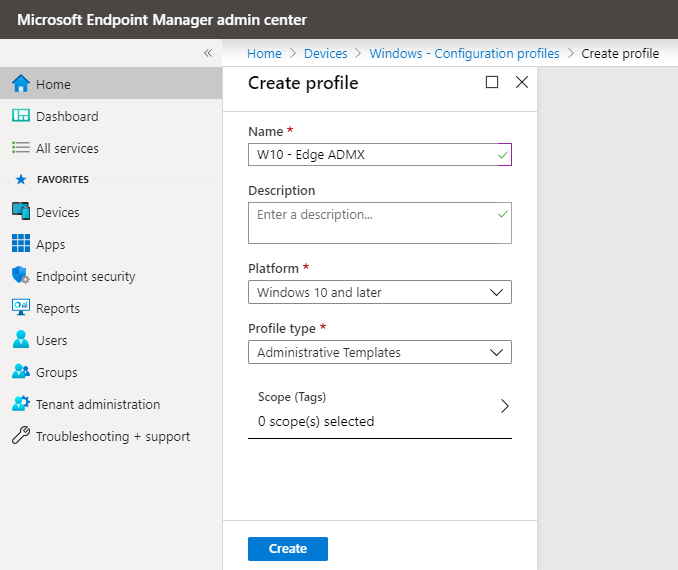
In the Microsoft Intune admin center, go to Devices → Windows → Configuration profiles and choose Create → New policy. Select Windows 10 and later as platform and Templates → Administrative templates, then click Create. On Basics, give the profile a name (e.g. “Edge – SmartScreen and block PUA”) and an optional description. Open the Settings tab to add the SmartScreen policies.
Below: creating an Administrative Templates profile in Intune (Devices → Windows → Configuration → Create → New policy).
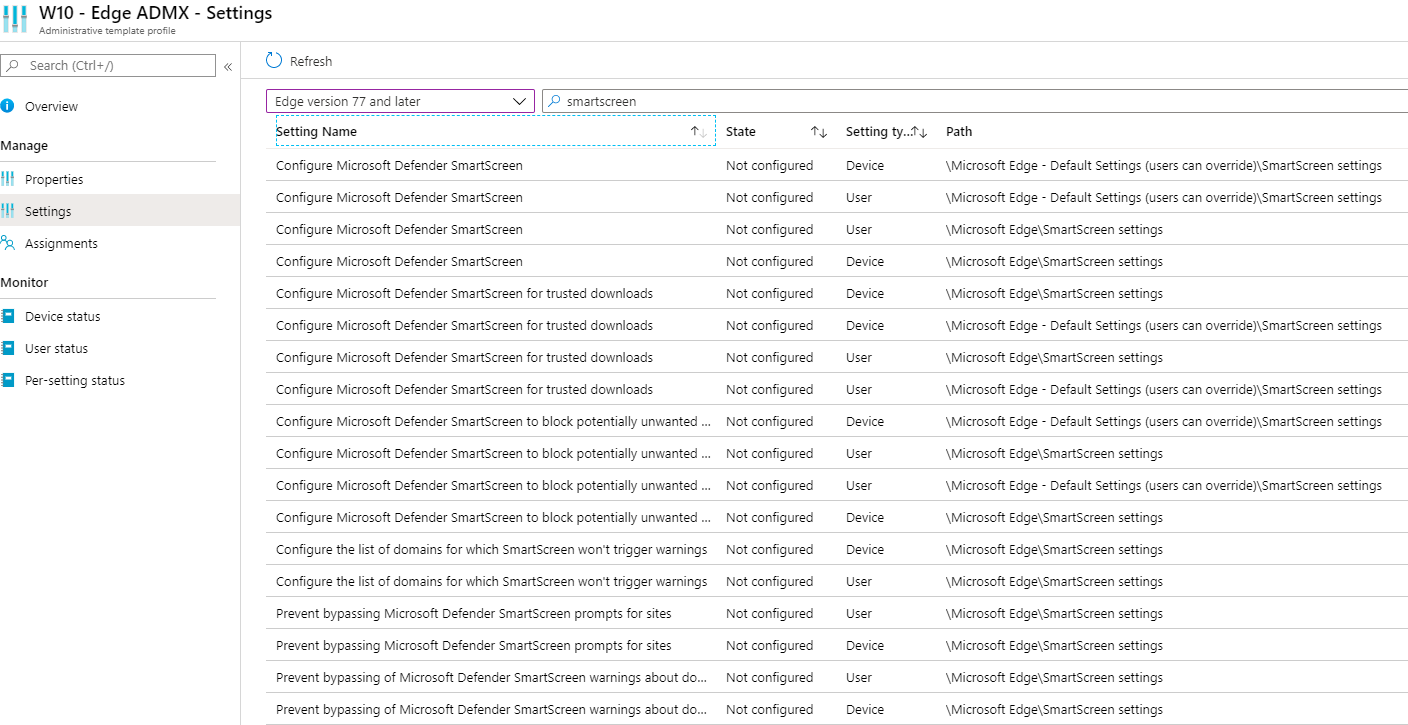
The screenshot shows the Settings tab in the configuration profile.
Configure SmartScreen Settings
In the Settings tab, choose Microsoft Edge (e.g. Edge version 77 and later) from the profile list. Search for SmartScreen to see all related policies. Add and configure the following:
- Configure Microsoft Defender SmartScreen . Set to Enabled so SmartScreen is on for sites and downloads.
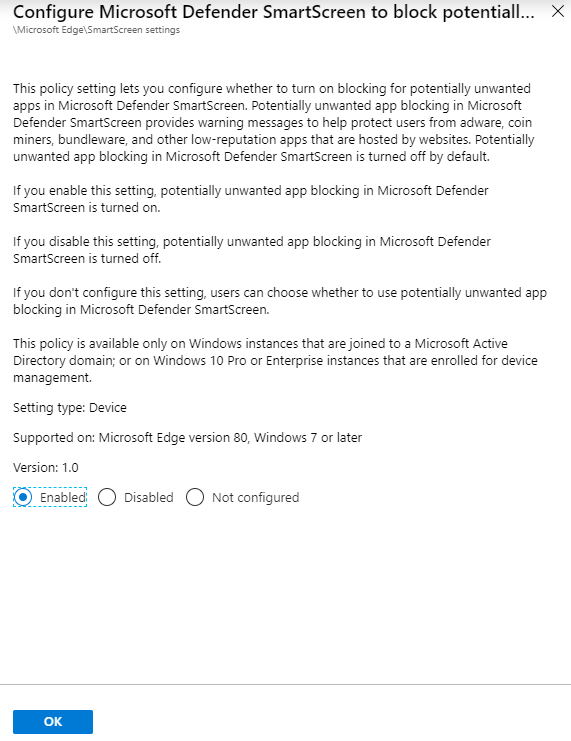
- Configure Microsoft Defender SmartScreen to block potentially unwanted apps . Set to Enabled so Edge blocks PUA downloads. If you leave this disabled or not configured, users can turn the PUA block on or off in Edge settings.
- Prevent bypassing of Microsoft Defender SmartScreen warnings about downloads . Set to Enabled so users cannot choose “Keep anyway” (or equivalent) when SmartScreen flags a download. This keeps risky files from being saved despite the warning.
- Prevent bypassing Microsoft Defender SmartScreen prompts for sites . Set to Enabled so users cannot bypass SmartScreen warnings for suspicious or malicious sites.
Save each setting after configuring. Enabling “prevent bypassing” for both downloads and sites gives you the strongest control; adjust per your organisation’s risk tolerance.
Below: the setting “Configure Microsoft Defender SmartScreen to block potentially unwanted apps” set to Enabled.
The screenshot shows “Prevent bypassing of Microsoft Defender SmartScreen warnings about downloads” set to Enabled.
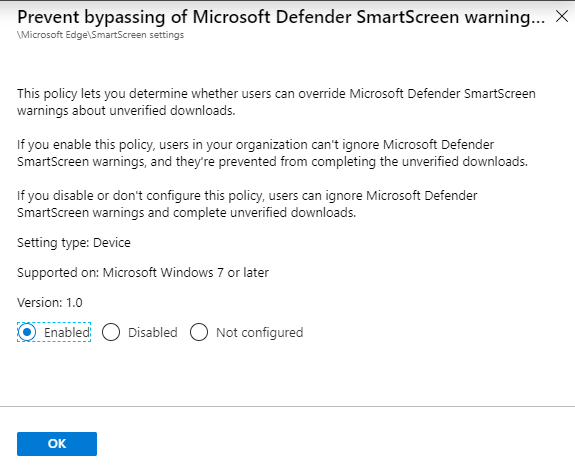
Below: enabling the Prevent bypassing setting.
The following screenshot shows additional SmartScreen settings (Configure SmartScreen and Prevent bypassing for sites).
Assign the Profile
After configuring all SmartScreen settings, go to Assignments and assign the profile to the user or device groups that use Microsoft Edge (e.g. all Windows devices or a pilot group). Save and the profile will apply at the next sync. Managed settings appear in Edge with a briefcase icon to indicate they are controlled by the organisation.
What Users See
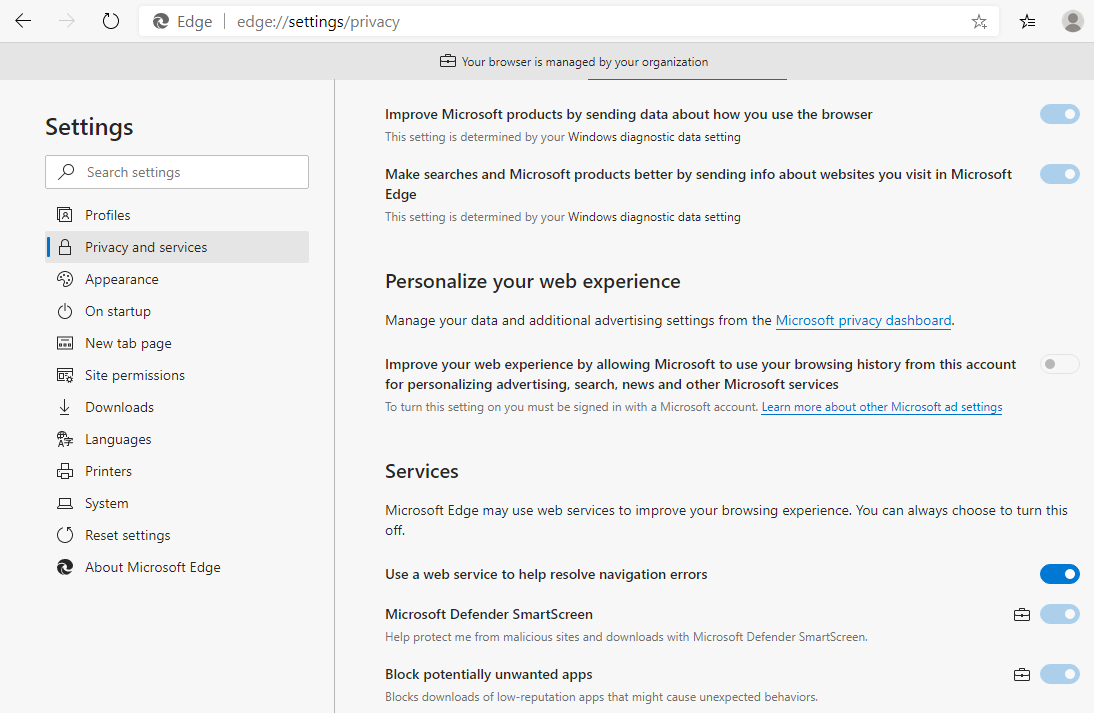
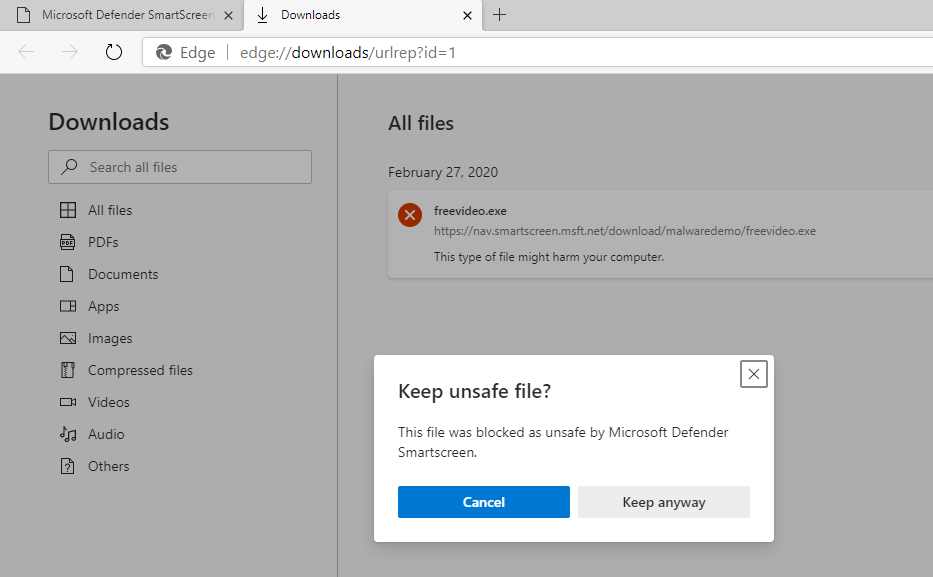
In Microsoft Edge, open Settings → Privacy, search, and services. Under Security, you will see Microsoft Defender SmartScreen and Block potentially unwanted apps. When the profile is applied, these are on and show a briefcase icon (organisation-managed). Users cannot turn them off. If a download is blocked as unsafe or as PUA, the user sees a message that the download was blocked. If you enabled Prevent bypassing of Microsoft Defender SmartScreen warnings about downloads, the option to keep the file (e.g. via the three-dots menu) is greyed out. If you did not enable that policy, users can still choose to keep the file despite the warning.
Below: Microsoft Edge settings showing SmartScreen and Block potentially unwanted apps enabled, with the briefcase icon indicating organisation management.
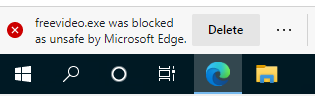
The screenshot shows the download blocked message when a file is blocked as unsafe or PUA.
Testing
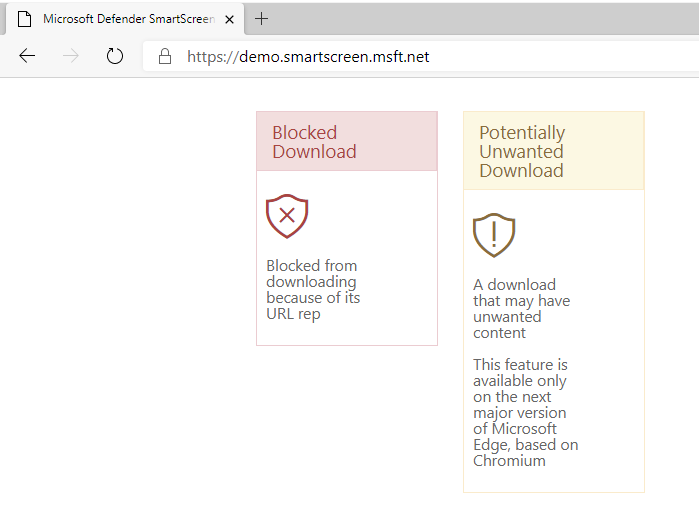
You can test SmartScreen using Microsoft’s demo page: https://demo.smartscreen.msft.net/. Use the Blocked Download option to verify that downloads are blocked and that the “keep file” option is unavailable when the prevent-bypass policy is enabled.
Summary
To configure Microsoft Defender SmartScreen to block potentially unwanted apps with Microsoft Intune: create an Administrative Templates configuration profile (Devices → Windows → Configuration → Create → Administrative templates). In the profile, enable Configure Microsoft Defender SmartScreen, Configure Microsoft Defender SmartScreen to block potentially unwanted apps, Prevent bypassing of Microsoft Defender SmartScreen warnings about downloads, and Prevent bypassing Microsoft Defender SmartScreen prompts for sites. Assign the profile to your Windows device or user groups. Once applied, Edge will use SmartScreen and block PUA; users cannot bypass warnings if you enabled the prevent-bypass policies. Use the SmartScreen demo site to verify behaviour.





