Windows Defender runs scheduled quick scans to catch threats. When a device is off, in sleep, or hibernating at the scheduled time, that scan is skipped. A catch-up quick scan runs automatically the next time the device is active. So you don’t end up with long gaps between scans on laptops and remote machines that are often powered down.
The Disable Catchup Quick Scan setting in Microsoft Defender controls this behavior. In Microsoft Intune, you can deploy it via a Settings catalog profile so that catch-up scans are either enabled (to close security gaps) or disabled (to avoid a surprise scan right after login on performance-sensitive devices). This post shows how to configure it so catch-up runs and you stop missing vulnerabilities.
Overview: catch-up quick scan runs when a scheduled scan was missed (e.g. device was off).
When Does a Catch-up Scan Run?
Defender considers a scheduled quick scan “missed” if the device was off, asleep, or hibernating at the configured time. If catch-up is enabled, after two consecutive missed scheduled scans, Defender starts a quick scan the next time the device powers on or resumes. That way, field laptops or machines that are rarely on at 2:00 AM still get a quick scan soon after they’re used again. If you disable catch-up, no such scan runs. Which can reduce unexpected CPU/disk use at login but leaves a longer gap between scans on often-off devices.
Enable vs Disable in Intune
The Intune setting is named Disable Catchup Quick Scan. So:
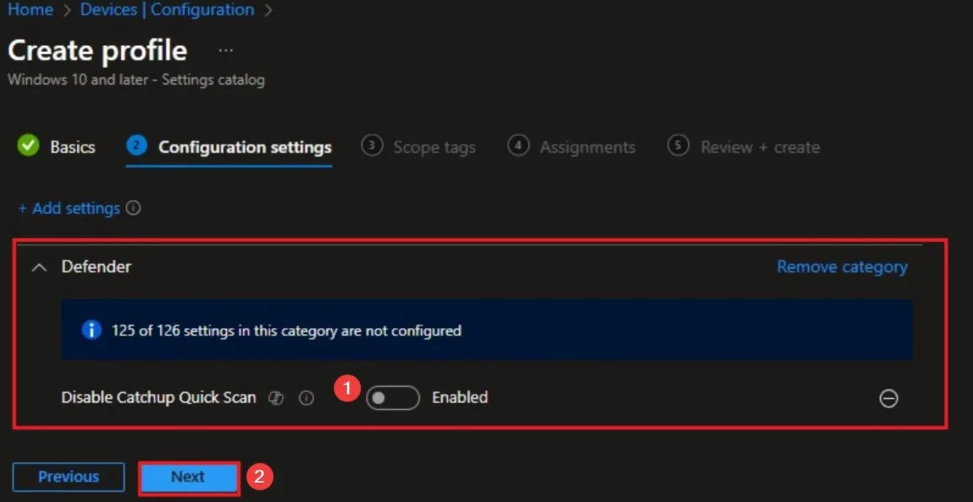
- Disable Catchup Quick Scan = Enabled → Catch-up quick scans are off. Missed scans are not run later. Use this if you prefer no automatic scan at startup/resume (e.g. on high-performance or shared workstations).
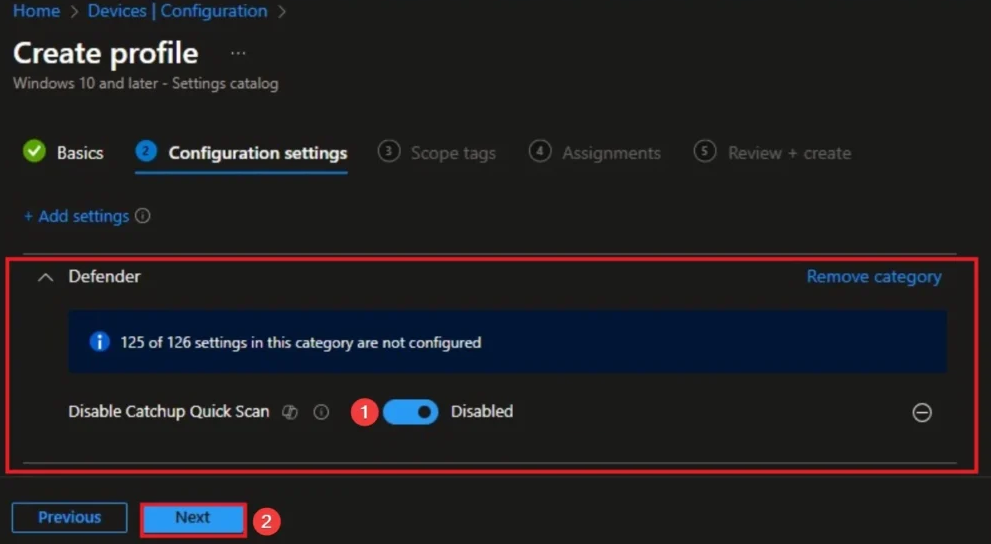
- Disable Catchup Quick Scan = Disabled → Catch-up quick scans are on. After two consecutive missed scans, a quick scan runs at next power-on/resume. Use this to keep a consistent security baseline and stop missing vulnerabilities on devices that are frequently off.
To stop missing vulnerabilities, set Disable Catchup Quick Scan to Disabled so catch-up runs.
Create a Configuration Profile
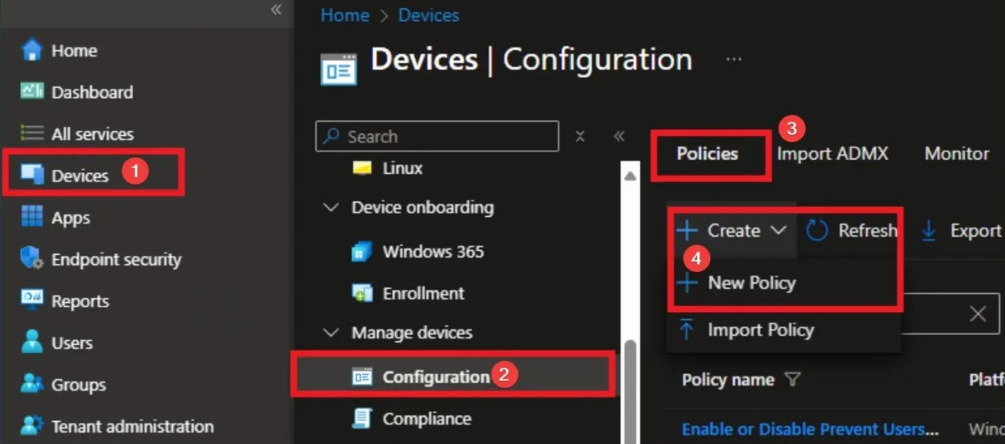
In the Microsoft Intune admin center, go to Devices → Configuration → Policies. Click Create → New policy.
Choose Platform and Profile Type
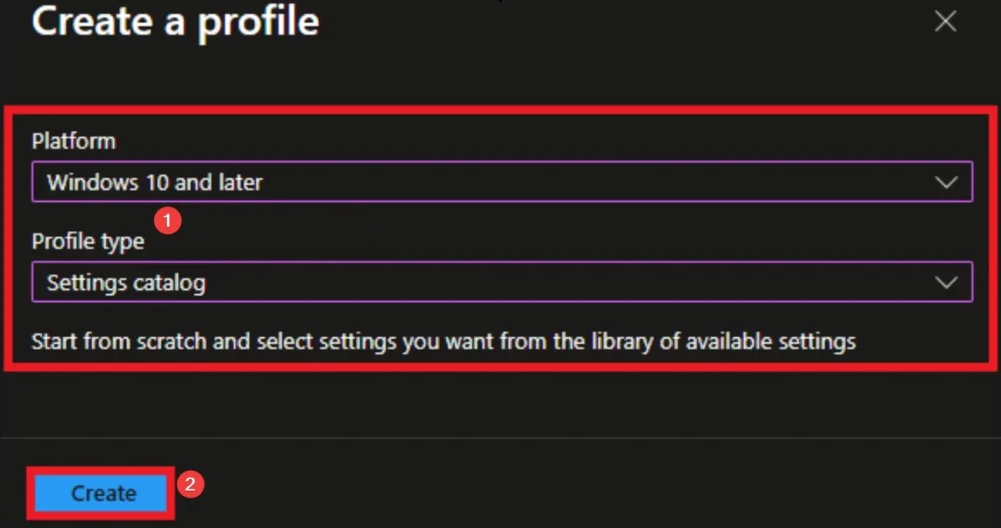
Select Windows 10 and later as the platform and Settings catalog as the profile type. Click Create to open the wizard.
Basics: Name and Description
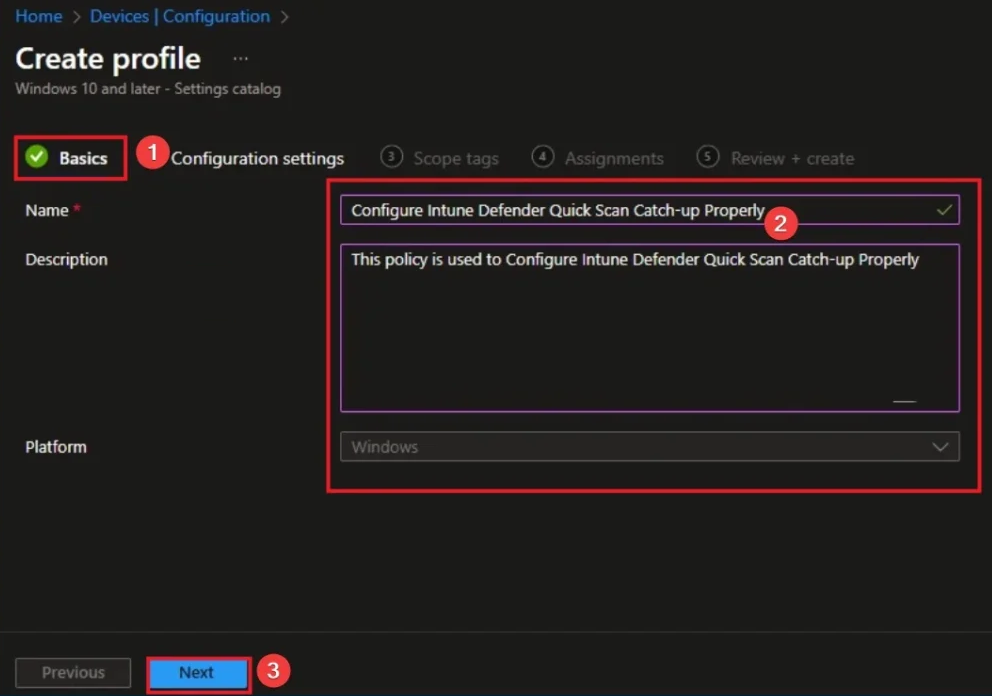
On Basics, enter a name (e.g. “Defender Catch-up Quick Scan – Enabled”) and an optional description so other admins know the profile turns on catch-up scans to reduce missed vulnerabilities. Click Next.
Add the Disable Catchup Quick Scan Setting
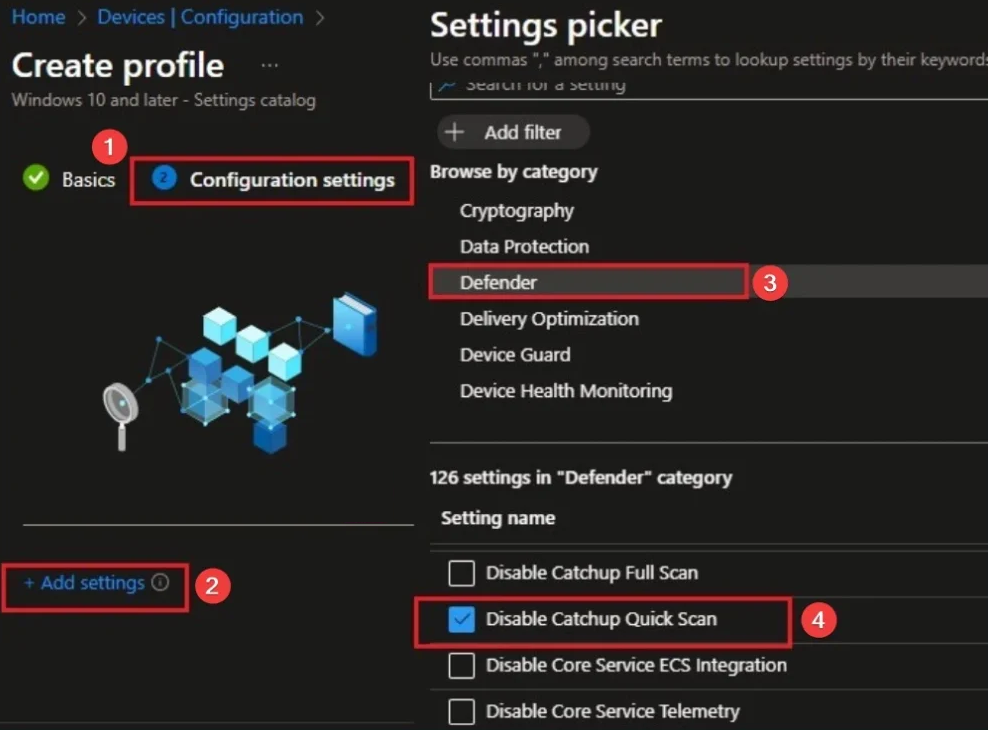
On Configuration settings, click Add settings. In the settings picker, browse by Category, open Defender, and find Disable Catchup Quick Scan (or the equivalent “Allow users to proceed” / catch-up option in your tenant). Add it to the profile.
Adding the Defender Disable Catchup Quick Scan setting from the Settings catalog.
Set the Value to Enable Catch-up
To enable catch-up quick scans (so missed scans are run later), set Disable Catchup Quick Scan to Disabled. The default in Windows is often “Enabled” (catch-up off); changing it to Disabled turns catch-up on. If a computer misses two scheduled quick scans in a row, a catch-up quick scan will run the next time it powers on or resumes from sleep or hibernation. If no scheduled quick scan is configured, no catch-up scan runs. Click Next.
Scope Tags and Assignments
On Scope tags, add tags if your organization uses them; otherwise leave default and click Next. On Assignments, add the groups that should receive this profile. For example all Windows devices, or only laptops and remote devices that are often off. Click Next.
Review and Create
On Review + create, confirm the name, the Disable Catchup Quick Scan value (Disabled = catch-up on), scope tags, and assignments. Click Create to save. The profile will deploy to assigned devices on their next sync.
Verify Deployment
Under Devices → Configuration, open the profile and check per-device status (Succeeded, Error, Conflict, etc.). To test sooner, trigger a sync from the Company Portal on a device. On the device, you can confirm behavior in Event Viewer under Applications and Services Logs → Microsoft → Windows → Windows Defender (or the current Defender/Operational path) to see scan events, including catch-up quick scans. Once applied, devices that miss two scheduled quick scans will run a catch-up quick scan at next power-on or resume, helping you stop missing vulnerabilities without manually rescheduling scans.
Summary
Configure Defender catch-up quick scans in Intune with a Settings catalog profile: add the Disable Catchup Quick Scan setting and set it to Disabled so catch-up runs after two consecutive missed scheduled quick scans. Assign the profile to the right groups, create, and verify in Configuration status and Event Viewer. That way laptops and often-off devices stay within a consistent security baseline and you reduce gaps where vulnerabilities could go undetected.