Windows Defender Antivirus runs a scheduled scan to catch threats that real-time protection might miss. The Schedule Scan Time setting tells Defender exactly when that scan should start. Expressed as the number of minutes past midnight (00:00) in the device’s local time. Configuring this value in Microsoft Intune lets you move the scan to off-peak hours so it doesn’t slow down machines during the workday and reduces “my PC is slow” help desk calls.
This walkthrough uses the Settings catalog in Intune (Devices → Configuration) to create a profile that sets the Schedule Scan Time. You’ll see how to pick the right numeric value, deploy it to your Windows 10/11 devices, and confirm it’s applied.
Why Bother With Scan Time?
Defender’s weekly scan is CPU- and disk-intensive. If it runs at noon, users notice slowness, fans, and battery drain. If it runs at 2:00 AM or 6:00 AM (when most devices are idle or off), the same scan still happens. But it doesn’t compete with normal use. That improves perceived device speed and makes it easier to align scans with other maintenance (updates, backups, definition refreshes) without overloading the network or the machine.
How the Value Is Stored
The policy expects a single integer: minutes after midnight. The built-in default is 120, which is 2:00 AM (2 × 60 = 120). Examples:
- 0 . Midnight
- 120 . 2:00 AM (default)
- 360 . 6:00 AM (good for devices that power on before the workday)
- 1380 . 11:00 PM
Use (hour × 60) + minute. For 6:00 AM: (6 × 60) + 0 = 360. Pick a time when devices are usually on but idle, or when they’re off so the scan runs at next boot if your environment supports it.
Create a New Configuration Profile
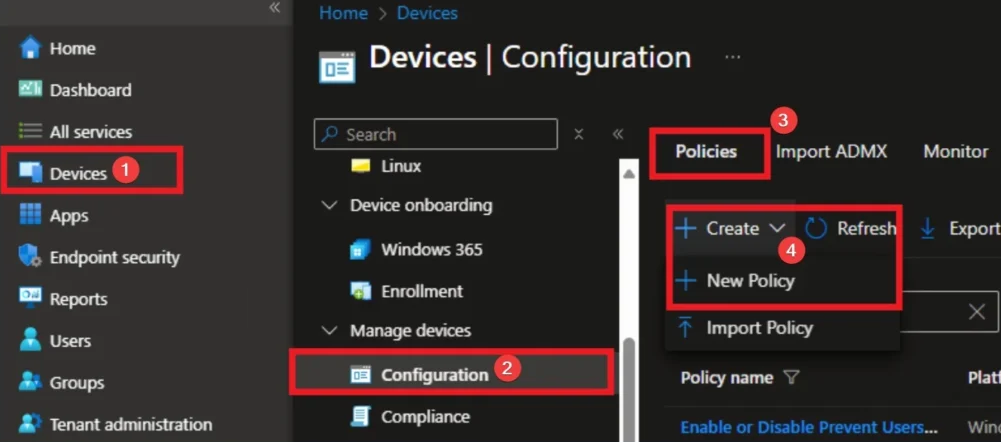
In the Microsoft Intune admin center, go to Devices → Configuration. Click Create → New policy. You’ll choose the platform and profile type next.
Choose Platform and Profile Type
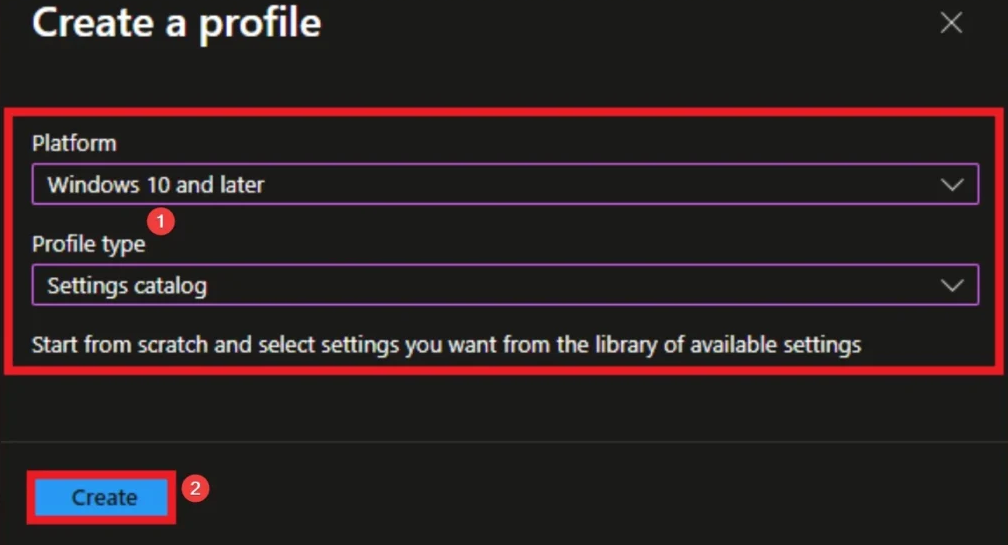
Select Windows 10 and later as the platform. For profile type, choose Settings catalog. The Settings catalog lets you pick individual settings (like Defender’s Schedule Scan Time) without using custom OMA-URI. Click Create to open the wizard.
Basics: Name and Description
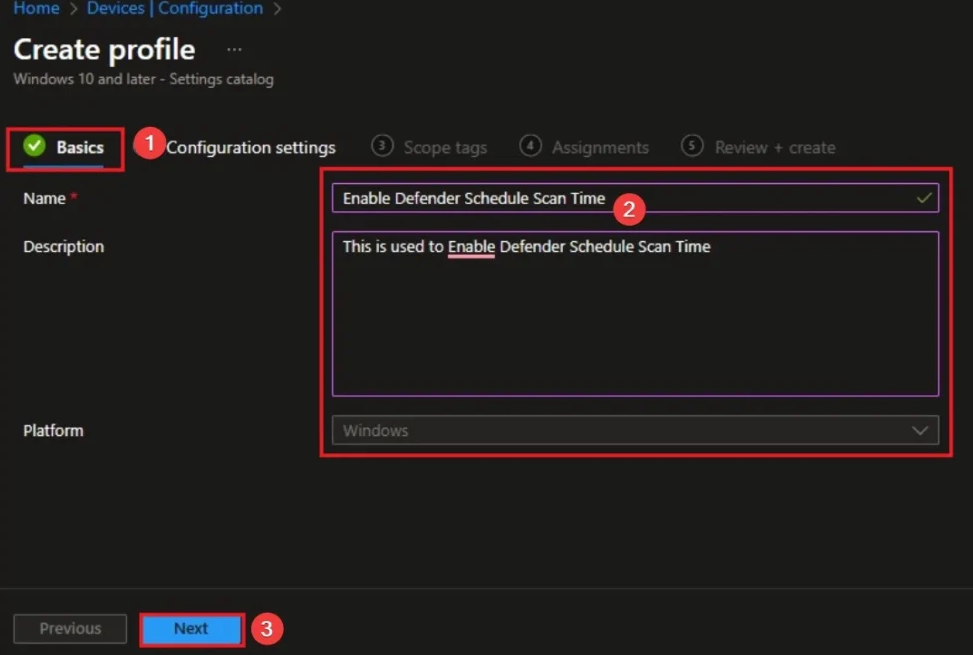
On the Basics step, give the profile a name (e.g. “Defender Schedule Scan Time – Off-Peak”) and an optional description so other admins know the purpose. Click Next.
Add the Schedule Scan Time Setting
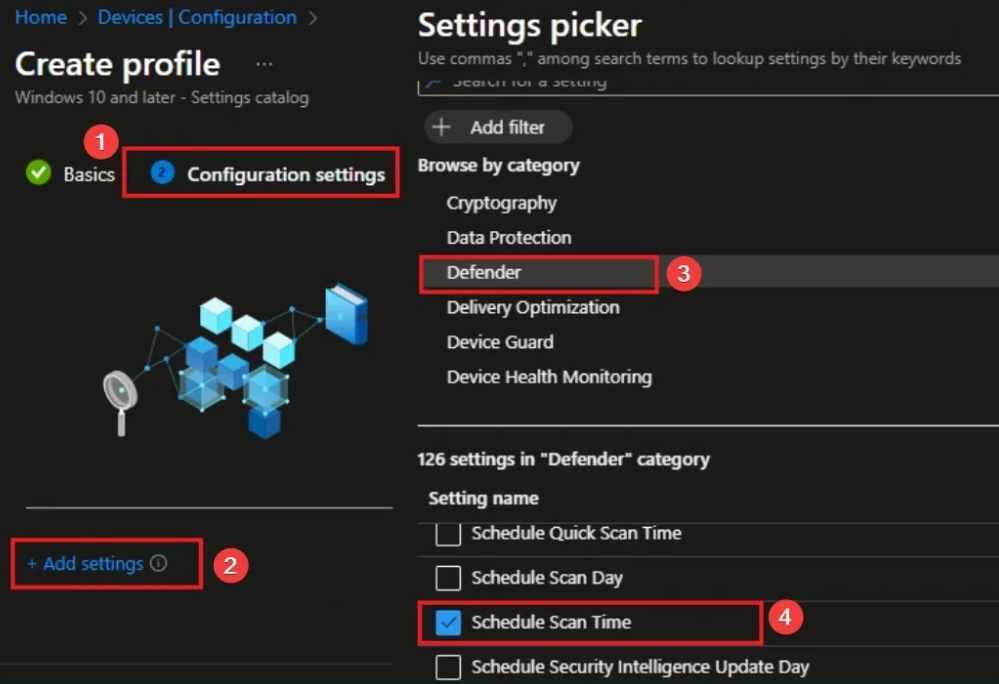
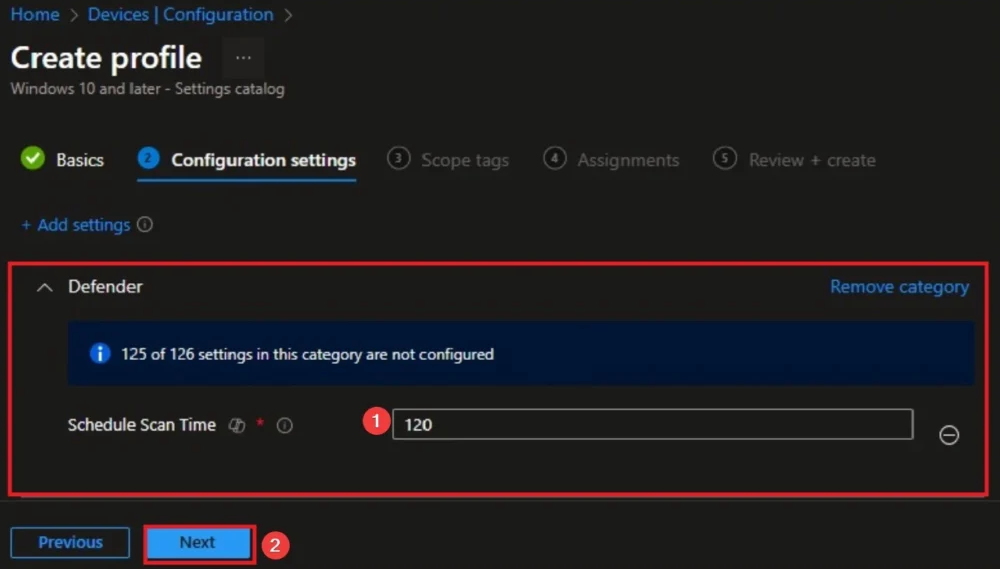
On Configuration settings, click Add settings. In the settings picker, browse by Category. Open the Defender category and locate Schedule Scan Time. Add it to the profile. You’ll get a single field: the minute-of-day value (0–1439).
Adding the Defender Schedule Scan Time setting from the Settings catalog.
Set the Scan Time Value
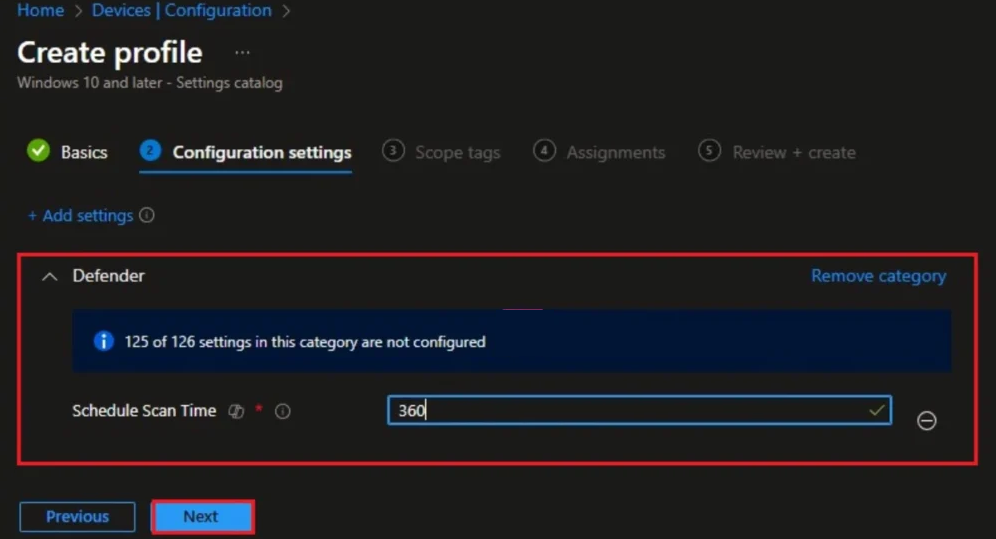
Leave 120 to keep the default 2:00 AM, or enter another value. For example, set 360 to run the scan at 6:00 AM. Useful when devices are powered on shortly before users start work so the scan finishes early. After entering the value, click Next.
Scope Tags and Assignments
On Scope tags, add tags if required by your organization; otherwise leave default and click Next. On Assignments, add the groups that should receive this profile (all Windows devices or a pilot group). Click Next.
Review and Create
On Review + create, confirm the name, Schedule Scan Time value, scope tags, and assignments. Click Create to save. The profile will deploy to assigned devices on their next sync.
Check That It Applied
Under Devices → Configuration, open the profile and check the status per device (Succeeded, Error, Conflict, etc.). To speed up testing, open the Company Portal app on a device and trigger a sync. On the device, you can confirm the scheduled time in Windows Security (Virus & threat protection → Manage settings → Schedule scan) or with Get-MpPreference in PowerShell. Once the value is applied, Defender will use it for the weekly scheduled scan, and you should see fewer performance complaints during business hours.
Summary
Use the Intune Settings catalog to set Windows Defender’s Schedule Scan Time as minutes past midnight. Create a Windows 10 and later Settings catalog profile, add the Defender Schedule Scan Time setting, enter a value like 120 (2:00 AM) or 360 (6:00 AM), assign to your groups, and create. Verify in the Configuration status and on a device. With the scan shifted to off-peak time, you keep protection while boosting perceived device speed and reducing disruption.